Chapter 7 Administrative Procedures
© 2017 Harmonic Inc. All rights reserved. 202 Harmonic MediaGrid Release 4.1
Drive Capacity Expansion in a Harmonic MediaGrid RAID System
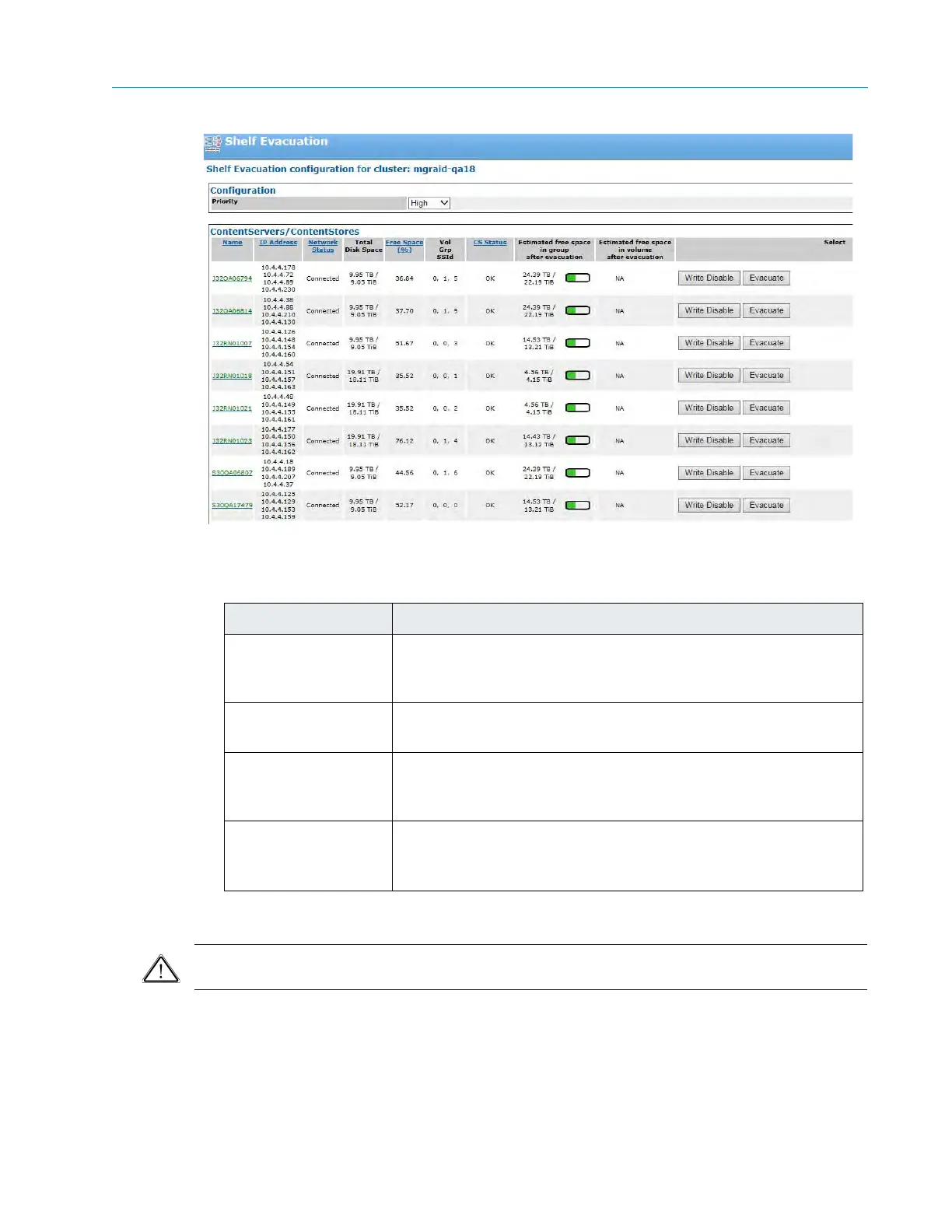
3. For the same shelf, note the “Estimated free space in group/volume after evacuation”.
The following table will help you determine if there is enough free space for evacuation:
About Setting Shelves to Read-Only Mode
CAUTION: Manually setting a ContentServer or ContentStore to read-only mode is intended to facilitate
capacity expansion ONLY. Do not set a shelf as read-only for any other purpose.
By default, Harmonic MediaGrid distributes content that has been evacuated from one shelf
equally across all remaining shelves in the volume or group. This has the advantage of
maintaining maximum possible read bandwidth. However, it increases the total amount of time
required for evacuation by moving data to the shelf that will be evacuated next.
Color Status
Green
Sufficient space is available, even if the Harmonic MediaGrid
cluster will be in use (reads or writes are taking place) during the
evacuation.
Yellow
Sufficient space is available if the Harmonic MediaGrid cluster will
have limited use during the evacuation.
Red
Sufficient space is available if the Harmonic MediaGrid cluster will
be idle (no reads or writes are taking place) during the
evacuation.
Dark Red
Insufficient space available; the
Write Disable and Evacuate
buttons are grayed out. You must free up space or add storage in
order to proceed.



 To Next Page