Chapter 6 Accessing the Harmonic MediaGrid
© 2017 Harmonic Inc. All rights reserved. 194 Harmonic MediaGrid Release 4.1
Managing File and Directory Permissions
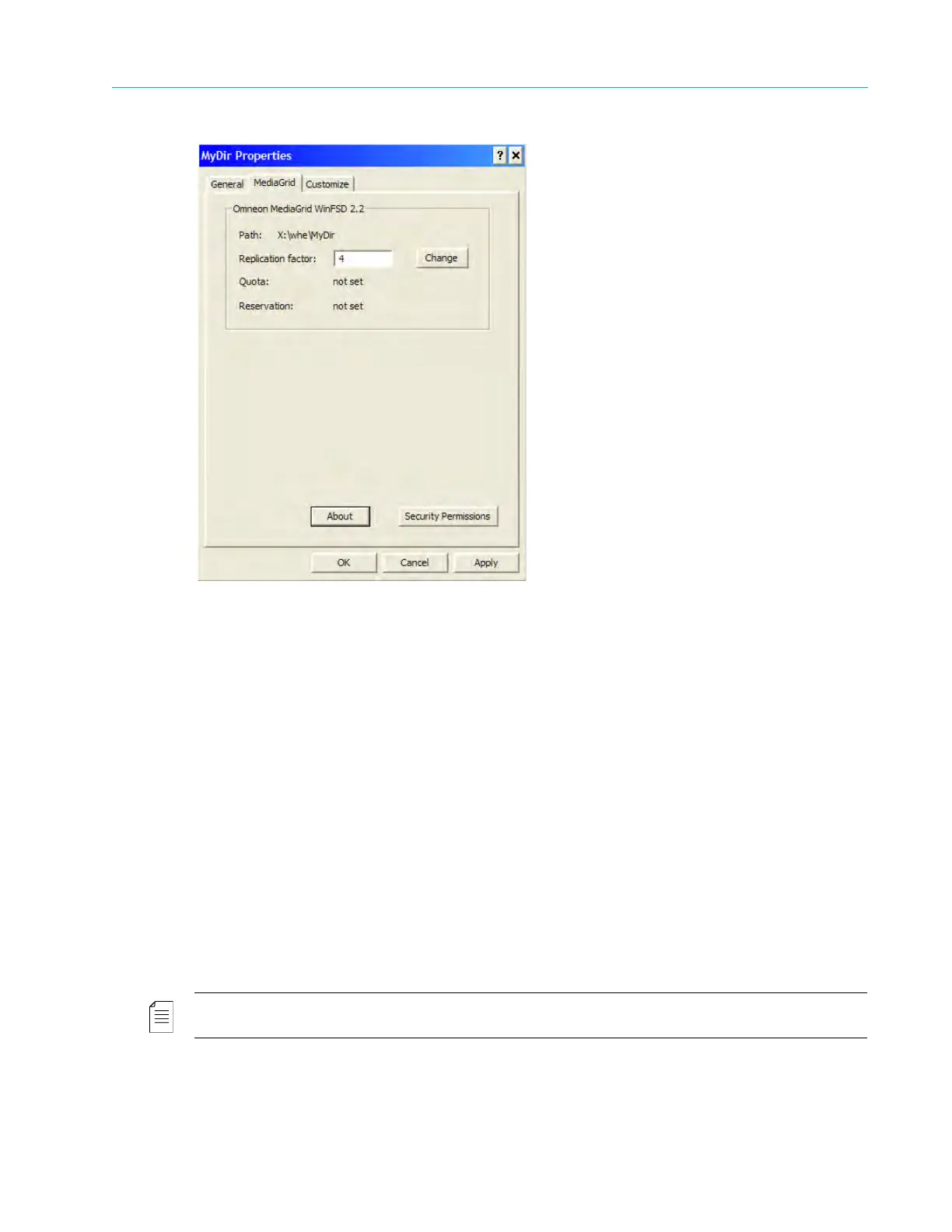
Figure 6–10: MyDir Properties
3. Click the MediaGrid tab, which shows the following information, depending on what is
selected:
The version of the Harmonic MediaGrid file system driver installed.
The Path of the selected file or directory.
The ReadAhead value.
The current Replication factor. Type a new number and then click the Change button to
apply a new number.
The Quota setting (if a directory is selected).
The Reservation setting (if a directory is selected).
Changing Security Permissions on Windows
Harmonic MediaGrid allows you to set user- and group-level security for the various Harmonic
MediaGrid files and directories by using Access Control Lists (ACLs). The Harmonic MediaGrid
system receives ACLs when it joins directory services. These ACLs are stored on the
ContentDirectors.
NOTE: File permissions can also be set using the Harmonic ContentManager application. See the
Harmonic ContentManager User’s Guide for more information.
To change security permissions:
1. From the Harmonic MediaGrid Properties dialog box, click Security Permissions to display
the ACL editor screen, an example of which is shown in Figure 6–11.



 To Next Page