Chapter 6 Accessing the Harmonic MediaGrid
© 2017 Harmonic Inc. All rights reserved. 180 Harmonic MediaGrid Release 4.1
Mounting a Harmonic MediaGrid File System Using a Macintosh
For instructions on configuring storage and mounting the Harmonic MediaGrid file system, refer
to the ProMedia Origin User Guide.
Mounting a Harmonic MediaGrid File System Using a Macintosh
Follow these steps to mount the Harmonic MediaGrid file system from a Macintosh computer.
These instructions assume that the latest Harmonic MediaGrid file system driver for Macintosh is
installed. Refer to Connecting Clients to Harmonic MediaGrid Using ContentBridge for instructions on
mounting a Harmonic MediaGrid file system without using the Harmonic MediaGrid FSD for
Macintosh.
With version 3.4 and later, the Mac FSD provides two ways to connect to the Harmonic
MediaGrid, via a User Mount, which includes security improvements, or via a System Level Mount,
which is the same method provided in previous versions. To take advantage of security
improvements, Harmonic recommends that you connect with a User Mount.
To connect with a User Mount, configure the options described in Configuring User Mount Options,
and then continue to Connecting to the Harmonic MediaGrid File System.
To connect with a System Level Mount, refer to Connecting with a System Level Mount.
Configuring User Mount Options
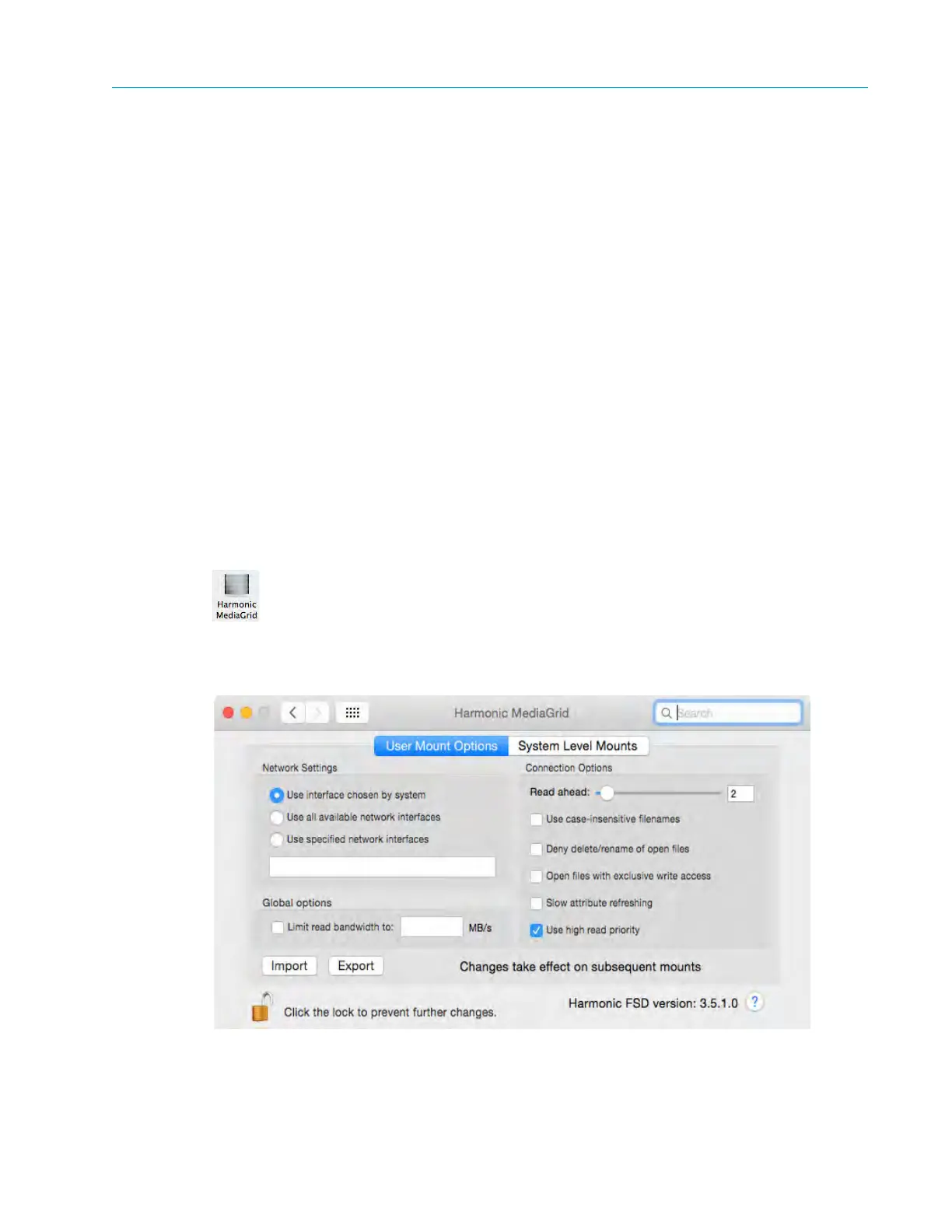
1. Open the System Preferences window and click the Harmonic MediaGrid icon.
The following dialog box appears.
2. Configure the following mount options:



 To Next Page