Chapter 6 Accessing the Harmonic MediaGrid
© 2017 Harmonic Inc. All rights reserved. 185 Harmonic MediaGrid Release 4.1
Mounting a Harmonic MediaGrid File System Using a Macintosh
Unmounting the Harmonic MediaGrid File System
This procedure unmounts the active mount for both user-level and system-level mounts.
1. Open a Finder window, and then click the icon of the Harmonic MediaGrid volume.
2. From Finder, select
File > Eject. Alternately, you can click the Command + E keys.
The icon of the Harmonic MediaGrid file system disappears.
Displaying Connected Harmonic MediaGrid Systems on the Desktop
By default, connected network servers do not display on the Macintosh desktop using Macintosh
OS X 10.5 and later.
1. Select Preferences from the Finder menu.
2. Click the General tab.
3. Under Show these items on the desktop, select Connected servers.
Accessing a Harmonic MediaGrid File System Using Final Cut Pro
Follow these steps to access the Harmonic MediaGrid file system from Final Cut Pro.
NOTE: These instructions apply to Macintosh OS X 10.5 and later.
1. Start Final Cut Pro.
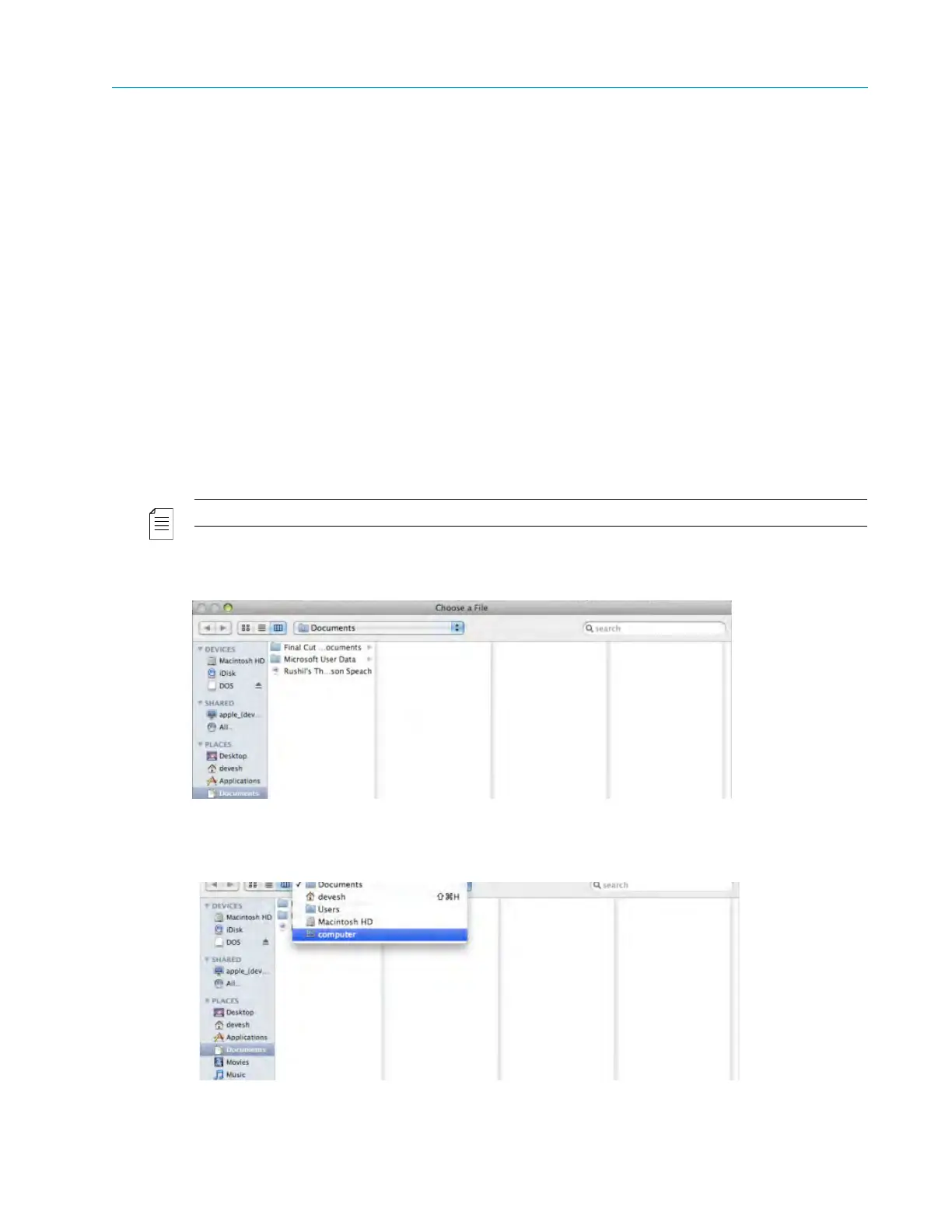
2. Select Open from the File menu to display the Choose a File screen, shown below.
Figure 6–8: Choose a File
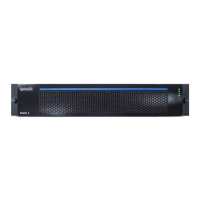
3. Click Documents in th
e Finder sidebar.
Figure 6–9: Finder Sidebar



 To Next Page