User Manual
PVR 6000 Control Interfaces
Page 3-12 (Rev. 4.1/ SW v1.60/ December 2006)
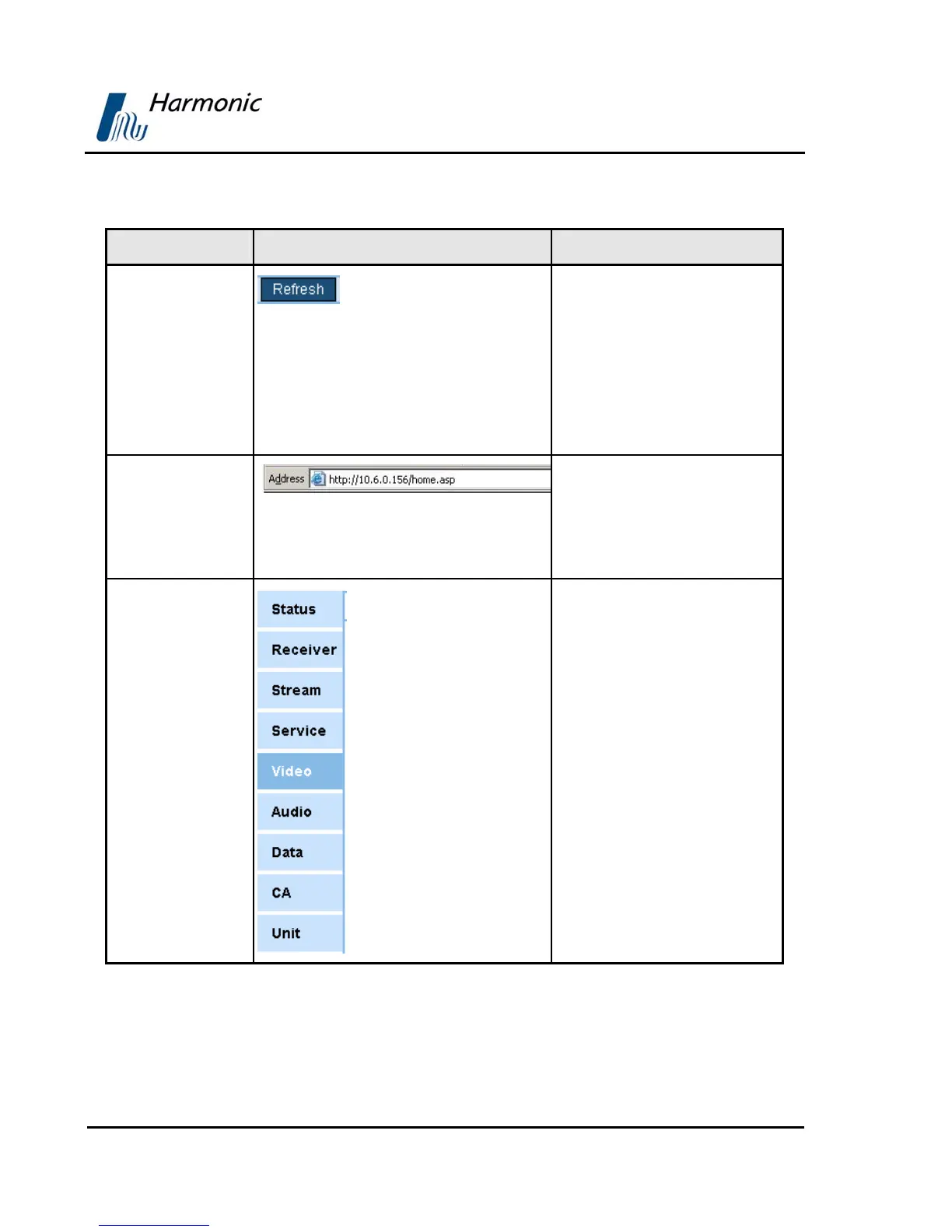
Table 3-1: PVR 6000 Web Management Interface
ELEMENT NAME FIGURE DESCRIPTION
Refresh Button
The Refresh button is located
at the bottom of the Web
management interface
window. Clicking this button
displays the actual, current
PVR 6000 parameter values
that are relevant to the
displayed screen
Web-Browser’s
Address Bar
Displays an example of a Web
browser’s address bar. The
address bar is used for
accessing the PVR 6000’s Web
management interface
Management Bar
An easy-to-use, efficient
navigation tool for accessing
the PVR 6000 Web
management screens. It is
generally divided into nine
sections: Status (used for
device monitoring), Receiver
Stream, Service, Video,
Audio, Data, CA, and Unit
(for configuring the device'
properties). Each section has
one or more sub-sections call
Tabs.



 To Next Page