3Dimensions System User Guide
Chapter 5: User Interface
Page 52 MAN-05085-002 Revision 002
DRAFT Preview Copy-Generated May 30, 2018
4. Select your search criteria (for example, Patient Name or Accession Number) using
the drop-down menu below the images.
5. Enter the same patient information and select the Search button (the magnifying
glass).
6. When the Patient name appears, select the correct procedure for the images.
7. If you want to archive the images, select Archive.
8. Select Split, then select OK to the Split Successful message.
Images Acquired in the Wrong Patient
1. In the Select Patient screen, select the patient that has the images that need to be
moved.
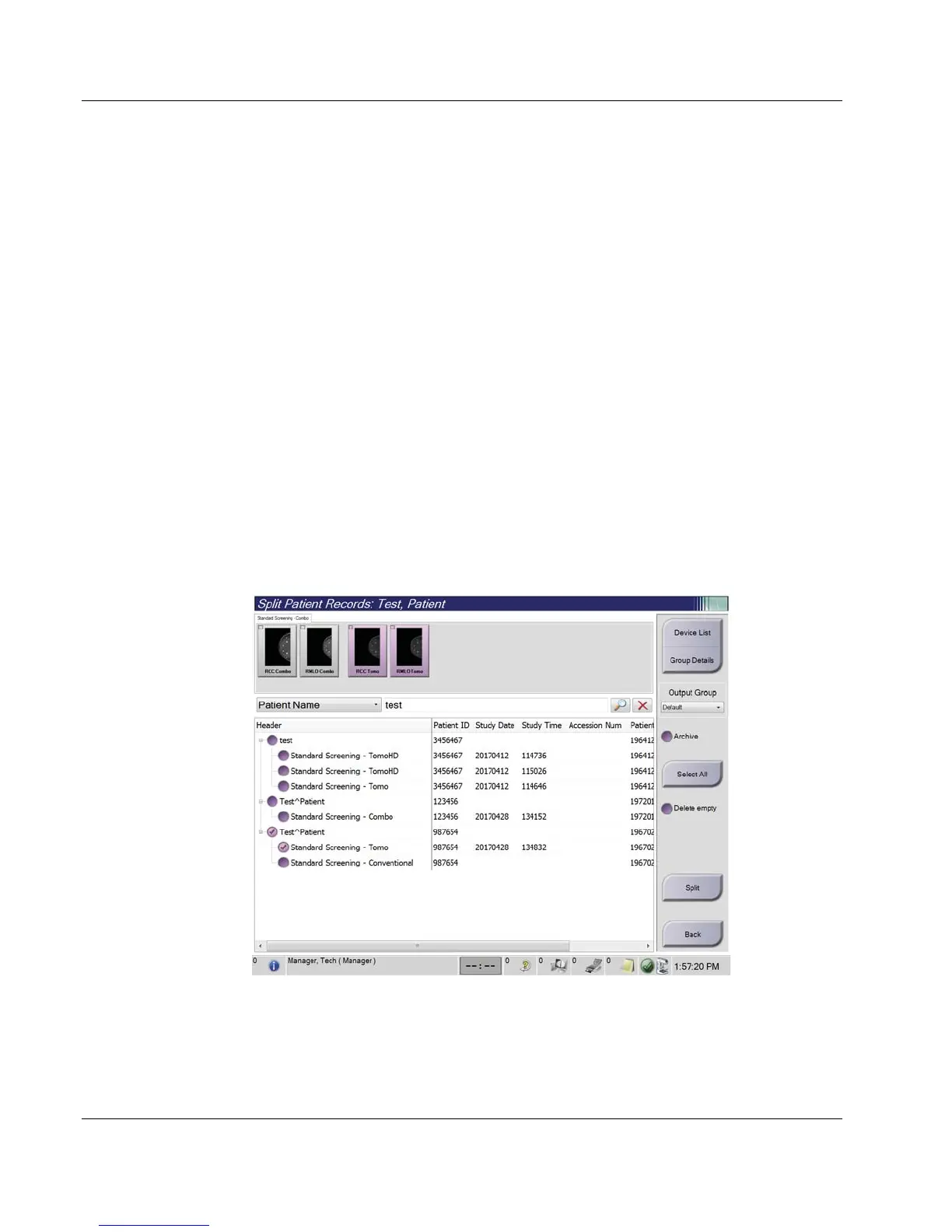
2. Select the Split button. The Split Patient Records screen opens.
3. Select the images to move. If all images are being moved, select Select All.
4. Select your search criteria (for example, Patient Name or Accession Number) using
the drop-down menu below the images.
5. Enter the search criteria and select the Search button (the magnifying glass).
6. When the Patient name appears, select the correct procedure.
Figure 27: Select the Correct Procedure to Split Patient Records
7. If all images are being moved and you want to delete the incorrect patient from the
Patient List, check Delete Empty.
8. If you want to archive the images, select Archive.
9. Select Split, then select OK to the Split Successful message.













 To Next Page