3Dimensions System User Guide
Chapter 6: Images
Page 72 MAN-05085-002 Revision 002
DRAFT Preview Copy-Generated May 30, 2018
4. When the x-ray is finished, the image appears on the Image Display monitor. The
Procedure screen automatically changes to the Tools tab.
Select one of the following options to complete the acquisition:
• Accept the image. The image transmits to output devices with all attributes.
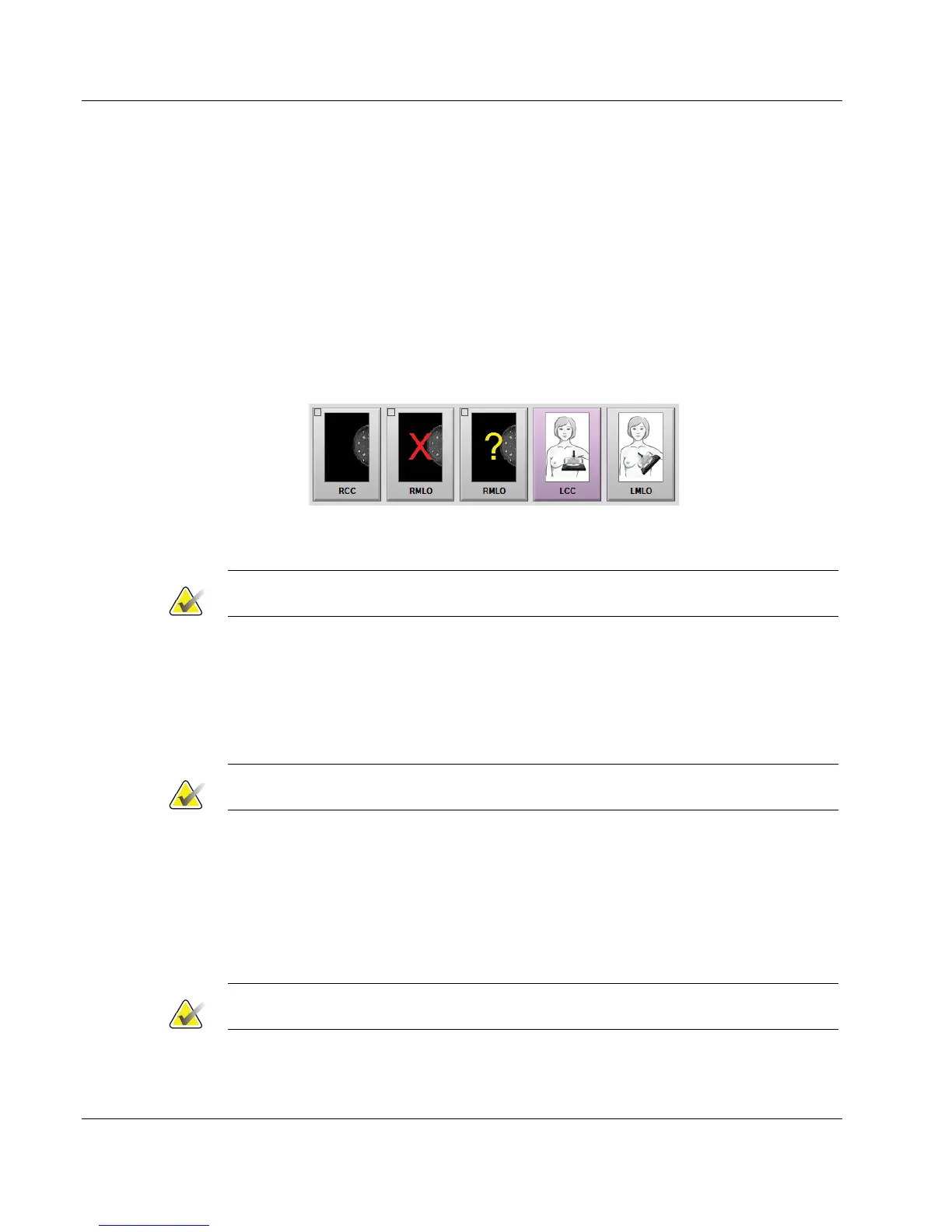
• Reject the image. When the dialog box opens, select the reason for rejecting
the image. The Image Display screen closes. You can repeat the rejected view,
or select another view. If you select Reject, an "X" appears on the thumbnail
image.
• Pend the image. The image saves for future review. If you select Pend, a
question mark "?" appears on the thumbnail image.
Figure 43: Marked Images in a Procedure
5. Repeat steps 1 through 4 for each view.
Note
A manager user can configure the system to Auto-Accept or Auto-Pend new images.
6.3.1 Conventional Imaging Sequence of Events
1. Review the image after the exposure and add a comment, if necessary.
2. Accept, Reject, or Pend the image. A thumbnail image replaces the thumbnail view
in the Case Study area of the screen.
Note
A manager user can configure the system to Auto-Accept or Auto-Pend new images.
6.3.2 Tomosynthesis Imaging Sequence of Events
1. Wait for the image reconstruction to complete.
2. Review the projection images for motion.
3. Accept, Reject, or Pend the images. A thumbnail image replaces the thumbnail view
in the Case Study area of the screen.
Note
A manager user can configure the system to Auto-Accept or Auto-Pend new images.













 To Next Page