3Dimensions System User Guide
Chapter 5: User Interface
Page 58 MAN-05085-002 Revision 002
DRAFT Preview Copy-Generated May 30, 2018
5.4.2 How to Use the Paddle Shift Feature
Refer to Paddle Shift for information about the Paddle Shift feature.
1. In the Procedure screen, select an unexposed thumbnail image view. The paddle
moves to the default position for that view.
2. Select a paddle shift button to bypass the default paddle position for the selected
view. The paddle moves to the new position.
Figure 30: Paddle Shift Buttons
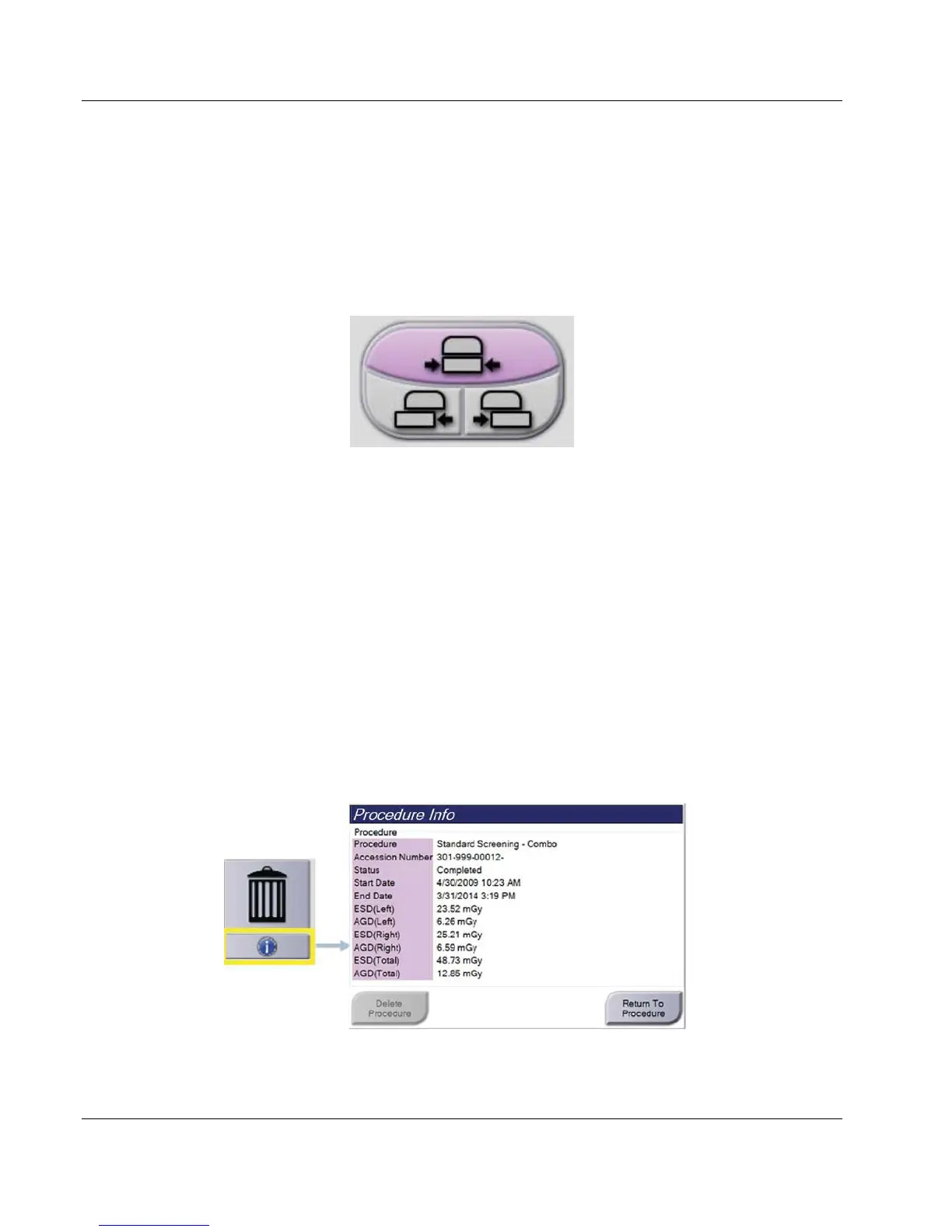
5.4.3 Procedure Information Dialog Box
To show procedure information, select the Procedure Information button located below
the Delete View (trash can) button. The Procedure Info dialog box opens with the
following information:
• Procedure Name
• Accession Number
• Procedure Status
• Procedure Start and End Date and Time
• Dose Information (each Breast and Cumulative)
For procedures that contain no exposed views, select the Delete Procedure button to
remove the selected procedure from the patient. Select Return to Procedure to exit the
dialog box.
Figure 31: Procedure Info Dialog Box













 To Next Page