3Dimensions System User Guide
Chapter 5: User Interface
Page 46 MAN-05085-002 Revision 002
DRAFT Preview Copy-Generated May 30, 2018
To Proceed Without Completing All Scheduled Quality Control Tasks:
If all Quality Control tasks are not completed at this time, select the Skip button.
Note
If you select the Skip button, the Select Patient screen opens. Refer to Select Patient Screen
on page 48 for information about this screen.
If you select the Admin button, the Admin screen opens. Refer to Admin Screen
on page
111 for information about this screen.
Note
Quality Control tasks are available to complete at any time. Select the Admin button
then the Quality Control button to access the list of Quality Control tasks.
5.2 About the Taskbar
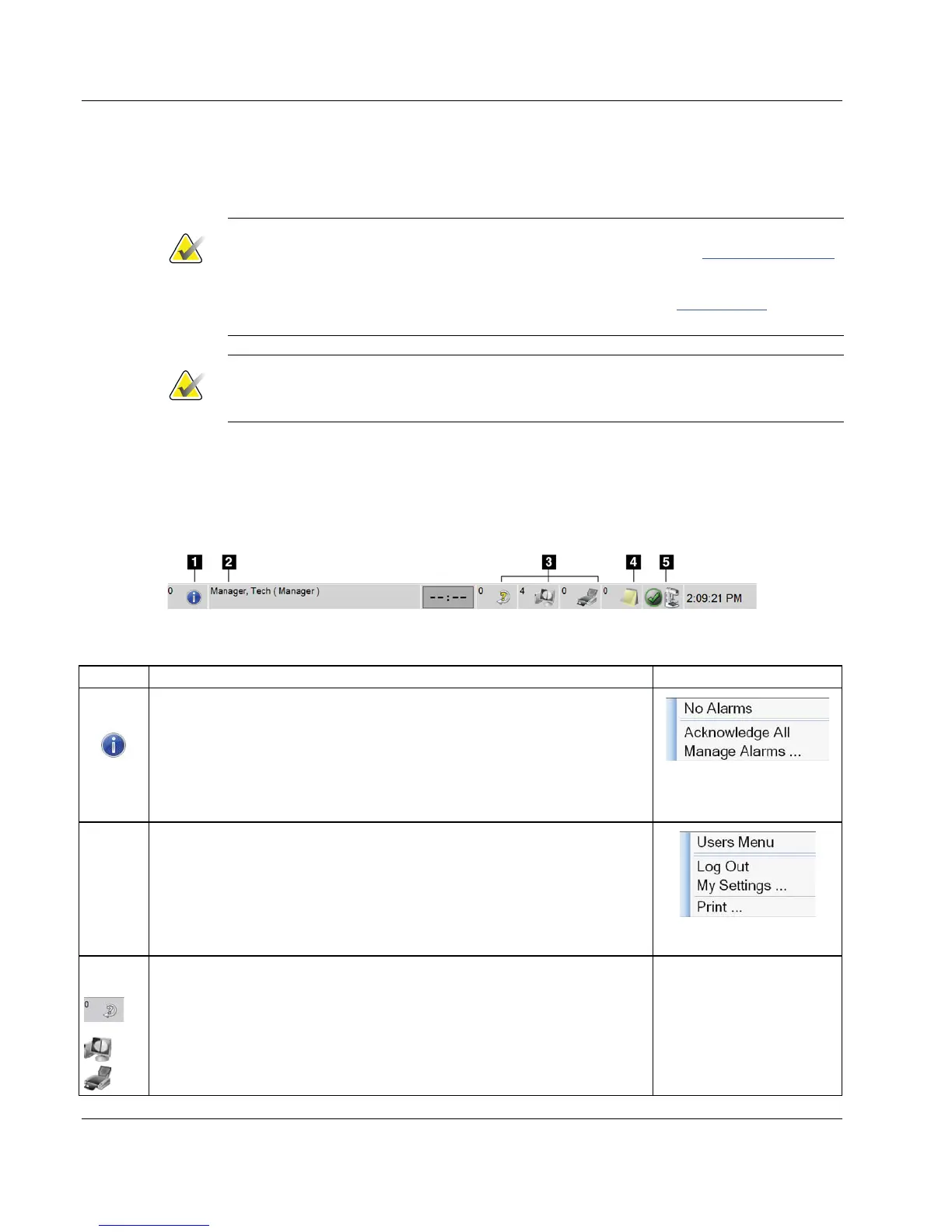
The taskbar at the bottom of the screen displays additional icons. Select the icon to access
information or perform system tasks.
Figure 22: Taskbar
Table 12: Taskbar Menus
Description Menu
1
Information Icon
Select the Information icon to display a menu.
This section of the taskbar flashes a yellow color when an alarm exists.
Select Acknowledge All to stop the flashing indication.
Select Manage Alarms to display and close any open alarms.
2
Current User Name
Select the user name section of the taskbar to display the Users Menu.
Log Out returns you to the Startup screen.
My Settings lets you select user settings and workflow preferences.
Print sends the displayed patient list to a connected printer.
3
Output Device Icons
Select any output device icon to display the Manage Queues screen. This
screen displays the status of jobs in the queue, job information for the
selected output, and allows you to filter the queue display. The number
on the icon shows the number of jobs that remain in the queue.













 To Next Page