Affirm Breast Biopsy Guidance System User Guide
Chapter 5: Biopsy
Page 68 MAN-06411-002 Revision 003
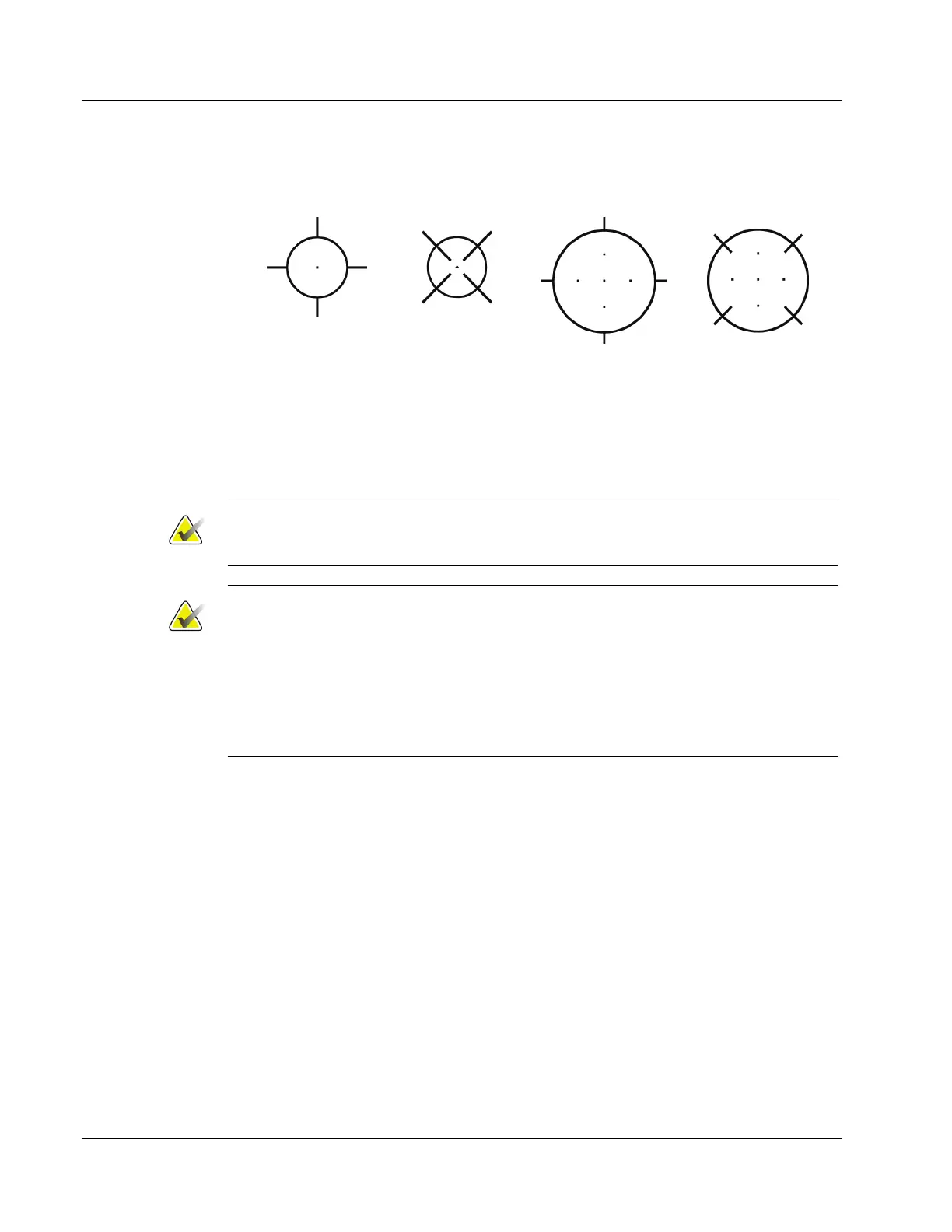
The crosshairs pattern for the target changes when the target is selected or
deselected. See the following figures.
Point Target
Selected
Point Target
Deselected
Target Selected
Target Deselected
7. Select the Create Target button to accept the Multi-Pass target. The target becomes
the active target icon on the target set and the coordinates are sent to the Biopsy
Control Module.
Note
The coordinates displaying on a Multi-Pass target icon represent the center point. Left-
click and hold on the target icon to view the coordinates of all of the points.
Note
A maximum of six target points can be generated at any one time. As the number of
target points increase in the target set being created, the available Multi-Pass options
change to reflect the balance of target points that are available for assignment. For
example, in a scenario where a single target point has already been created, then only
the "three" and "four" offset target options in Multi-Pass become available. This is
because the "three" and "four" offset options are the only ones capable of generating six
or less target points when totaled with the single target point.











 To Next Page