P/N MAN-01964 Revision 001 27
DRAFT
Preview copy—Generated 7/9/2010
User Manual
Chapter 3—The User Interface
How to Select a Patient
3.0 How to Select a Patient
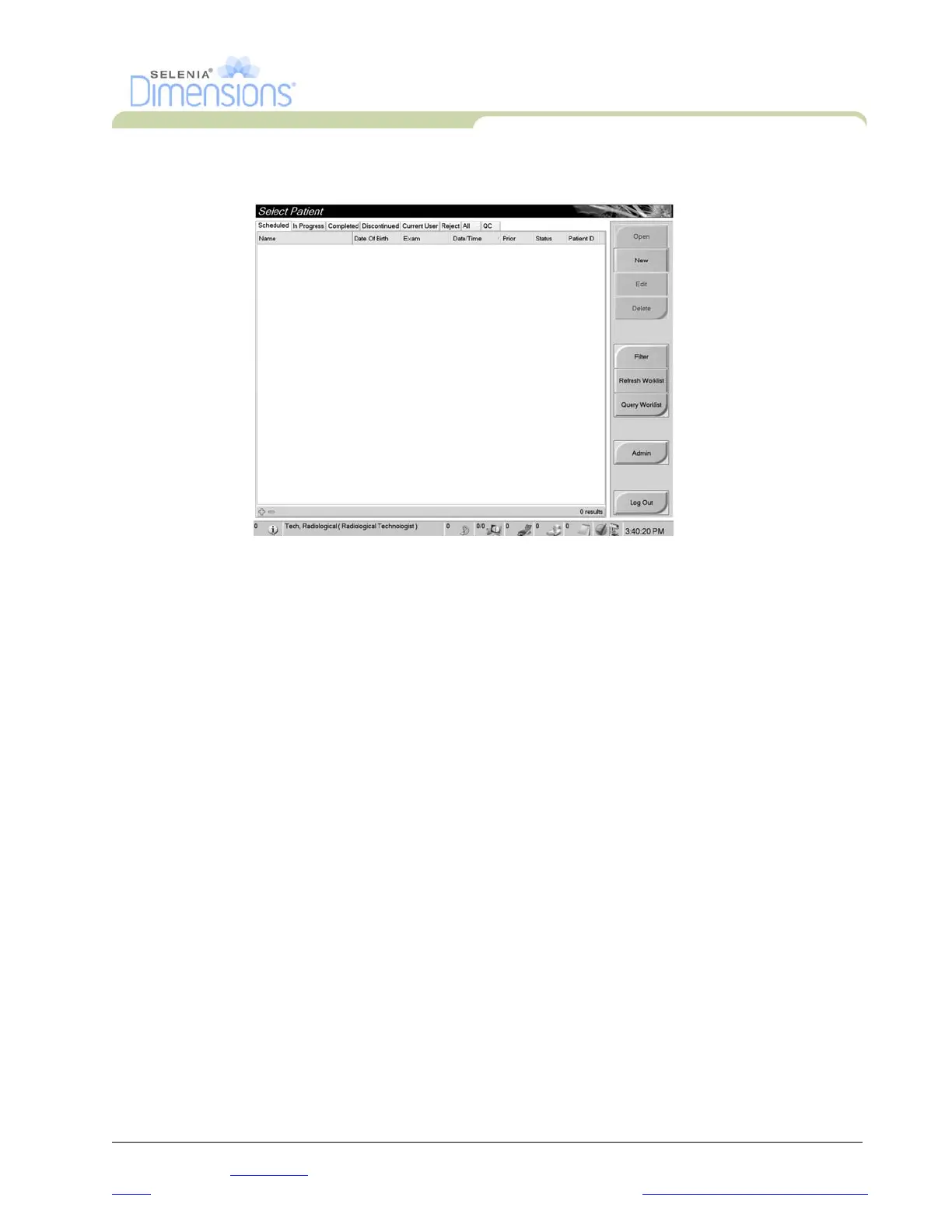
Figure 3-3: How to Select a Patient
Eight tabs display at the top of the screen. These tabs are configurable. A user with the right
permissions can delete tabs and create new tabs.
•The Scheduled tab displays the scheduled procedures.
•The In Progress tab displays the procedures not complete.
•The Completed tab displays the completed procedures.
•The Discontinued tab displays the procedures started, but discontinued.
•The Current User tab displays the procedures for the current Operator.
•The Reject tab displays the procedures with rejected views.
•The All tab displays all procedures for all users.
•The QC tab displays the Quality Control procedures.
You can perform many functions from this screen:
• Add a new Patient (New)—see Section 3.2, page 28.
• Edit the patient information (Edit)—see Section 3.3, page 28.
• Delete a patient from the worklist (Delete)—see Section 3.4, page 28.
• Use a Patient Filter (Filter)—See Section 3.5, page 29.
• Search for a patient in the Modality Worklist (Query)—see Section 3.7, page 30.
• Use the Admin Screen (Admin)—see Chapter 8, page 67.
• Exit (Log Out)—see Section 3.9, page 30.
• Find your patients in the database (tabs at the top of screen).
3.1 How to Open a Procedure
1. When you select a patient from the list in any of the tabs, the Open button activates.
2. When you select the Open button, the Procedure screen for that patient appears.













 To Next Page