34 P/N MAN-01964 Revision 001
DRAFT Preview copy—Generated 7/9/2010
User Manual
Chapter 3—The User Interface
The Procedure Screen
4.5 How to Add a Procedure
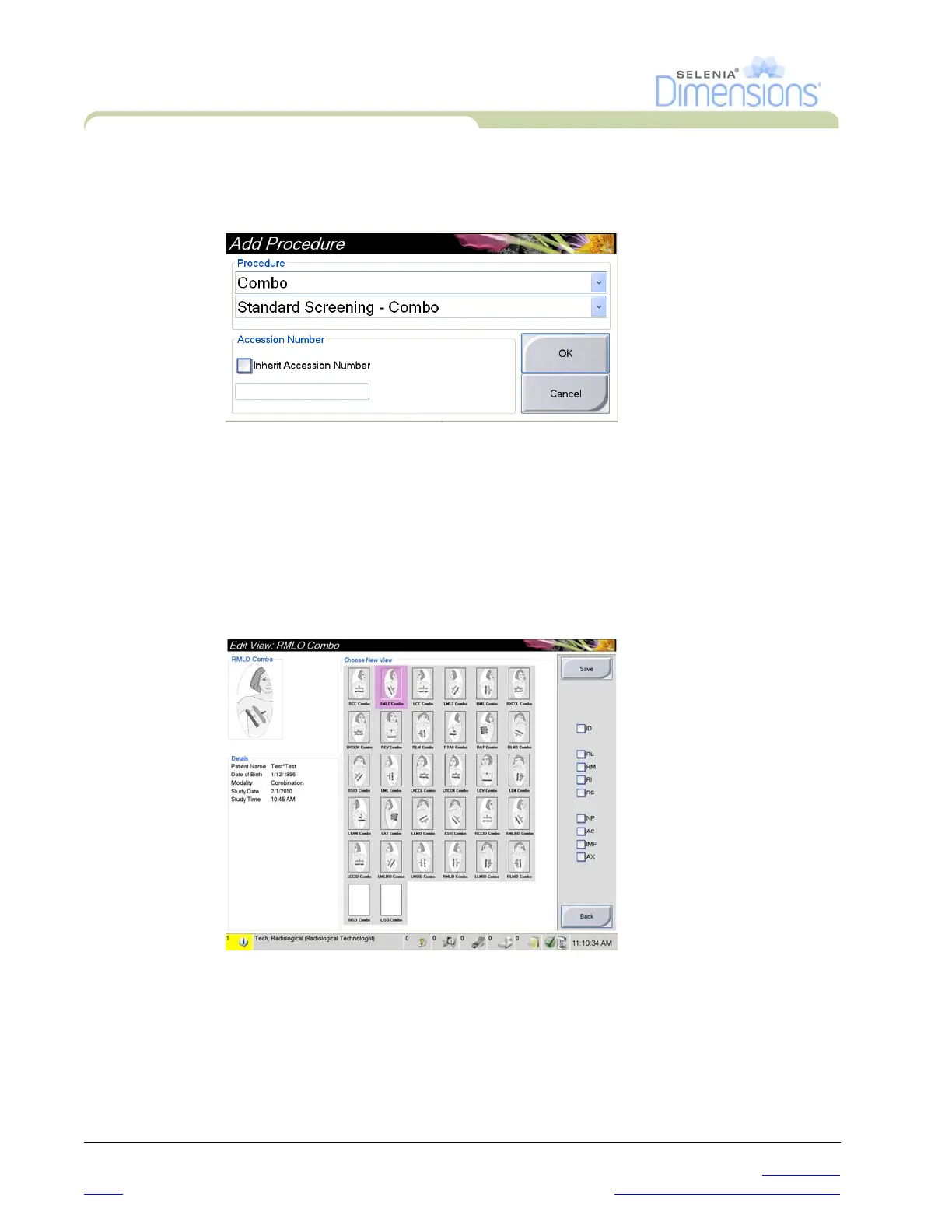
1. To add another procedure, select the Add Procedure button on the Procedure screen to
display the Add Procedure dialog box.
Figure 3-8: The Add Procedure Dialog Box
2. Use the drop-down menus to select the type of procedure to add.
3. Enter an Accession Number or select the “Inherit Accession Number” checkbox to use
the current number.
4. Select the OK button. A new tab displays with the thumbnail images for the procedure
which was added.
4.6 How to Edit a View
Use the Edit View screen to assign a different view to an image.
Figure 3-9: The Edit View Screen
To edit a view:
1. Select an exposed thumbnail image view in the Procedure screen.
2. Select the Edit View button.
3. Select the view from the screen. You can select a maximum of 3 View Modifiers. See
Figure 3-7 for a description of the View Modifiers.
4. Select the Save button.
5. When the Update Successful screen displays, select the OK button.













 To Next Page