P/N MAN-01964 Revision 001 43
DRAFT
Preview copy—Generated 7/9/2010
User Manual
Chapter 4—The Images
How to Review the Images
2.1 The Image Review Tools Tab
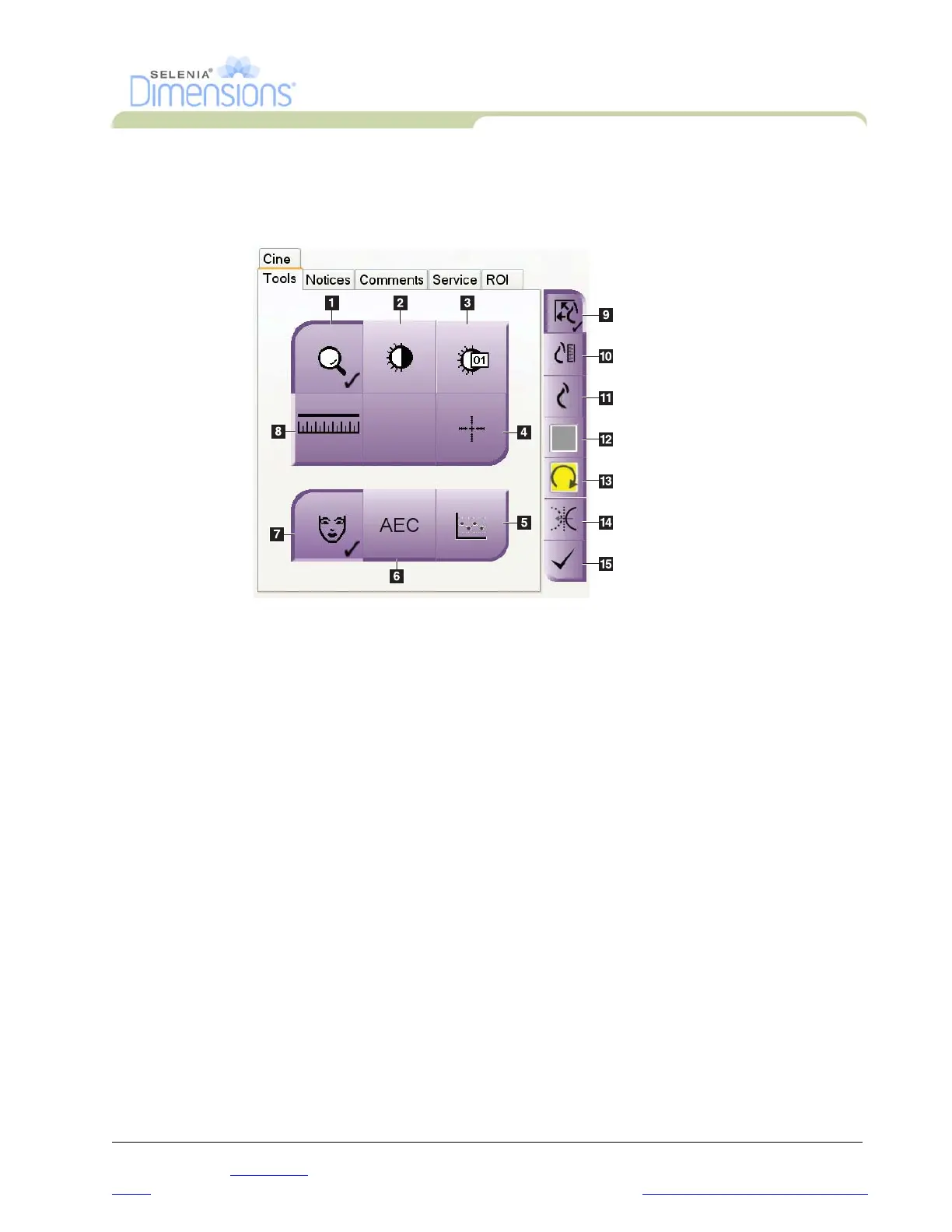
The Tools tab in the Procedure screen provides the image review tools. A checkmark appears
on the button of an active tool.
Figure 4-4: Image Review Tools
Legend for Figure4-4
1. The Zoom tool magnifies a section of the image.
2.
The Window Level tool with the Trackball changes the brightness and contrast.
3.
The Window Level Fine Adjustment tool enters the specified contrast and brightness values.
4.
The Crosshair tool displays a crosshair on the Preview Screen.
5.
The SNR/CNR button calculates the signal-to-noise ratio and contrast-to-noise ratio in the ACR
Phantom image.
6.
The AEC button displays the AEC Sensor areas used for the exposure calculation. The sensor areas
display on the Preview Screen.
7.
The Patient Information button activates the patient information display.
8.
The Ruler displays a measurement of the distance between two points.
9.
The Fit-to-Viewport button fits the image within the image tile.
10.
The True Size button displays the image in the actual size of the breast.
11.
The View actual pixels button displays the image in full resolution.
12. The
Multi-Up Display button selects the number of tiles to display.
13. The
Image Tile Advance button sets the active Multi-Up tile.
14. The
Mirror button reverses (mirrors) the image.
15. The
Tag for Print button tags the projection or reconstruction images of a tomosynthesis image to
print later (Tomosynthesis option).













 To Next Page