38 P/N MAN-01964 Revision 001
DRAFT Preview copy—Generated 7/9/2010
User Manual
Chapter 3—The User Interface
How to Use the Paddle Shift Feature
7.2.2 How to Use the Print Screen
1. From the Procedure screen, select the Print button. The Print Screen displays.
Refer to Figure 3-10 to prepare your print information.
2. Select the film format from the Options area of the page.
3. Select a thumbnail image.
4. Select the image display box on the right side of the screen to put the selected
thumbnail image on the film.
5. To put other thumbnail images on the film, repeat steps 2 and 3.
6. To print a different film format of the same images, select the New Film button
and repeat steps 1 to 4.
7. Select the Print button to print your films.
7.3 How to Export
1. Select the Export button.
2. Select a device from a drop-down menu.
3. Select the Start button to copy all accepted images from the open procedure to the
selected device.
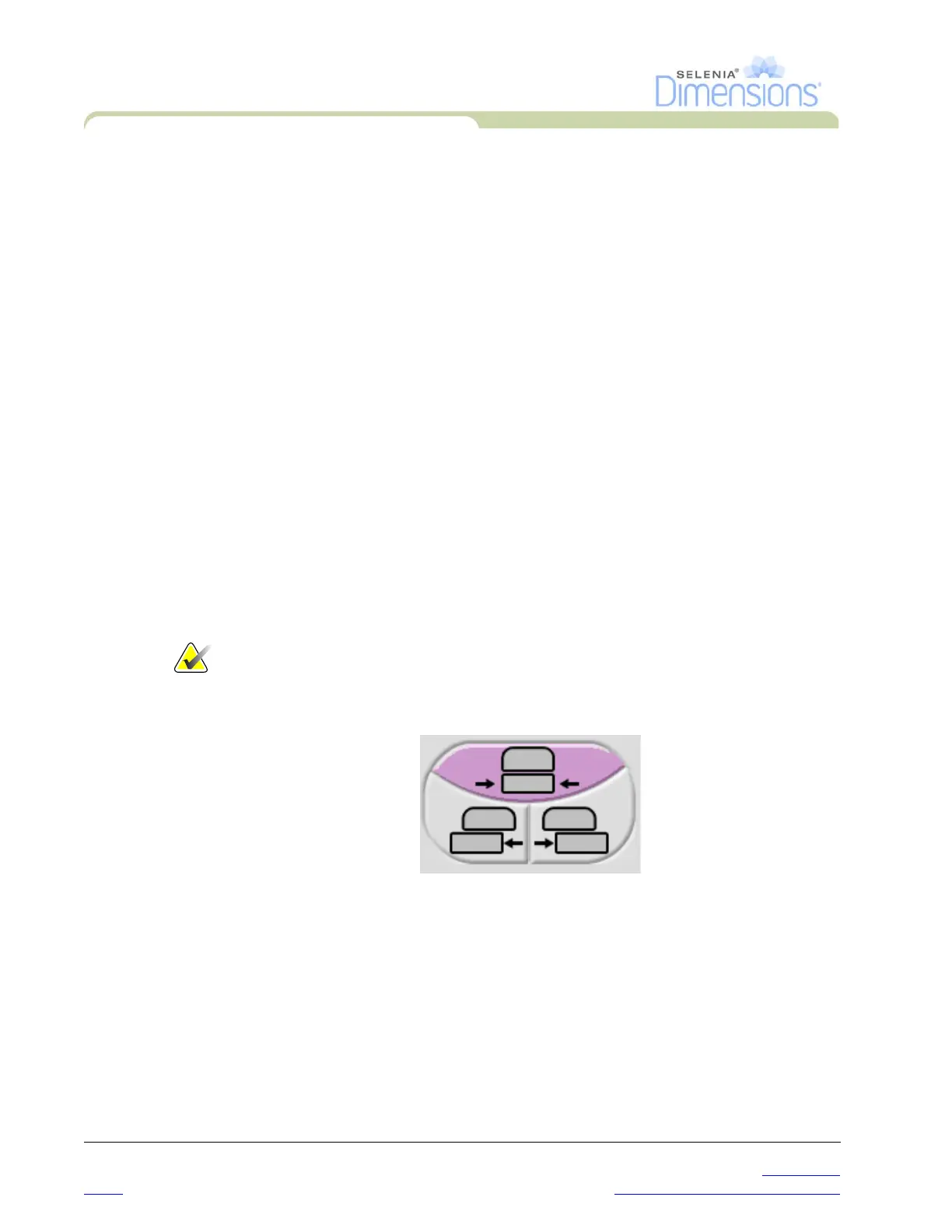
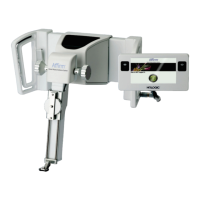
8.0 How to Use the Paddle Shift Feature
1. In the Procedure screen, select an unexposed thumbnail image view. The paddle moves
to the default position.
Note… A default paddle position for each view is set in Service Tools.
2. From the paddle shift section of the screen, select the button for the new paddle
position. The paddle moves to the new position.




 To Next Page