USER INTERFACE
6.16
ThinPrep™ 5000 Processor with AutoLoader Operator’s Manual
Start Button
To begin a batch, press the
Start
button.
Figure 6-15 Start Button
MAIN SCREEN, DURING PROCESSING
Processing
When the
Start
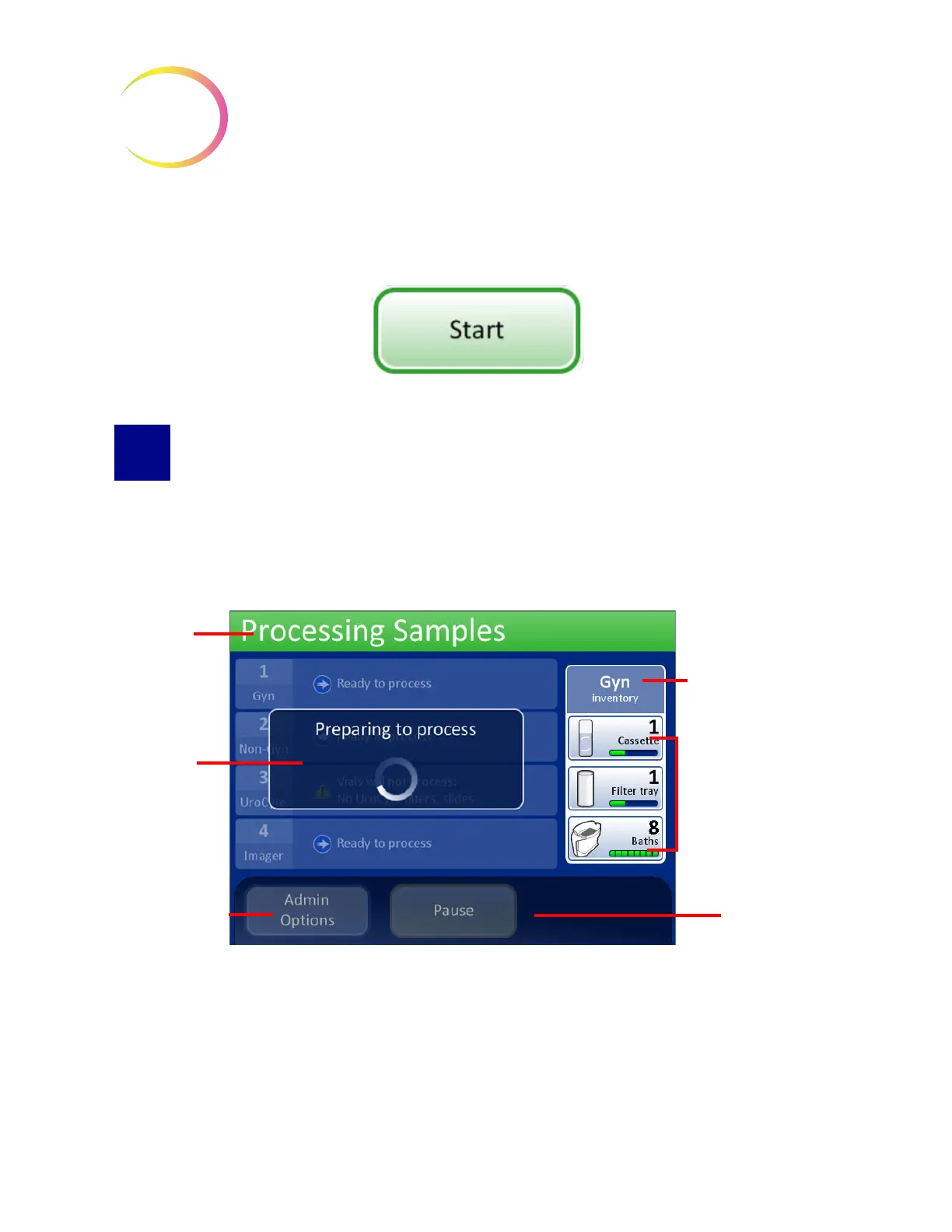
button is pressed, the doors can be heard to lock. The main screen changes to display
a preparing to process message, a graphical inventory of consumable items, the
Admin Options
button and a
Pause
button, as shown below.
Figure 6-16 Starting Batch Screen
The carousel is rotated and every position is checked to make sure there are no vials on board. Then
every slide and filter slot is checked to ensure no material is in the carousel. If the carousel is not
completely empty, the batch will not start. The operator will be notified.
The display then transitions to the Processing Samples screen. The processor starts with the topmost
tray of vials that it encounters.
Processing
header
Preparing to
process
message
Administrative
Options
button
Pause
button
Process Sequence
(for sample type in
vial tray)
Onboard inventory of
required materials:
slide cassettes (1-3)
filter trays (1-3)
baths (1-8)



 To Next Page