ThinPrep™ 5000 Processor with AutoLoader Operator’s Manual
6.73
USER INTERFACE
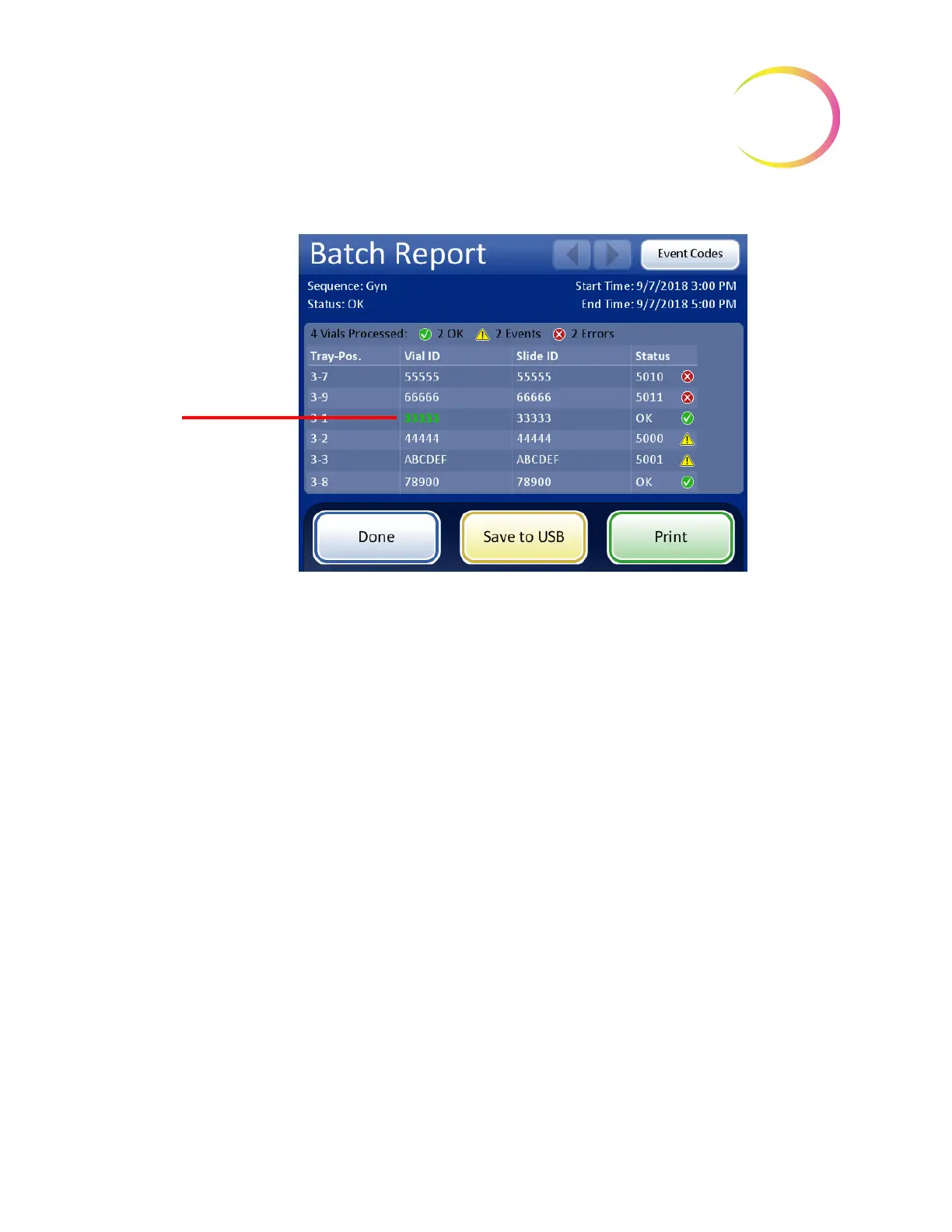
Figure 6-90 Vial ID Search Results
Note:
Batch reports are stored in the system database for eight weeks and purged as new ones are
generated. If your configuration includes the optional LIS interface, reports are
also
stored
indefinitely on the NAS until your system administrator purges them.
Save a Report to USB Key
Refer to Figure 2-3 for USB port locations.
Reports can be saved to a USB key (also known as a thumb drive, flash drive, keychain drive). Insert
a key into any of the USB ports.
CAUTION:
Always use the USB drive provided with the processor. Never use a U3 Smart Drive.
While the system is able to write to this device, there is a significant problem if the system is booted
with one of these drives inserted in a port. Field service would be required.
Note also that the system cannot write data to a write-protected USB key.
When the
Save to USB
button is pressed, the report that is open on the user interface is immediately
saved to the USB device as an XML file. A confirmation message displays on the interface. See Figure
6-91.
Note:
If the system detects that more than one USB port has a USB key inserted, a message via the
user interface will prompt you to select which port to send the report to.
Vial ID that was
searched for appears in
green



 To Next Page