USER INTERFACE
6.18
ThinPrep™ 5000 Processor with AutoLoader Operator’s Manual
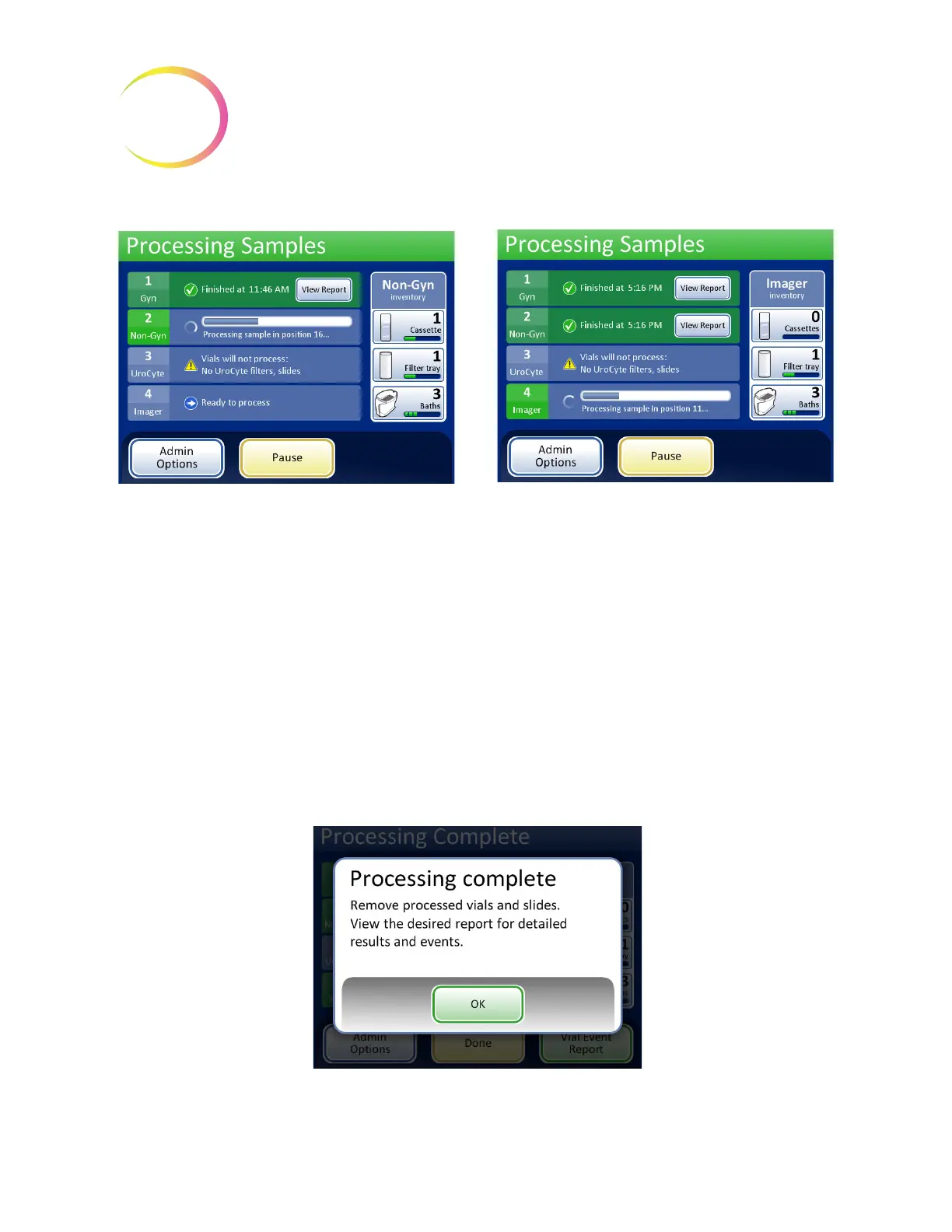
Figure 6-18 During Processing with Trays Completed
Processing Complete
When a batch has completed processing, the processor returns to an idle state, with a processing
complete message on the screen. If the audible alert is configured, the instrument will sound. See
Figure 6-19. The doors unlock.
To view the batch report, press the
View Report
button. The report will display and there is the
opportunity to print the report or save it to USB key via that screen. When the report screen is exited
(by pressing the
Done
button), you return to the processing complete screen. Refer to “Batch
Reports” on page 6.68.
The screen will remain until the operator acknowledges by pressing the
Done
button.
Figure 6-19 Processing Complete Message
The tray has completed processing.
The check mark indicates OK status.
Two trays have completed processing. Tray 3 had
an unresolved issue and was skipped. Tray 4 is



 To Next Page