ThinPrep™ 5000 Processor with AutoLoader Operator’s Manual
6.63
USER INTERFACE
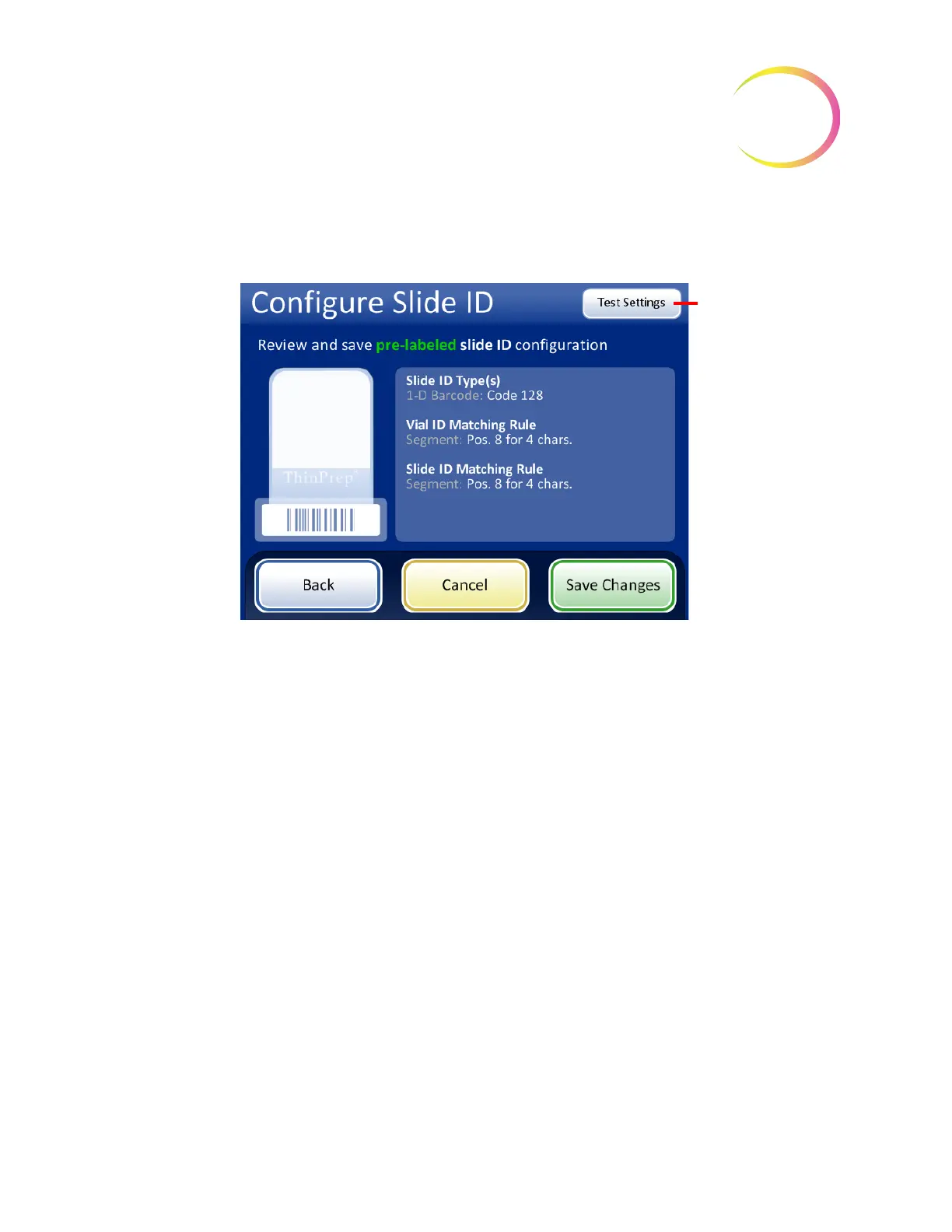
The Configure Slide ID screen shows a summary of the pre-labeled Slide ID setting. To test that the
settings for the pre-labeled slide ID configuration are correct for your facility, press the
Test Settings
button.
Figure 6-76 Configure slide ID for pre-labeled slided - summary screen
To test the pre-labeled slide ID configuration, use a labeled vial and the labeled slide that goes with it.
Place the labeled vial and slide into slot 1 of the input carousel. Close the doors and press
Continue
to scan.
The instrument moves the vial in slot 1 of the carousel and scans the vial ID. The instrument removes
the slide from slot 1 of the carousel and scans the slide ID. The test checks that the vial ID scanned
matches the vial ID configured, that the vial ID scanned matches the slide ID scanned, and that the
slide ID scanned matches the slide ID configured on the instrument.
For pre-printed slide labels, the test of the configuration generates two pieces of information for the
vial ID and two for the slide ID.
• Vial ID - The entire accession ID from the vial is shown, and the segment of that vial ID that
matches the slide ID is shown as the “Formatted ID”.
• Slide ID - The entire accession ID in the slide ID is shown, and the segment of the slide ID
that matches the vial ID is shown as the “Formatted ID”.
• Chain of Custody - This checks that the formatted ID segments of the vial ID and slide ID
match.
Use the
Test
Settings
button to
check the vial ID
and slide ID
configuration by
scanning a vial
label and scanning
a corresponding
slide label.



 To Next Page