ThinPrep™ 5000 Processor with AutoLoader Operator’s Manual
7.35
OPERATING INSTRUCTIONS
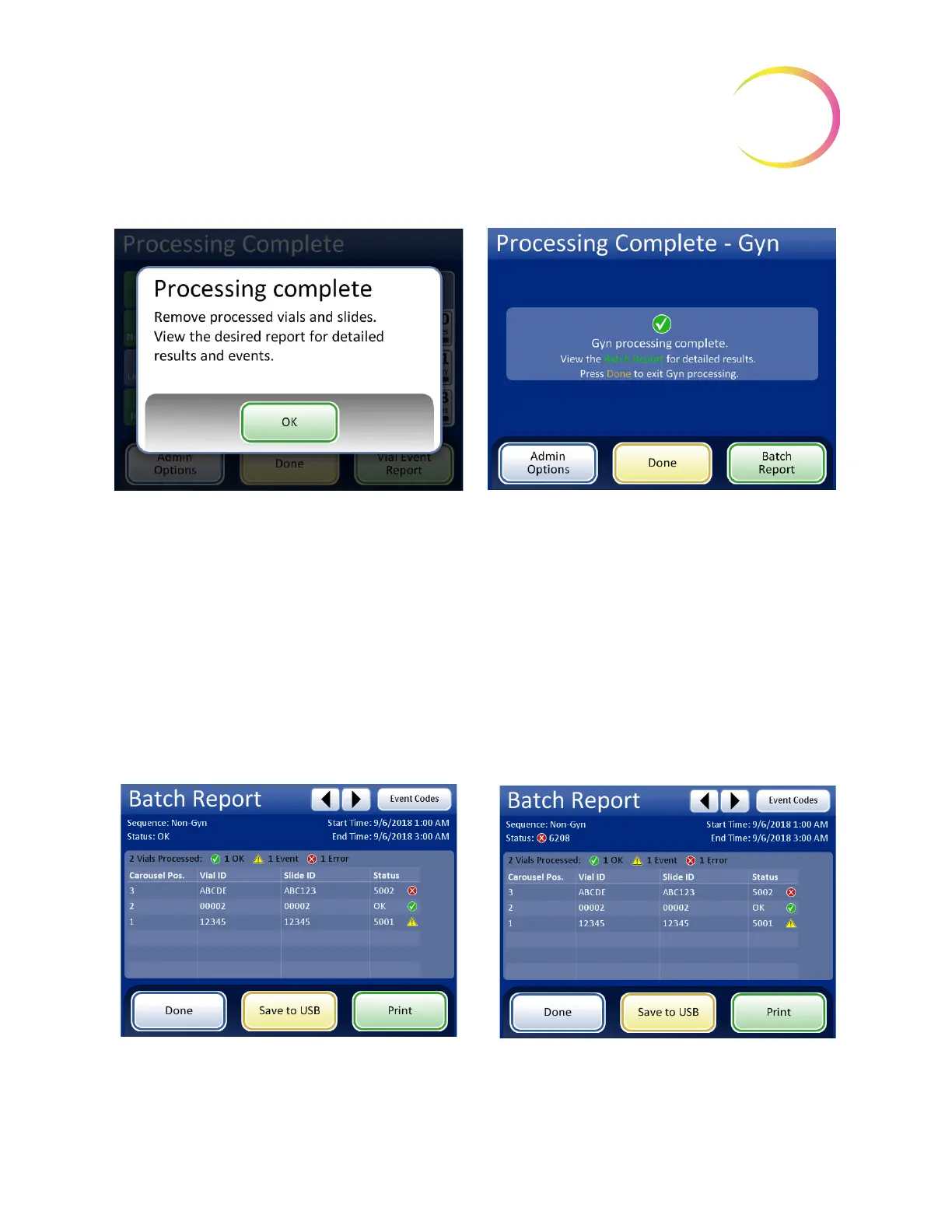
Figure 7-35 Batch Complete Screen
To view the batch report, press the
Batch Report
button. The report will display and there is the
opportunity to print the report or save it to USB key via that screen. (That can also be done at a later
time, using the Reports function in Admin Options.) When the report screen is exited (by pressing
the
Done
button), you return to the Batch Complete screen.
The screen will remain until the operator acknowledges by pressing the
Done
button.
Batch Report
Figure 7-36 Examples of Small Batch Mode Batch Reports
Processing Complete message
Batch Report
button - displays the report
Done
button - returns to the main screen, idle
Batch report, status OK
Batch Report, batch ended due to error



 To Next Page