Upgrade
177
Htek recommends end-user use the Htek HTTP server. For large companies, we
recommend to maintain their own TFTP/HTTP/FTP/HTTPS server for upgrade
and provisioning procedures.
Once a “Firmware Server Path” is set, user needs to update the settings and
restart the IP Phone. If the configured firmware server is found and a new code
image is available, the UC926E will attempt to retrieve the new image files by
downloading them into the UC926E’s SDRAM. During this stage, the UC926E’s
LEDs will blink fastly until the checking/downloading process is completed. Upon
verification of checksum, the new code image will then be saved into the Flash. If
TFTP/HTTP/FTP/HTTPS fails for any reason (e.g. TFTP/HTTP/FTP/HTTPS
server is not responding, there are no code image files available for upgrade, or
checksum test fails, etc), the UC926E will stop the TFTP/HTTP/FTP/HTTPS
process and simply boot using the existing code image in the flash.
Firmware upgrade may take as long as 3 to 8 minutes over Internet, or just 1
minutes if it is performed on a LAN. It is recommended to conduct firmware
upgrade in a controlled LAN environment if possible. For users who do not have
a local firmware upgrade server.
Htek’s latest firmware is available at www.htek.com → Support → Document &
Firmware.
Oversea users are strongly recommended to download the binary files and
upgrade firmware locally in a controlled LAN environment.
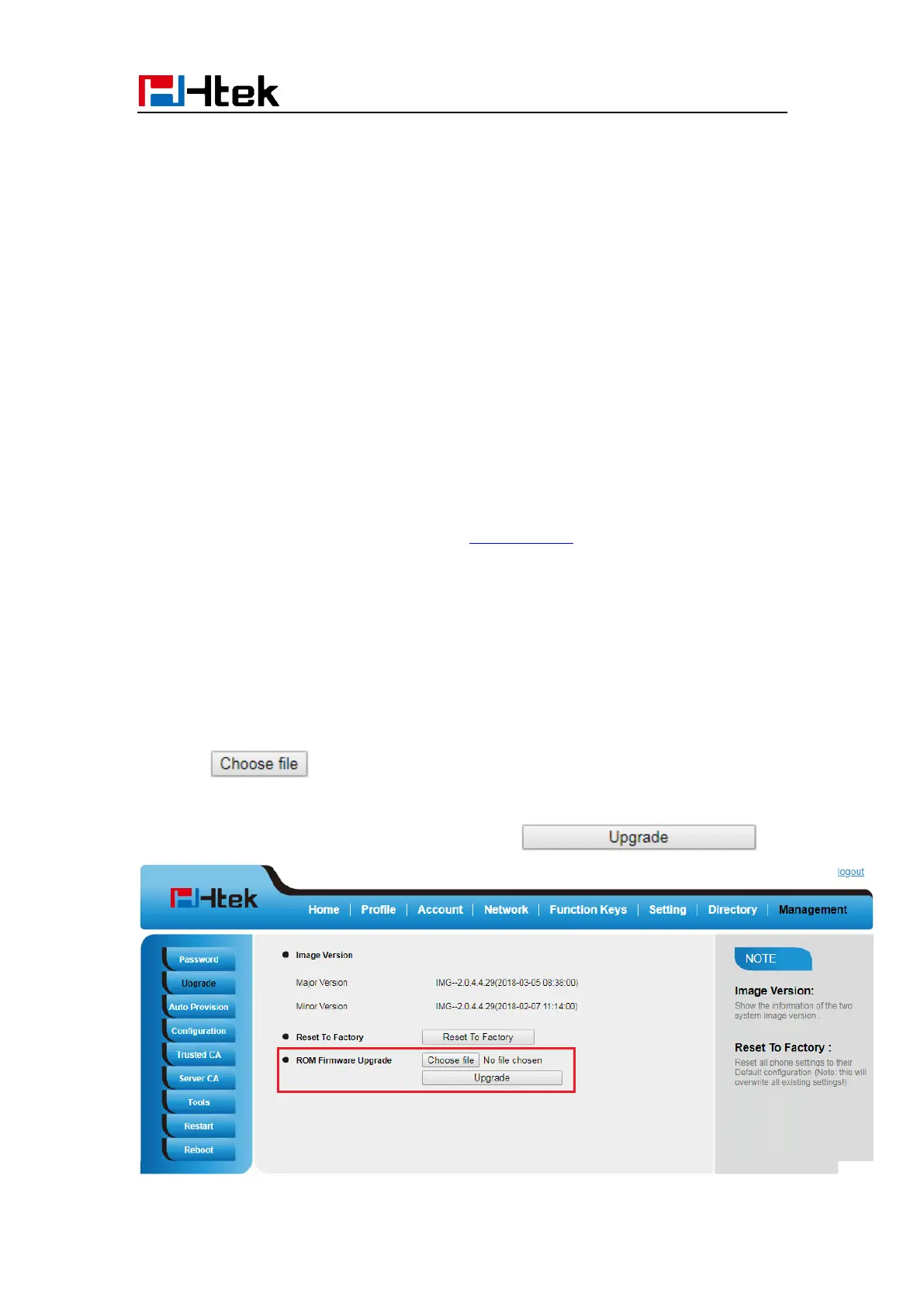
To upgrade manually via the Web configuration interface
1. Click Management → Upgrade
2. Click or the blank.
3. Select the firmware (fw926E.rom) and then click .


 To Next Page