Copyright © Huawei Technologies Co., Ltd.
Procedure
Step 1 Log in to the ECC500 WebUI.
Step 2 Click in the upper right corner of the home page and view the ECC500 version
information.
Step 3 Choose Maintenance > Version Information and view the ECC500 version information.
----End
7.21 How Can I Export Data?
Prerequisites
You have obtained the ECC500 IP address as well as the user name and password for
WebUI login.
You have prepared a PC which is in the same IP address segment as the ECC500 and
connected the PC to the ECC500 over a switch.
Procedure
Step 1 Log in to the ECC500 WebUI.
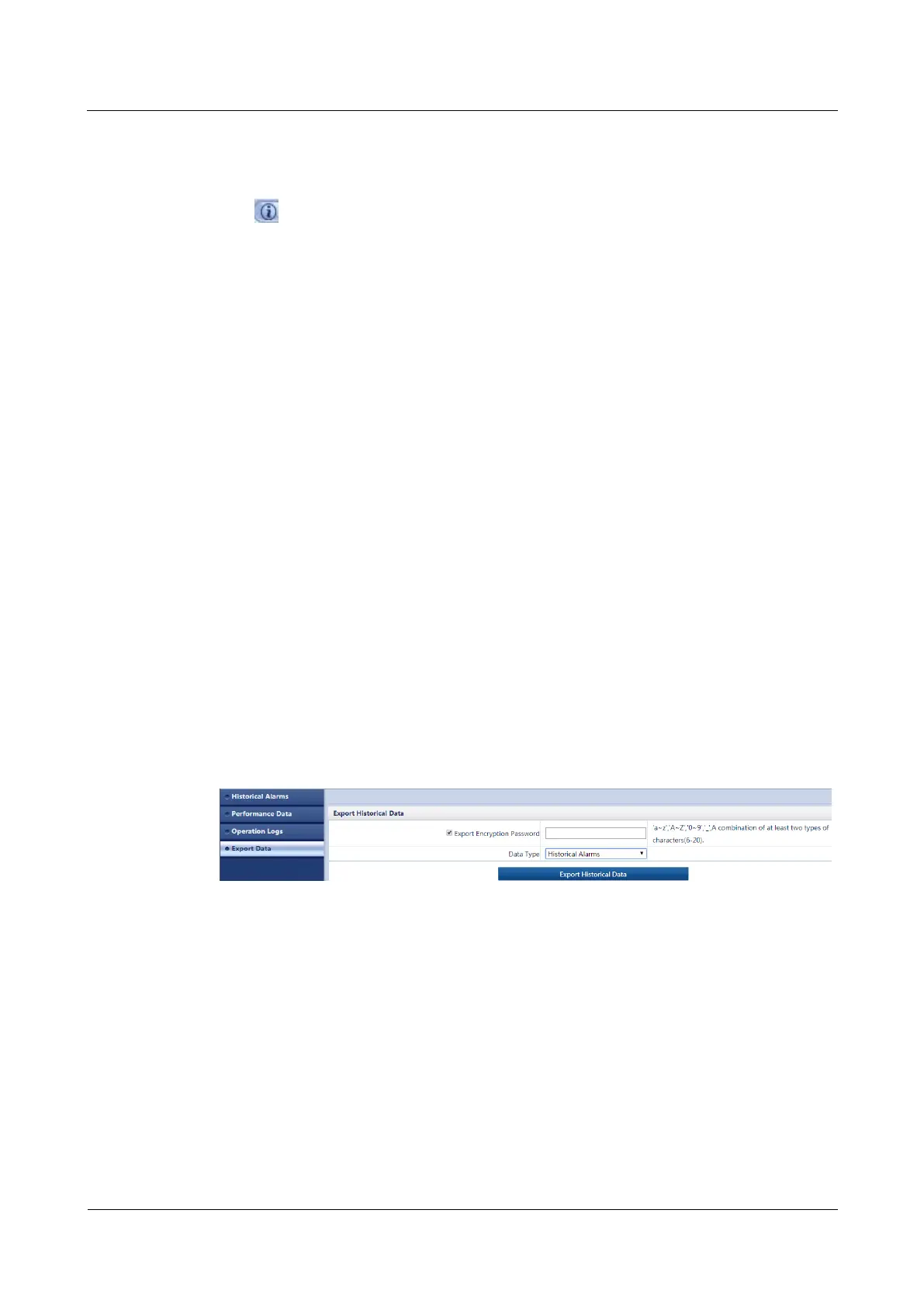
Step 2 Choose Query > Export Data.
You can export information of four types: Historical Alarms, Active Alarms, Performance
Data, and Operation Logs.
Step 3 Select the desired data type, for example, Historical Alarm and click Export Historical
Data, as shown in Figure 7-23.
Figure 7-23 Exporting data
Step 4 Save the exported data to the PC.
----End
7.22 How Can I Export Fault Information?
Prerequisites
You have obtained the ECC500 IP address as well as the user name and password for
WebUI login.



 To Next Page