Stratos Multi E401N
41
5 Parameter Setting
CAUTION! Incorrect parameter settings, calibration, and adjustments can result in incorrect
outputs. For this reason, Stratos Multi must be commissioned by a specialist, who will also set the
parameters, calibrate and adjust the device.
Opening Parameter Setting
Menu
Menu Selection
Parameter Setting
Menu Selection
Back
Parameter Setting
Lingua
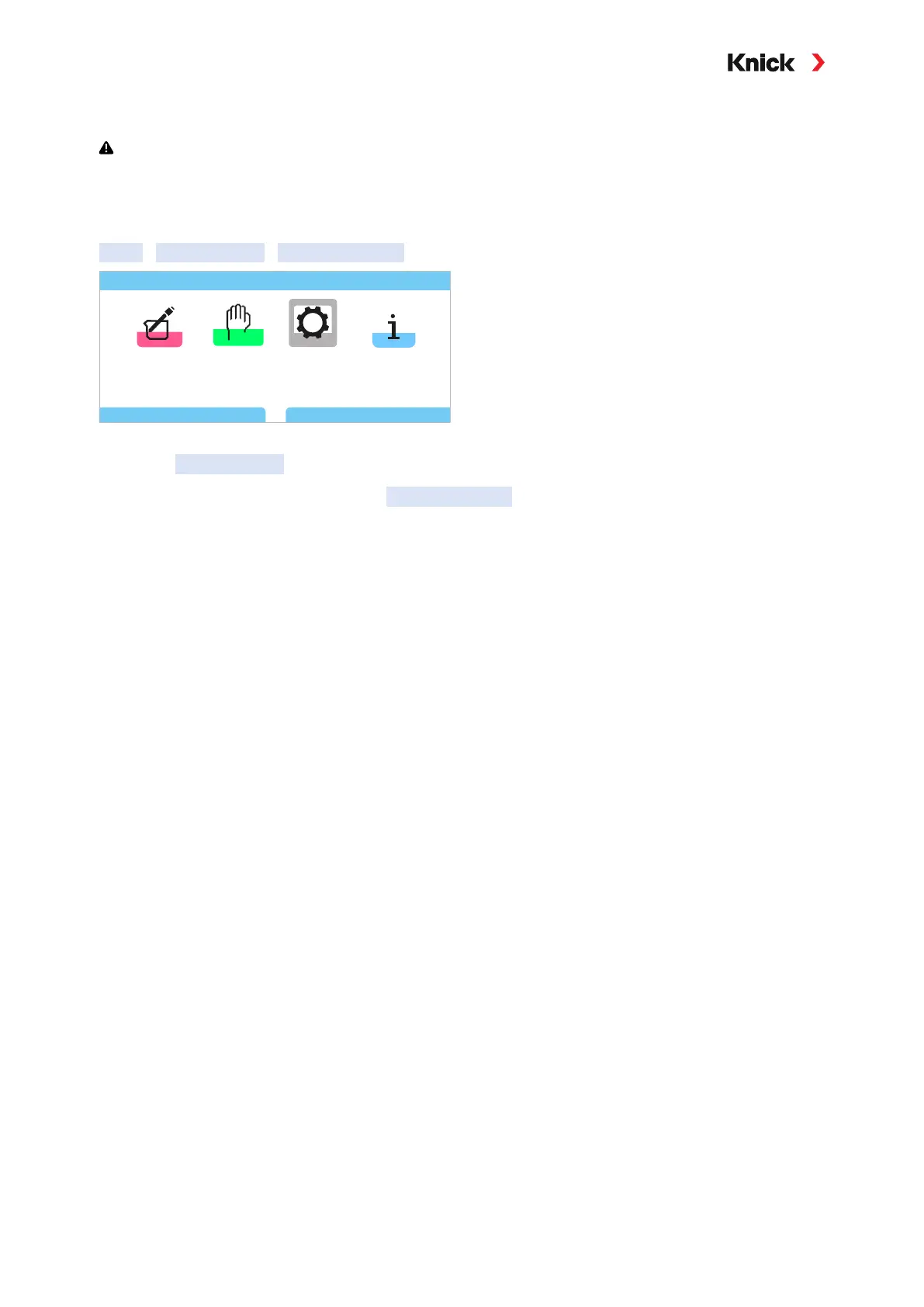
01. From within measuring mode, press the left softkey: Menu.
✓ The Menu Selection opens.
02. Using the right arrow key, select the Parameter Setting menu and confirm with enter.
✓ The Parameter Setting menu contains items for things such as inputs and outputs, sensor selec-
tion I and II, system control, and general parameter setting. Parameter setting is automatically
ended 20 minutes after the last registered keystroke, after which Stratos Multi
returns to mea-
suring mode (timeout).
Note: Function check (HOLD) is active. The current output and relay contacts behave in accordance
with the parameter settings. Return to measuring mode to exit the function check, e.g., with the right
softkey: Back to Meas.
5.1 Operating Levels
There are three access levels in the Parameter Setting menu:
• Viewing level (all data)
• Operator level (operation data)
• Administrator level (all data)
Viewing Level
• Display of all settings
Settings cannot be changed in the Viewing level.
Operator Level
• Access to all functions that have been enabled at the Administrator level.
Locked functions are displayed in gray and cannot be edited.
Administrator Level
• Access to all settings, including passcode settings.➜ Passcode Entry, p. 48
• Enable or lock functions for access from within Operator level. ➜ Locking a Function, p. 42
Functions that can be locked for the Operator level are marked with the “lock” icon. The functions are
enabled or locked using the right softkey.


 To Next Page