● If there are devices using the same network name (SSID), it cannot identify which
device to use. Use different network names (SSIDs) if using multiple devices.
● No selections can be made while driving.
5 Enter the corresponding password for this network.
● If no password is set, the connection will be made after selecting the network.
● If networks are detected with the automatic connection setting on, they will be
connected to automatically.
INFORMATION
The network connection history retains up to 20 items, deleting the oldest when a
new one is saved.
Establishing a Wi-Fi
®
connection to an available network
Connect to the Internet from a nearby network using Wi-Fi
®
.
Confirm the password of the network to be used in advance.
1 Touch [ ] from the main menu.
2 Touch [Wi-Fi] on the submenu.
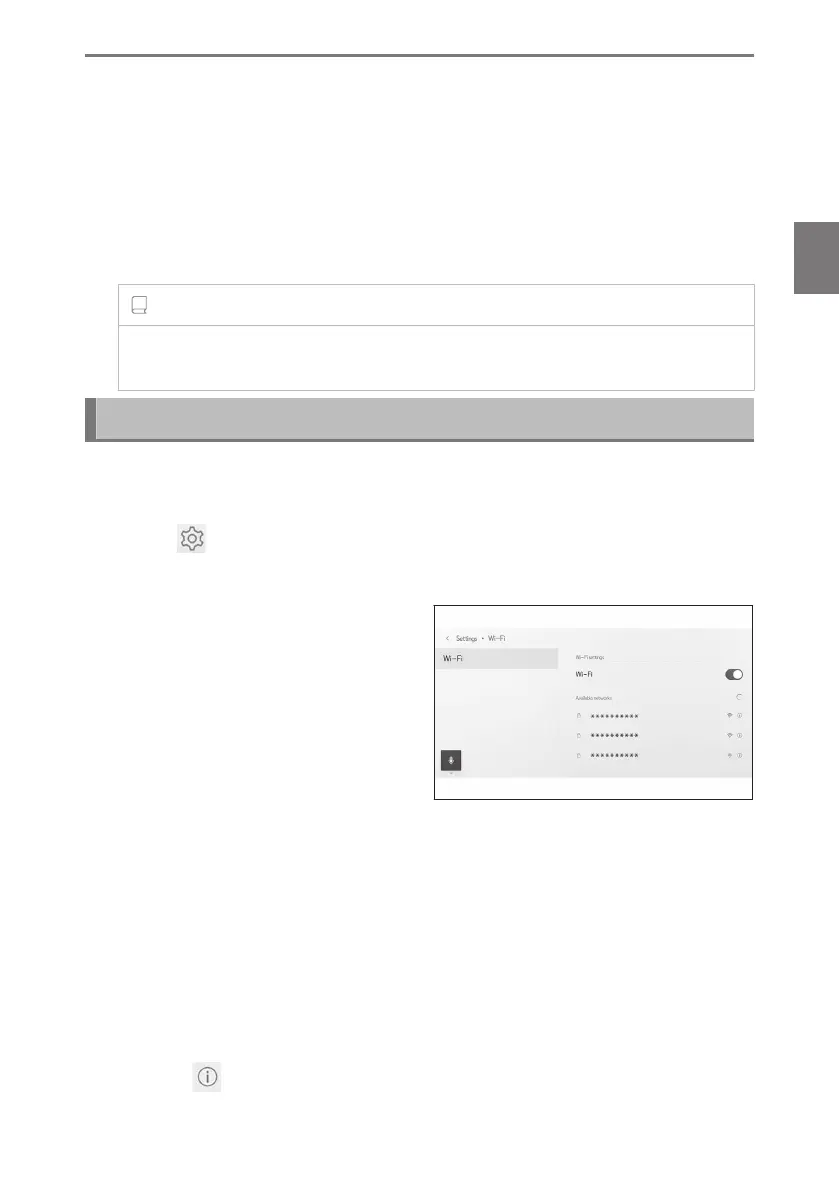
3 Set [Wi-Fi] in the main area to on.
● A message may be displayed depend-
ing on the multimedia system settings.
Perform the operation according to
the screen guidance.
● Turning on [Wi-Fi] will display nearby
networks that are available.
4 Touch the network to be connected
to from [Available networks] in the main area.
● Network name may display as duplicate when more than one MAC address shares
the same network.
● A maximum of 30 networks can be displayed. The list is automatically updated
every 6 seconds.
● If there are devices using the same network name (SSID), it cannot identify which
device to use. Use different network names (SSIDs) if using multiple devices.
● No selections can be made while driving.
● Touch [ ] for the applicable network to check network details.
5 Enter the corresponding password for this network.
3-2. Connecting to a Wi-Fi
®
network
125
3
Connecting a smartphone or communication device












 To Next Page