
EasyManua.ls Logo

LineEye LE Series - User Manual

LineEye LE Series
78 pages
Print Icon
To Next Page IconTo Next Page
Loading...
INSTRUCTION MANUAL
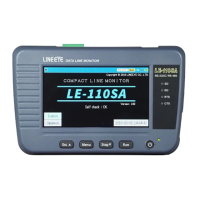
LE-110SA
LE-1 20SA
DATA LINE MONITOR
Ver.5 2020.10 》

Table of Contents

Other manuals for LineEye LE Series

Questions and Answers

  • C
    Christopher BowersAug 20, 2025
    What to do if LineEye LE keys are not working?
    • P
      Pamela SchaeferAug 20, 2025
      If you cannot operate any keys on your LineEye Measuring Instruments, it might be because the device is accessing the USB memory or connected to a PC via the PC link software. You cannot control the device during these operations. Alternatively, try removing the batteries and all cables.
  • T
    Tanya HawkinsAug 22, 2025
    Why LineEye LE battery cannot be recharged?
    • K
      Karen SchmidtAug 22, 2025
      First, check the charge setting. Note that the batteries cannot be fully charged with the line monitor itself; use the dedicated charger sold separately. Finally, if the batteries drain quickly even after being charged, their lifetime may be ending.
  • M
    Margaret AyalaAug 25, 2025
    How to fix PC not recognizing LineEye LE via USB?
    • Z
      zrobertsAug 25, 2025
      First, install the USB driver from the attached CD-ROM onto your PC. Also, check if any security software is interfering with the connection.
  • C
    Craig GonzalezAug 26, 2025
    Why does LineEye LE power down when pressing [RUN] or connecting a USB flash?
    • D
      Derek TaylorAug 26, 2025
      This might happen when the batteries are running low. Try exchanging the batteries or using the device with USB bus power.
  • S
    Scott SawyerAug 28, 2025
    How to fix dim display on LineEye LE?
    • P
      paul22Aug 28, 2025
      Try controlling the backlight setting. Also, the automatic backlight-off function might be active.
  • N
    Nicholas AdamsAug 30, 2025
    What to do if LineEye Measuring Instruments LEDs light but monitoring fails with an error?
    • J
      juliemorrisonAug 30, 2025
      Make sure that the communication settings, such as speed, data length, and parity bit, are correctly configured. Also, if communication data runs when you start measurement, the line monitor may misinterpret part of the data bit as a start bit, causing the initial part of the measurement to be displayed as an error.
  • D
    Debra BrownAug 31, 2025
    Why did my measured data disappear on LineEye Measuring Instruments?
    • J
      Jennifer RodriguezSep 1, 2025
      The previous measured data disappears when you execute a new [Run]. Also, the measured data disappears when you turn off the power.
  • J
    Joshua FisherSep 2, 2025
    How to resolve display issues on LineEye Measuring Instruments?
    • T
      Timothy HunterSep 3, 2025
      Turn the power off and then on again. If that doesn't work, try the soft reset operation.
  • A
    Amy StevensSep 5, 2025
    LineEye LE Measuring Instruments LEDs are on but the display is blank, how to fix?
    • T
      tpattersonSep 5, 2025
      Press [ Run ] to start the measurement. Also, verify that the communication speed is configured correctly.
  • D
    Dr. Christopher BakerSep 7, 2025
    How to use LineEye Measuring Instruments measured data on a PC?
    • R
      Rebecca FosterSep 7, 2025
      Use the display capture function. The measurement data in the USB flash cannot be opened directly on a PC because the file format is unique. Convert it to a .txt file by using the PC link software to use the file on your PC.

Summary

Introduction

NOTICE

Prohibits reprinting without permission; product specifications may change.

USER LIMITATION

Defines intended use and limitations for safety-critical applications.

Safety Information

Read this first!

Contains important information for safe use and damage prevention.

Chapter 1 Before Using the Product

1.1 Guide to This Manual

Explains manual structure, screen display, and operating procedure conventions.

1.2 Unpacking

Details included items and checks for damage or missing accessories.

Utility CD

Outlines contents of the utility CD (manual, firmware, drivers).

1.3 Major Functions and Features

Lists key capabilities and features of LE-110SA/LE-120SA data monitors.

1.4 Explanation of Each Part [LE-110 SA]

Identifies and describes all physical parts and ports of the LE-110SA model.

1.4 Explanation of Each Part [LE-120 SA]

Identifies and describes all physical parts and ports of the LE-120SA model.

1.5 Power and Battery

Explains power sources (USB, battery) and battery types.

To insert the batteries

Step-by-step guide for inserting batteries into the device.

Charge Ni-MH Batteries

Details charging methods and settings for Ni-MH batteries.

Chapter 2 Basic Operation and Set-Up

2.1 Power Source ON

Instructions for powering on the device and initial display.

2.2 Operation

Explains device control using keys and touch panels.

2.3 Data Display window

Details the components and information displayed in the data window.

2.4 Languages (Japanese;English)

How to select the display language on the device.

2.5 Date and Time Setting

Instructions for setting the device's date and time.

2.6 Settings for Charging Batteries

Configures charging types for Ni-MH batteries.

2.7 Adjust LCD Back Light

Adjusts the brightness of the device's LCD screen.

2.8 Power saving Mode

Configures backlight and auto-power off for battery saving.

Chapter 3 Basic Settings

3.1 Setting Menu

Overview of the main settings menu and its options.

3.2 Measurement Port; Function

Selects measurement port and function (Monitor/Simulate).

Measurement Port and Function Details

Details TTL port options and signal levels for measurement.

3.3 Communication Speed

Sets the communication speed for target devices.

Character Framing

Configures data bit length, parity, and stop bit.

Data Code

Selects data display codes (ASCII, JIS, EBCDIC, HEX).

3.4 Frame End Setting

Sets time/data for frame end recognition and frame end data.

3.5 Capture Memory

Configures recording area and write control for data capture.

3.6 Idle Time and Time Stamp

Configures idle time display and time stamp format.

3.7 Line State

Enables recording and display of control line status.

3.8 Auto Backup

Configures automatic saving of measured data to USB.

Chapter 4 Connect to the Target Devices

4.1 Connect to RS-232 C

Details connections for RS-232C port, including pinouts and cables.

4.2 Connect to RS-422;RS-485(LE-110 SA)

Details connections for RS-422/RS-485 ports, including terminal blocks.

RS-422 Connection Diagrams

Wiring diagrams for monitoring and simulating RS-422 between devices.

RS-485 Connection Diagrams

Wiring diagrams for monitoring or simulating RS-485 connections.

4.3 Connect to TTL interface(LE-120 SA)

Details connections for TTL interface, including voltage levels and cables.

Chapter 5 Monitor Function

5.1 Overview

Introduces monitor function, data display, and analysis features.

5.2 Start and Stop Monitoring

Guides on starting and stopping the monitoring process.

Data Display Control

How to pause display, change data code, and format.

Stop Monitoring

How to stop the monitoring process.

5.3 Scroll and Jump

Navigating through captured data using swipe and jump features.

Marker Function

Storing and jumping to specific data positions using markers.

5.4 Retrieval Function

Finding specific data based on various criteria.

Data Retrieval Operations

Starting, performing, and ending the data retrieval process.

5.5 Line State Display Function

Displaying the status of control lines and trigger inputs.

5.6 Display Data Per a Frame

Displaying data frame by frame with timestamps.

5.7 Save a Screen Image

Saving screenshots of the device display to a USB drive.

5.8 Auto Configuration Function

Automatically determines communication settings.

Chapter 6 Simulation Function

6.1 Simulation Function

Overview of simulating communication partners.

6.2 Registration of Transmission Data

Registering data for transmission simulation.

Inputting Simulation Data

Entering simulation data via hexadecimal or text input.

Data Fill and Copy

Filling data ranges and copying tables/buffers for simulation.

Selection for Copy;Paste

Selecting data ranges for copy and paste operations in simulation.

6.3 Start;Finish Simulation

Starting and ending simulation tests.

Fixed Data Codes

Lists of fixed data codes used in simulation.

Chapter 7 Trigger Function

7.1 Trigger Function

Overview of trigger functions for measurement control.

7.2 External Trigger Input;Output

Using external signals as triggers or outputting trigger signals.

7.3 Trigger Setting

Setting up trigger factors and actions.

Trigger Conditions

Setting trigger conditions based on line state, timer/counter, or idle time.

Trigger Action Setting

Configuring trigger actions like buzzer, stop, save data.

Trigger Control Actions

Controlling timer, counter, trigger factors, and data transmission.

External Trigger Output 2

Outputting pulse signals for external trigger output 2.

7.4 Timer; counter function

Details on timer and counter actions used with triggers.

Timer;Counter Configuration

Setting timer/counter actions, values, and resolutions.

Chapter 8 Data Save and Read

8.1 File Management Function

Managing saved data and settings on USB memory.

8.2 Save

Saving measured data or settings to a file.

8.3 Filter Function

Filtering files displayed in the management screen.

8.4 Reload (Read)

Loading saved data or settings from a file.

8.5 Delete

Deleting files from the USB memory.

Chapter 9 PC Link Function

9.1 Installation of the USB Driver

Guides on installing the USB driver for PC connection.

9.2 Installation of PC link software

Guides on installing the PC link software (LE-PC300R).

9.3 Remote control

Connecting and operating the monitor via PC software.

Remote Control Operations

Detailed steps for remote monitoring and measurement using PC software.

9.4 Measured data display and text conversion

Displaying and converting measured data on PC.

Data Conversion Process

Setting conversion parameters and initiating file conversion.

Chapter 10 Documents

10.1 Specifications

Technical specifications for LE-110SA and LE-120SA models.

Device Specifications Summary

Summary of key device specifications like trigger, simulation, power, and connectivity.

10.2 Data Code Table

Tables showing ASCII, JIS, and EBCDIC data codes.

10.3 Option

Lists available optional accessories like chargers and cables.

Chapter 11 After Support and Maintenance

11.1 How to make it back to default state

Resets the device to factory default settings.

11.2 How to Update the Firmware

Guides on updating the device's firmware.

Firmware Update Procedure

Detailed steps for performing the firmware update process.

11.3 Troubleshooting

Lists common problems and their solutions.

Troubleshooting (continued)

Provides additional common problems and their solutions.

11.4 Warranty and After service

Information on product warranty and after-sales service.

User Registration

Information on registering the product for after-sales service.

Repair Information

Details for contacting for repair and required information.

Repair After Warranty

Information on paid repairs after the warranty expires.

Calibration and Support

Details on hardware calibration testing and obtaining further support.

LineEye LE Series Specifications

General IconGeneral
BrandLineEye
ModelLE Series
CategoryMeasuring Instruments
LanguageEnglish