Installation of Echo™ Software
F6 SMART™ – Volumetric Handheld Camera – User Guide
This Dialog-Box creates the program’s shortcuts in Windows’s Start Menu.
NOTE:
Explanations in this document, from this point onwards, will
refer to the
Start Menu’s default program name
(
) and
folder.
a. In case a different name (or menu folder name) is required, click on the
Browse…
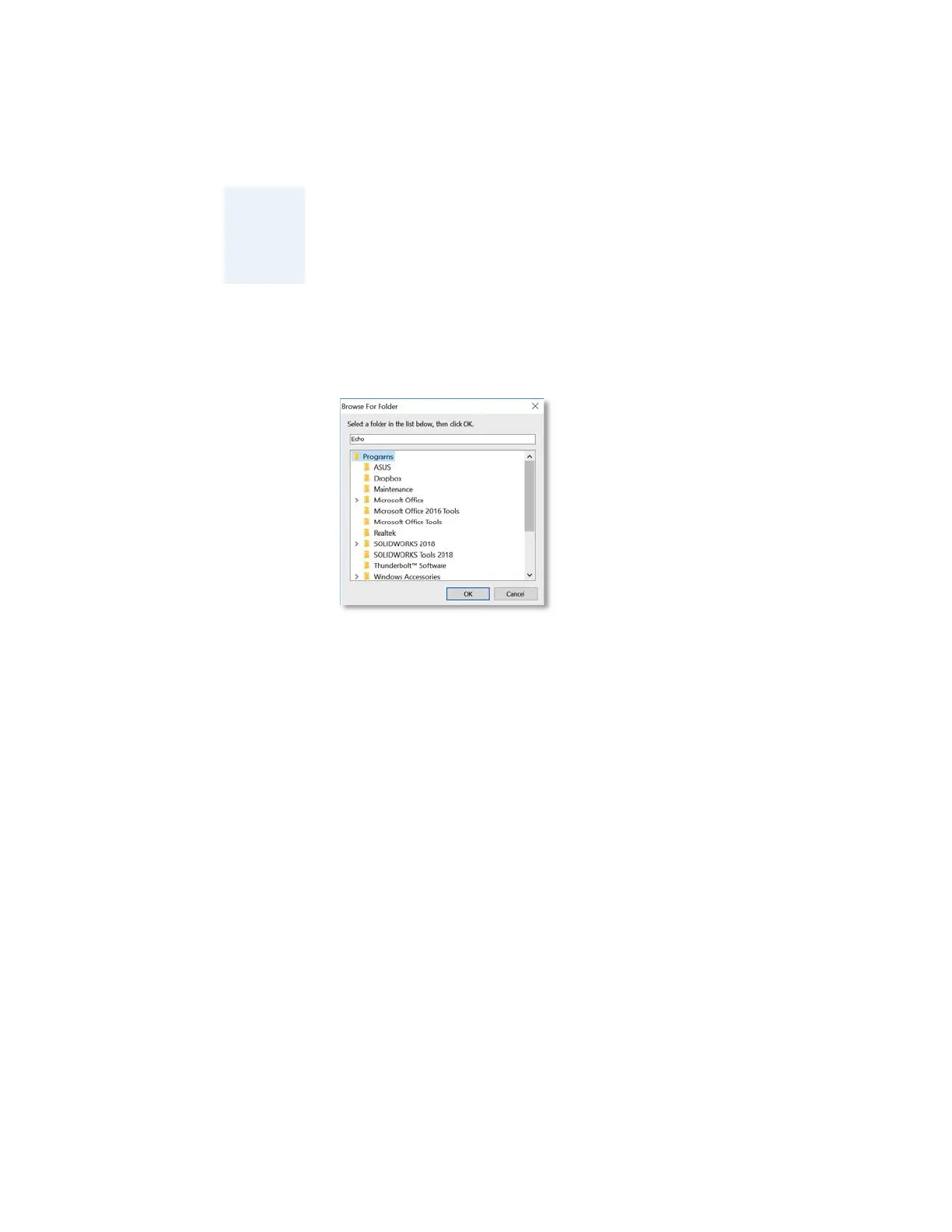
Command-Button to open another “Browse For Folder” Dialog-Box:
Figure 10 – The “Browse For Folder” Dialog-Box
This Dialog-Box allows manual selection of another name and/or folder for the
installation of the Echo™ software, as well as setting-up a new name/folder.
Click on the
OK
Command-Button as soon as the installation name/folder is set,
or on the
Cancel
Command-Button to cancel the manual selection.
The “Browse For Folder” Dialog-Box closes and the “Select Start Menu Folder”
Dialog-Box (see Figure 9 above) turns active again with the recently selected
installation name and folder presented in the address bar.
b. The “Select Start Menu Folder” Dialog-Box also allows complete elimination of
the Echo™ Strat Menu Folder by marking the “Don’t create a Start Menu folder”
Check-Box at the bottom-left side of the Dialog-Box.
c. In case a step back in the installation process is required, click over the
< Back
Command-Button.
d. In case a termination of the installation process is required, click over the
Cancel
Command-Button.
5. To continue the installation, click on the
Next >
Command-Button.



 To Next Page