208 CONTENTS
Note
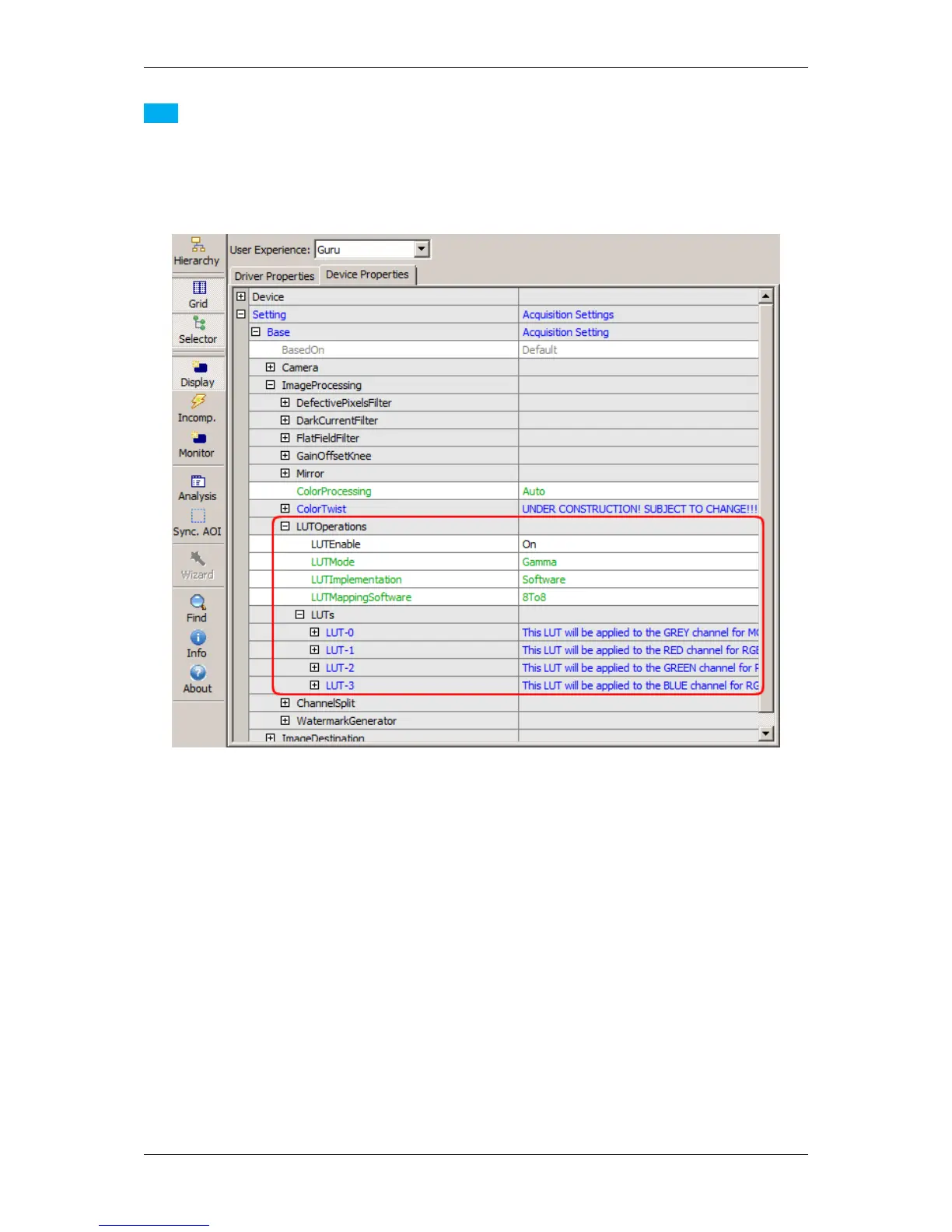
As mentioned above, you can do a gamma correction via ("Setting -> Base -> ImageProcessing -> LUT←-
Control"). Here, the changes will affect the 8 bit image data and the processing needs the CPU of the host
system:
Figure 11: LUTControl dialog
Just set "LUTEnable" to "On" and adapt the single LUTs like (LUT-0, LUT-1, etc.).
20.3.2.2 Step 2: White Balance
As you can see in the histogram, the colors red and blue are above green. Using green as a reference, we can
optimize the white balance via "Setting -> Base -> Camera -> GenICam -> Analog Control -> Balance Ratio
Selector" ("Balance White Auto" has to be "Off"):
1. Just select "Blue" and
2. adjust the "Balance Ratio" value until the blue line reaches the green one.
MATRIX VISION GmbH


 To Next Page