12.1 wxPropView 93
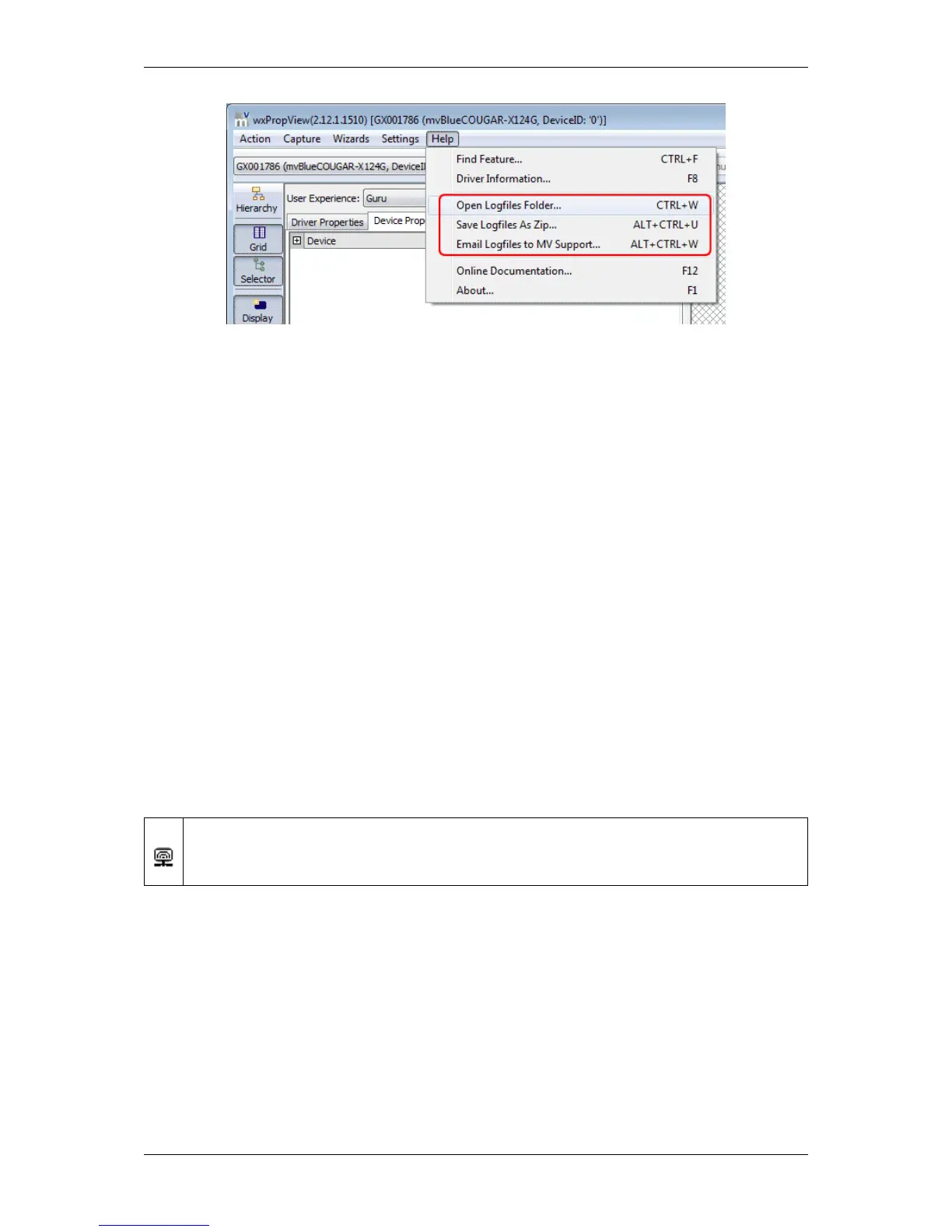
Figure 18:wxPropView - Help menu
The options are to
• directly open the logs folder, to
• create a zip file with all the logs, and to
• open the systems default email client to send an email to support@matrix-vision.com.
See also
Accessing log files using Linux (p. 142)
12.1.2 How to configure a device
As described above, after the device has been initialized successfully in the "Grid" area of the GUI the available
"interface layout" properties are displayed in a hierarchy tree. GenICam (p. 155) is the default interface layout of
the mvBlueFOX3 and we recommend to use it!
wxPropView - Configuring a device:
https://www.matrix-vision.com/tl_files/mv11/trainings/wxPropView/wx←-
PropView_ConfiguringDevice/index.html
The next chapter will show how to set the interface layout and which interface you should use according to your
needs.
12.1.2.1 Changing interface to GenICam or device specific
The mvIMPACT Acquire (p. 157) interface internally uses the GenICam (p. 155) runtime libs, so that it can be con-
sidered as an user application written with the GenICam (p. 155) interface. This behavior has several advantages:
• The mvBlueCOUGAR can be used like any other mvIMPACT Acquire (p. 157) device.
MATRIX VISION GmbH


 To Next Page