8.2 Windows 41
• wxPropView (p. 74) and
• mvDeviceConfigure (p. 100)
either on desktop as single icons or in Windows menu under "MATRIX VISION -> mvIMPACT Acquire".
Note
You can ignore the other tools mvIPConfigure and mvGigEConfigure, because they are only necessary in
combination with GigE Vision devices like the mvBlueCOUGAR-X.
During installation, you can select the features you want to install. It is also possible to select "Firmware updates":
In this case, the installer will copy the update file "mvBlueFOX3_Update.mvu" into the MATRIX VISION driver
installation directory:
"[Path: e.g. C:\Program Files\]MATRIX VISION\mvIMPACT acquire\FirmwareUpdates\mvBlueFOX3\
Afterwards, you can use mvDeviceConfigure (p. 100) to update the firmware. The latest firmware image is available
on the web - please check for updates. The current firmware version can be read out using wxPropView (p. 74)
(Device section on top) or via
cat /etc/FIRMWARE
when working locally.
8.2.3 Connecting the camera
After the driver installation you have to connect the mvBlueFOX3 using a USB 3.0 cable.
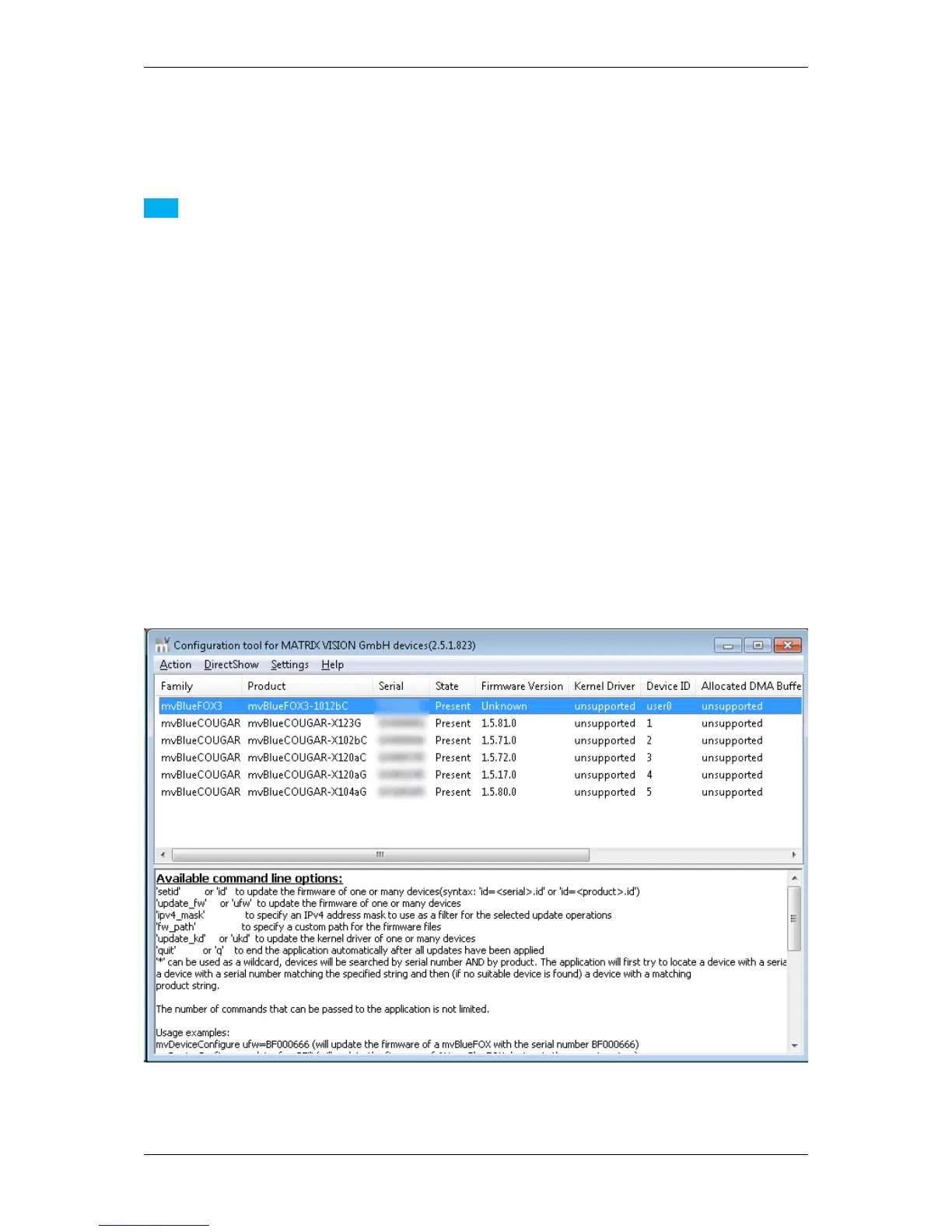
You can check connection by using tool mvDeviceConfigure (p. 100). In the program's window, your camera should
be listed:
Figure 6: Connected mvBlueFOX3
Afterwards, you can How to see the first image (p. 79) using wxPropView (p. 74).
MATRIX VISION GmbH


 To Next Page