40 CONTENTS
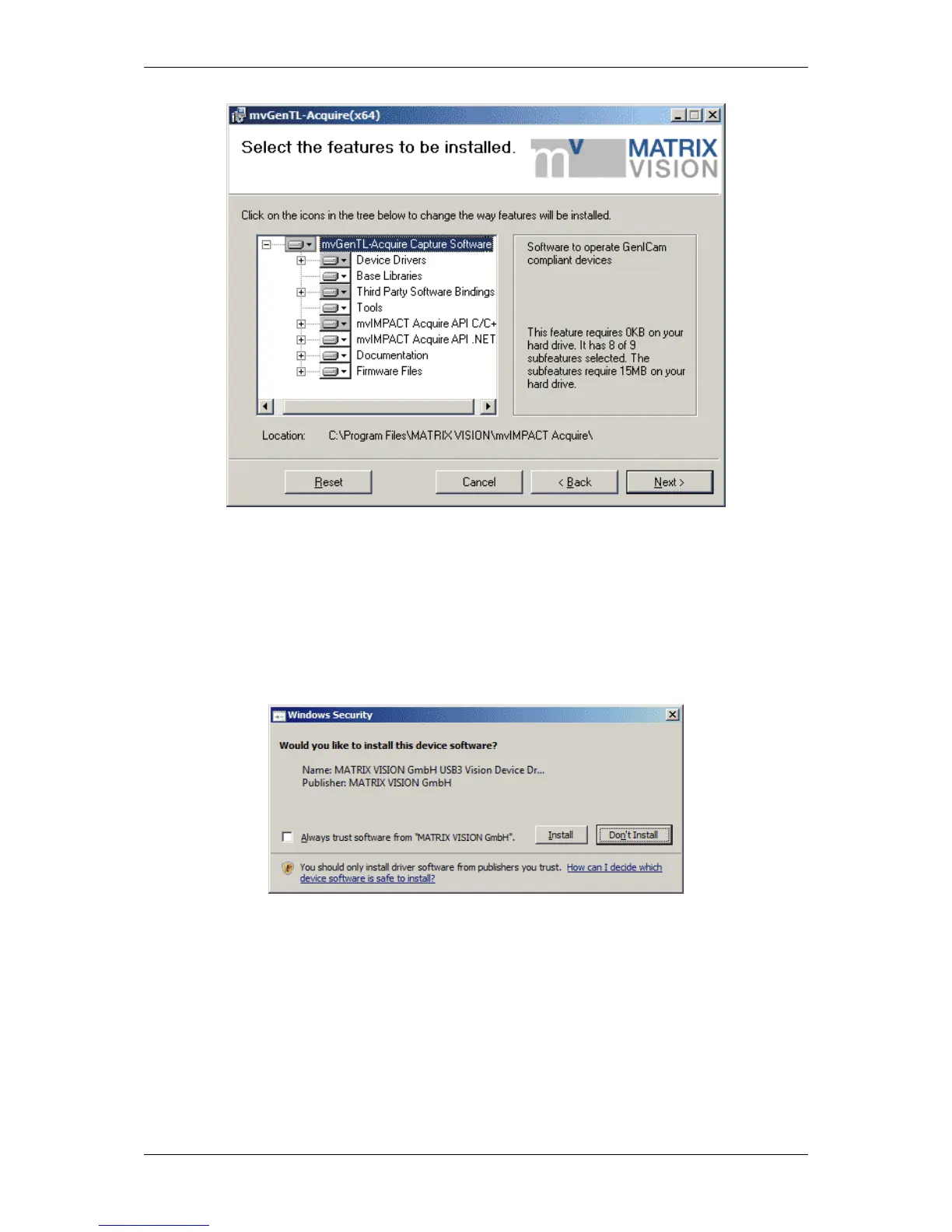
Figure 4: Driver installation - select features
• The installation will start and copies the data. At the end, MATRIX VISION's USB3 Vision (p. 161) capture
filter driver will be installed. A "Windows Security" dialog will appear.
• Click on Install (This however requires the system to be rebooted, thus the installer will ask the user to reboot
the system.).
Figure 5: Driver installation - Windows Security message
• After the system has been restarted, the filter driver installation will start automatically. Click "Ok".
• Afterwards, please ignore the compatibility testing of Windows and click on "Continue anyway" twice.
• After the installation of the USB3 Vision (p. 161) capture filter driver you will see following dialog. Click "Ok".
• Now, the driver installation will be finished.
You will find all tools like
MATRIX VISION GmbH


 To Next Page