226 CONTENTS
To minimized this pattern, you can balance the sensor patterns since Firmware version 2.3.70.0. This procedure
works like the white balancing used with color sensors. For this reason the same terms are used (red, blue, green).
The balance reference is the "green" pixel value from the "blue-green" line of the sensor.
See: Output sequence of color sensors (RGB Bayer) (p. 64)
I.e. all gray scale values of the these "green" pixels are averaged.
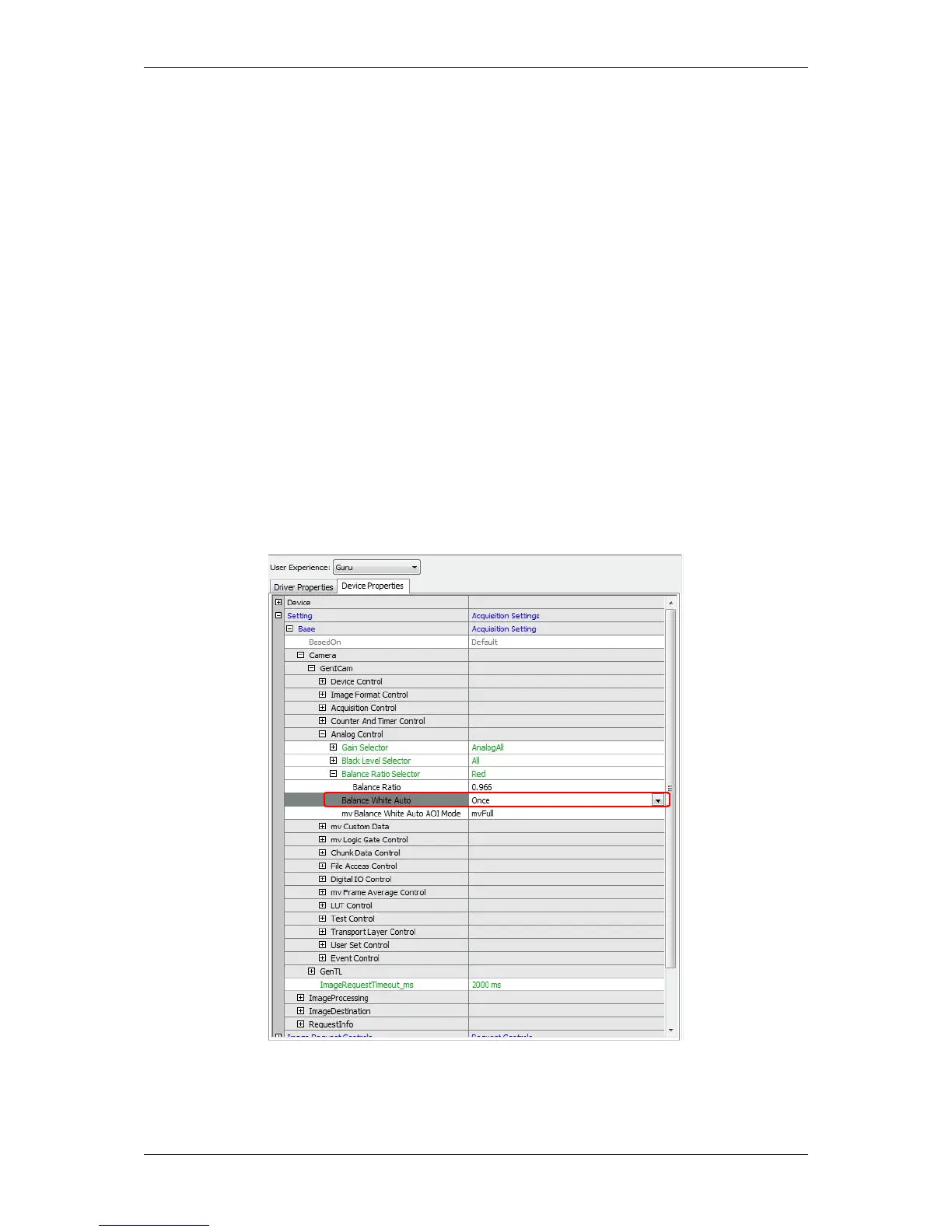
With "Setting -> Base -> Camera -> GenICam -> Analog Control -> Balance Ration Selector" you can select
each color to set the "Balance Ratio":
• "Red" averages the "red" pixel values from the "red-green" line of the sensor.
• "Green" averages the "green" pixel values from the "red-green" line of the sensor, too.
• "Blue" averages the "blue" pixel values from the "blue-green" line of the sensor.
I.e. there are 4 average values (reference value, red value, green value, blue value). The lowest value will be
unchanged, the other values are increased using each "Balance Ratio".
However by using the property "Balance White Auto" you can balance the sensor automatically:
Figure 2: Balance White Auto
After balancing, we recommend to save these settings to a UserSet (p. 98).
MATRIX VISION GmbH


 To Next Page