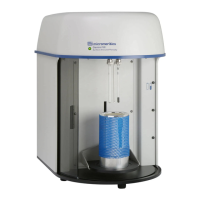
TriStar II 3020 Generating Graph Overlays
302-42828-01 - Dec 2012 3-43
8. Select Reports > Start Report. Select the file created in the previous steps and click Open. To
select more than one file, hold down the Ctrl key on the keyboard while selecting the files.
9. Click Open and select the report destination in the Report Settings window and click OK.
10. If only one file was selected in step 8, the Selected Reports window displays. Verify the reports
to generate and click OK. If multiple files were selected, the following window will not display.
11. The report screen displays with tabs across the top of the screen. Click each tab to view the
reports.



 To Next Page
 Loading...