11.3 Using MP3 Assistant
Copying MP3 Files to Your Device
Use MP3 Assistant to copy MP3 files to the appropriate location on the device
hard drive or a storage card so that the MP3 Player program can detect and play the
MP3 files. (For information on MP3 Player, see Chapter 9.)
1. If you want to copy MP3 files to a storage card, insert the card to your device.
2. Turn on your computer and your device.
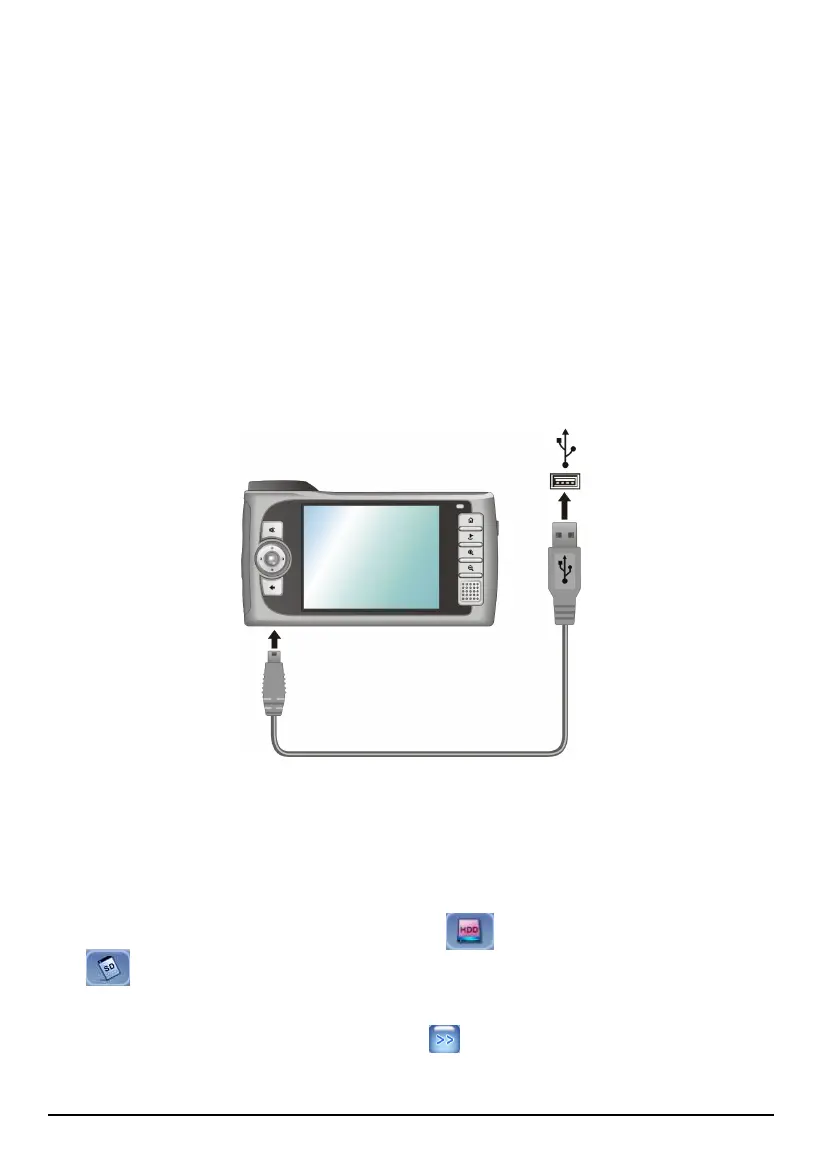
3. Connect the mini-USB end of the USB cable to the bottom of your device and
the other end to a USB port on your computer.
4. Start Mio Transfer by clicking
Start Programs Mio Transfer on your
computer. The Mio Transfer screen appears.
5. Click
MP3 Assistant on the top menu bar. All the drives on your computer will
appear on the left column.
6. Select your target device by clicking the
HDD (device hard drive) or
SD (storage card) icon.
7. Select the folder where your MP3 files are stored from the left column. Select
the MP3 file you want to copy and tap
. The selected file will be copied to
the target device.
99


 To Next Page