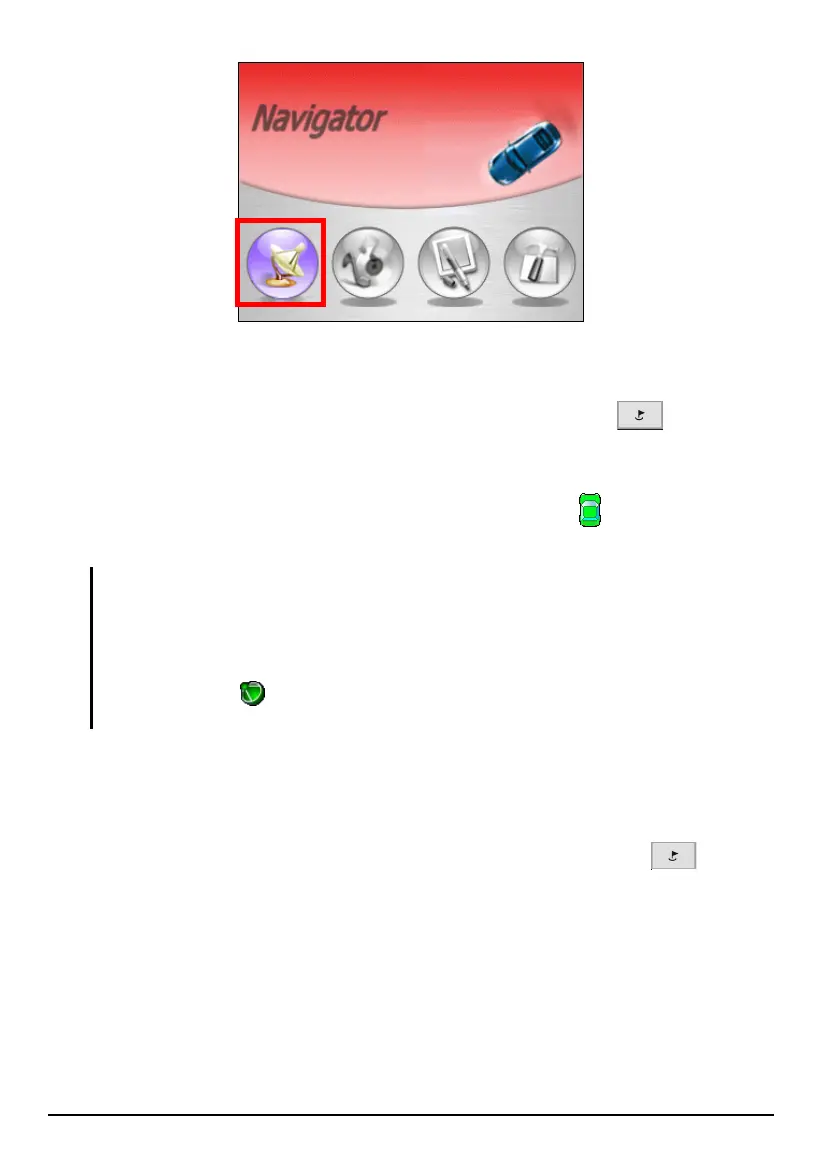
5. When you start Mio Map for the very first time, the default map in use is
Pacific, Mountain. You must select a map that matches your location. To
switch to another map, press the Navigation Settings button
twice and
tap
Switch Maps. (See section 7.3 for details.)
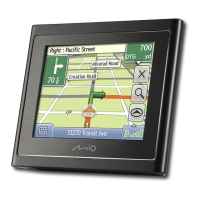
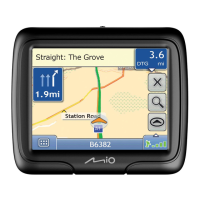
6. After the map is loaded, GPS positioning automatically starts. Once the system
has a fix on your position, you will see a green car icon
on the map
indicating your current position.
NOTE:
For initial positioning, make sure that you remain at the same spot with a clear view of the
sky. The GPS may take a few minutes to find its current location initially.
The descriptions above assume that you are in the default Navigation mode (for Planner
mode, see section 6.5) and Vehicle mode (for Walker mode, see section 6.1).
You can tap the
icon at the bottom right corner of the screen to check the current GPS
status. (See section 8.1 for further information.)
Getting Help
Mio Map has a tutorial available with basic navigational definitions and
instructions. At the map screen, press the Navigation Settings button twice to
access the Options menu and tap
Help.
31


 To Next Page