Configuring Auto Alert Category
You can configure two distances for each automatic alert. Mio Map will first alert
you when you are within the first distance and then alert you when you are within
the second.
1. Press the Navigation Settings button
once and tap
Favorites.
2. Tap (highlight) the
Auto Alert 1 or Auto Alert 2 category you want to configure.
3. Tap
Tools (top toolbar) Edit.
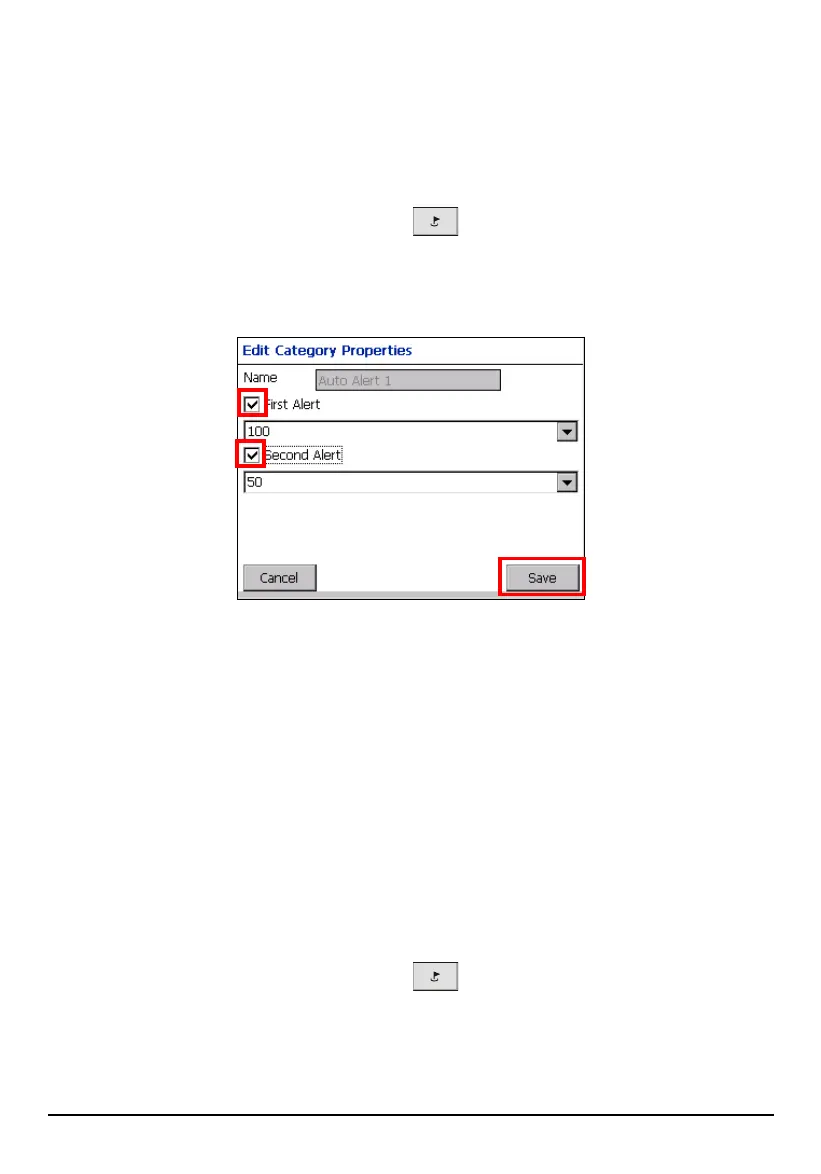
4. To enable both alerts, check both boxes. Or, you can disable one of the alerts
by clearing the box next to it. If you configure two alerts, the first must have a
greater distance than the second.
5. From the pull-down menus, select a distance for each enabled alert. Mio Map
will alert you when the distance between your current traveling position and
the location of the alert equals the distance you enter here.
6. Tap
Save to complete the configuration.
Managing Favorites
Editing or Deleting an Item in Favorites
1. Press the Navigation Settings button once and tap Favorites.
2. Tap (highlight) the category.
3. Tap
Items.
62


 To Next Page