Navigate
Navigate is the command that you use, after determining the
origin and destination, to calculate a route and start navigation.
Navigation mode
vs.
Planner mode
Mio Map can operate in either of the two modes:
Navigation Mode
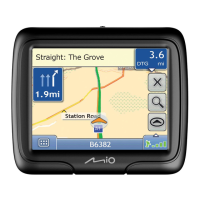
This is the default mode of operation. In this mode, GPS
positioning is on. A blue route with a moving icon shows
your progress.
Planner Mode
In this mode, GPS positioning is off. Mio Map displays
planned calculated routes, but not your progress.
Vehicle mode
vs.
Walker mode
Mio Map can operate in either of the two travel modes:
Vehicle Mode
This is the default travel mode. An icon of green car
indicates your GPS position on the map.
Walker Mode
This mode is ideal when you are walking instead of driving.
In this mode, an icon of footsteps indicates your GPS
position. Several functions are closed while in this mode.
4.2 Starting Mio Map
1. Make sure that either the external power is available or the battery has power.
2. Make sure that the GPS antenna has a clear view of the sky.
3. Press the power button to turn on your device. If you see another program
screen (such as MP3 player), exit the program to go back to the Home screen.
4. Tap the
Navigator button on the Home screen to start the Mio Map navigation
program.
NOTE: Whenever you start Mio Map, an agreement screen appears. Tap Agree or press the
Back key to use Mio Map.
30


 To Next Page