8 Options, Settings, and Preferences
Mio Map initially has default settings when it is installed. You can customize the
settings to suit your personal needs. Once you change the settings, your new
settings will remain until you change them again.
8.1 GPS Status
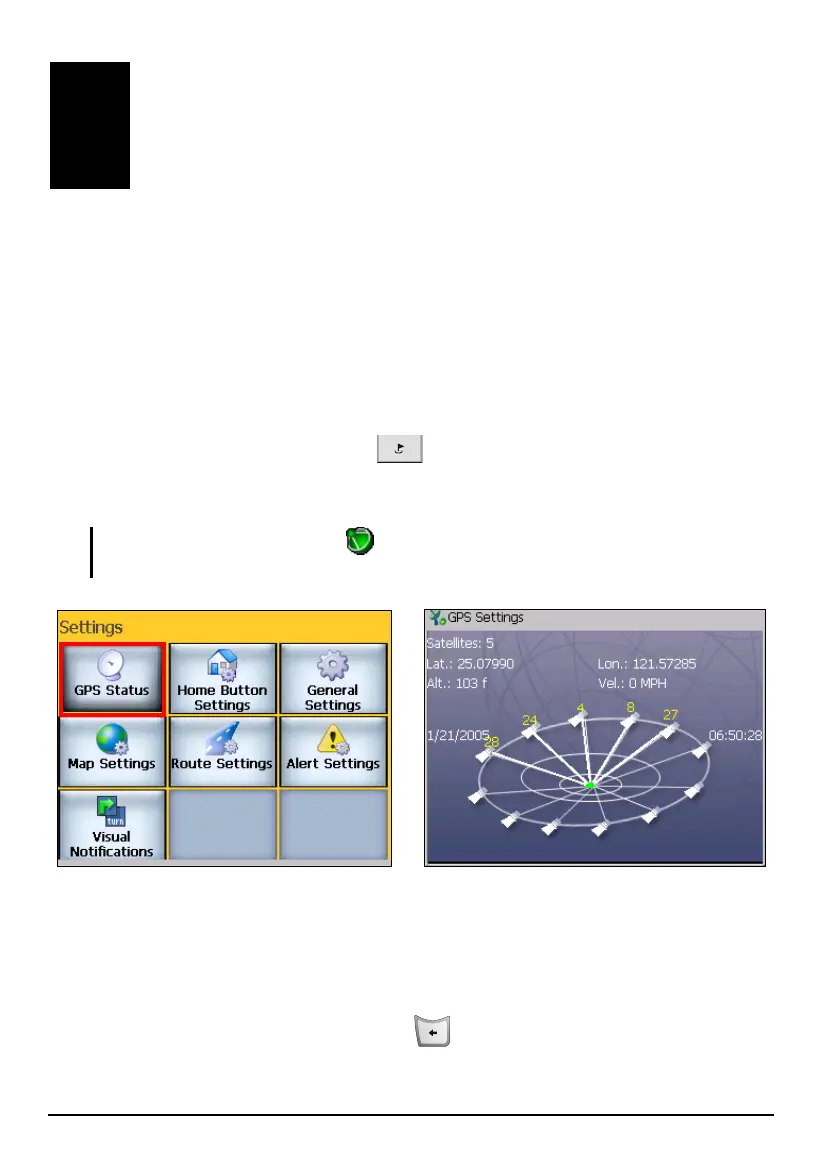
Press the Navigation Settings button three times and tap GPS Status to check
the current GPS status. At least four different satellite signals are needed to get a
fix on your current position
NOTE: You can also tap the icon
at the lower right corner of the map screen to directly
access the status screen.
Options, Settings, and
Preferences
Mio Map uses GPS signals to pinpoint your location. Mio Map remembers your
last location. However, to continually update your location, the software must
acquire fresh GPS signals. In Navigation mode, the software automatically
acquires GPS signals and constantly updates your position.
To exit the screen, press the Back button
.
79


 To Next Page