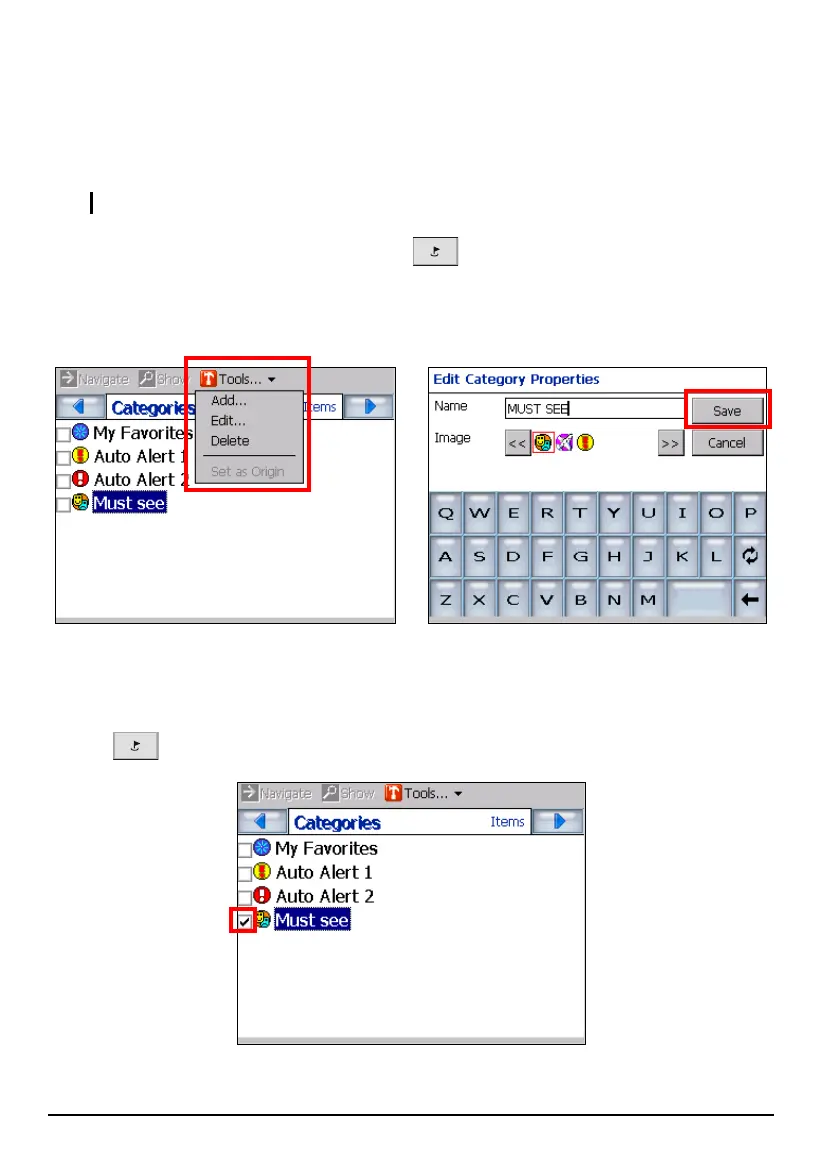
4. Tap (highlight) the item you want to edit or delete.
5. Tap
Tools (top toolbar) Edit or Delete.
Editing or Deleting Your New Category in Favorites
NOTE: You cannot edit or delete My Favorites, Auto Alert 1 and Auto Alert 2 categories.
1. Press the Navigation Settings button once and tap Favorites.
2. Tap (highlight) the category (the one you created).
3. To edit or delete the category, tap
Tools (top toolbar) Edit or Delete.
Displaying Favorites Icons on the Map
If you want the Favorite icons to display on the map, press the Navigation Settings
button
once and tap Favorites. Tap the checkbox before the category name.
63


 To Next Page