Operation
16K PLUS October 2019 5-43
Description of User Screens
Menu Screens - Continued
Preferences Menu
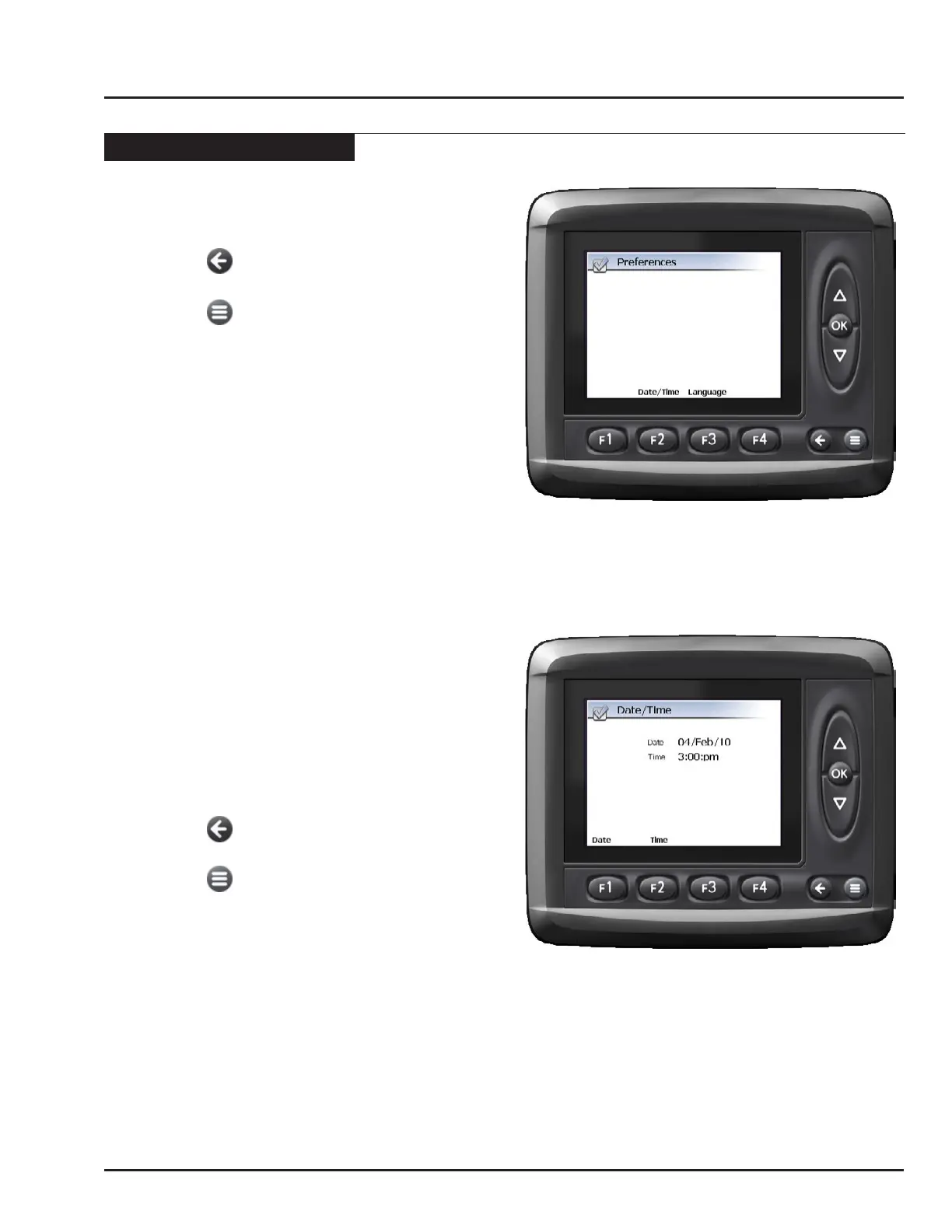
• From the Main menu, press F3 to enter the
Preferences menu.
• Press the button to return to the Main menu.
-OR-
• Press the button to exit the menu pages.
Setting the Date and Time
• In the Preferences menu, press F2 to enter Date/
Time menu.
• Press F1 to set the date.
• The year will be highlighted on the screen. Use
the UP/DOWN keys to set the year. Press OK
to accept.
• The month will then be highlighted on the
screen. Use the UP/DOWN keys to set the
month. Press OK to accept.
• The day will then be highlighted on the screen.
Use the UP/DOWN keys to set the day. Press
OK to accept.
• Press F2 to set the time.
• The hour will be highlighted on the screen. Use
the UP/DOWN keys to set the hour. Press OK
to accept.
Note: When setting the time, a 24 hour clock is
displayed.
• The minutes will then be highlighted on the
screen. Use the UP/DOWN keys to set the
minutes. Press OK to accept.
• Press the button to return to the Main menu.
-OR-
• Press the button to exit the menu pages.



 To Next Page