8-14 Manual # 42-02-2223
Using iView
Connecting to the iBox
Once the connection is created and saved, you are ready to connect.
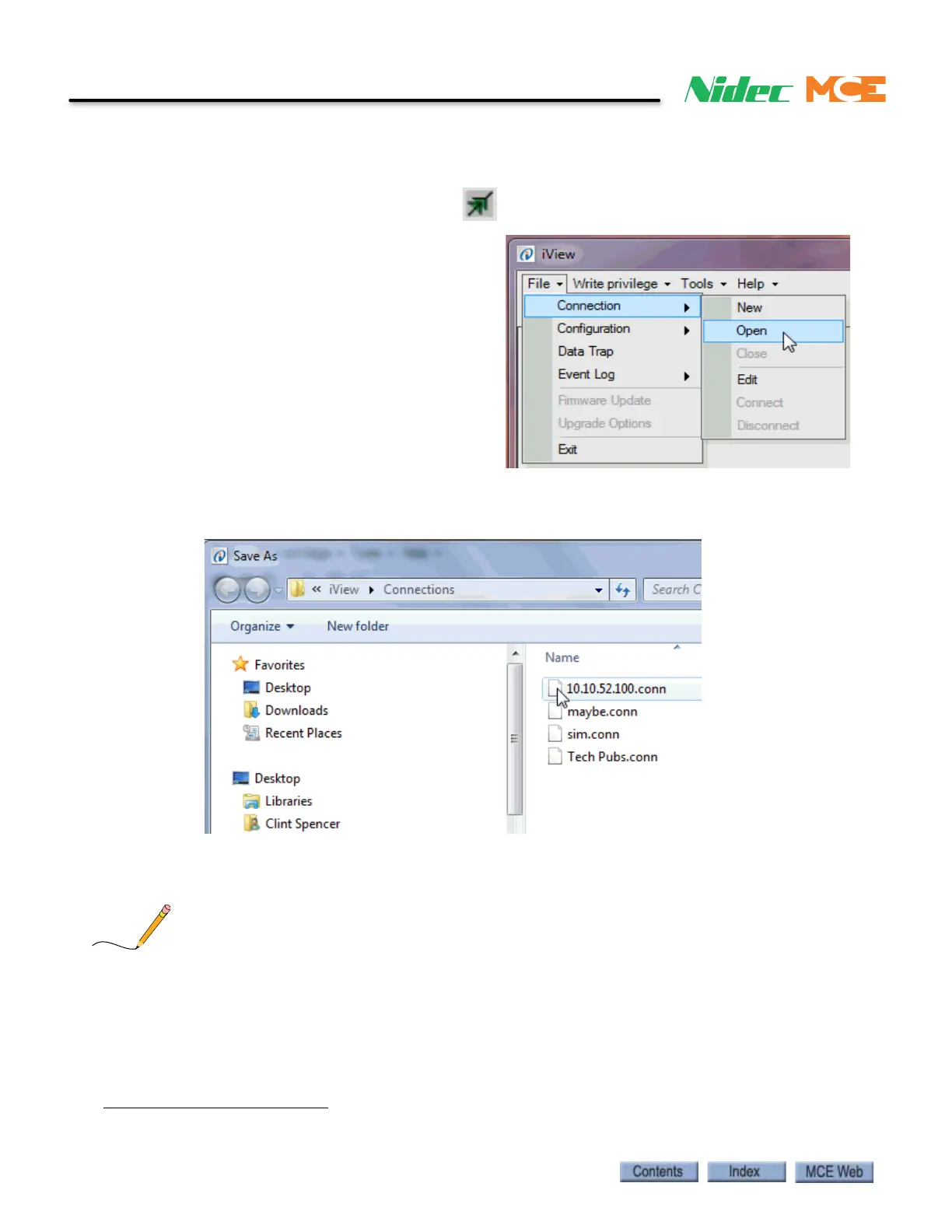
1. Click the Open Connection button
2. or click File on the menu bar, select
Connection and click Open. The
Open dialog appears.
3. To connect to a controller, double click the desired connection. The connection will take
a moment or two to establish, then a main screen will appear.
4. If there is a problem making the connection, you can “ping” the address using the iView
PC (see “Pinging” on page 5-11).
The default location for connection (.conn) files is the Connections folder (My Documents > Motion Con-
trol Engineering > iView > Connections). The default location for configuration (.cfg) files is the Configu-
ration folder (My Documents > Motion Control Engineering > iView > Configuration). If you want to
work online, connected to a controller, select Connection > Open from the File menu. Connection (.conn)
files will be displayed in the Open dialog. If you want to work in an offline configuration file, select Con-
figuration File > Edit from the File menu. Configuration (.cfg) files will be displayed in the Open Configu-
ration File dialog. Refer to the Working Online and Working Offline topics later in this section for more
information.



 To Next Page