8-33
iView Windows and Tabs
iControl AC
8
Pinning and Unpinning Windows
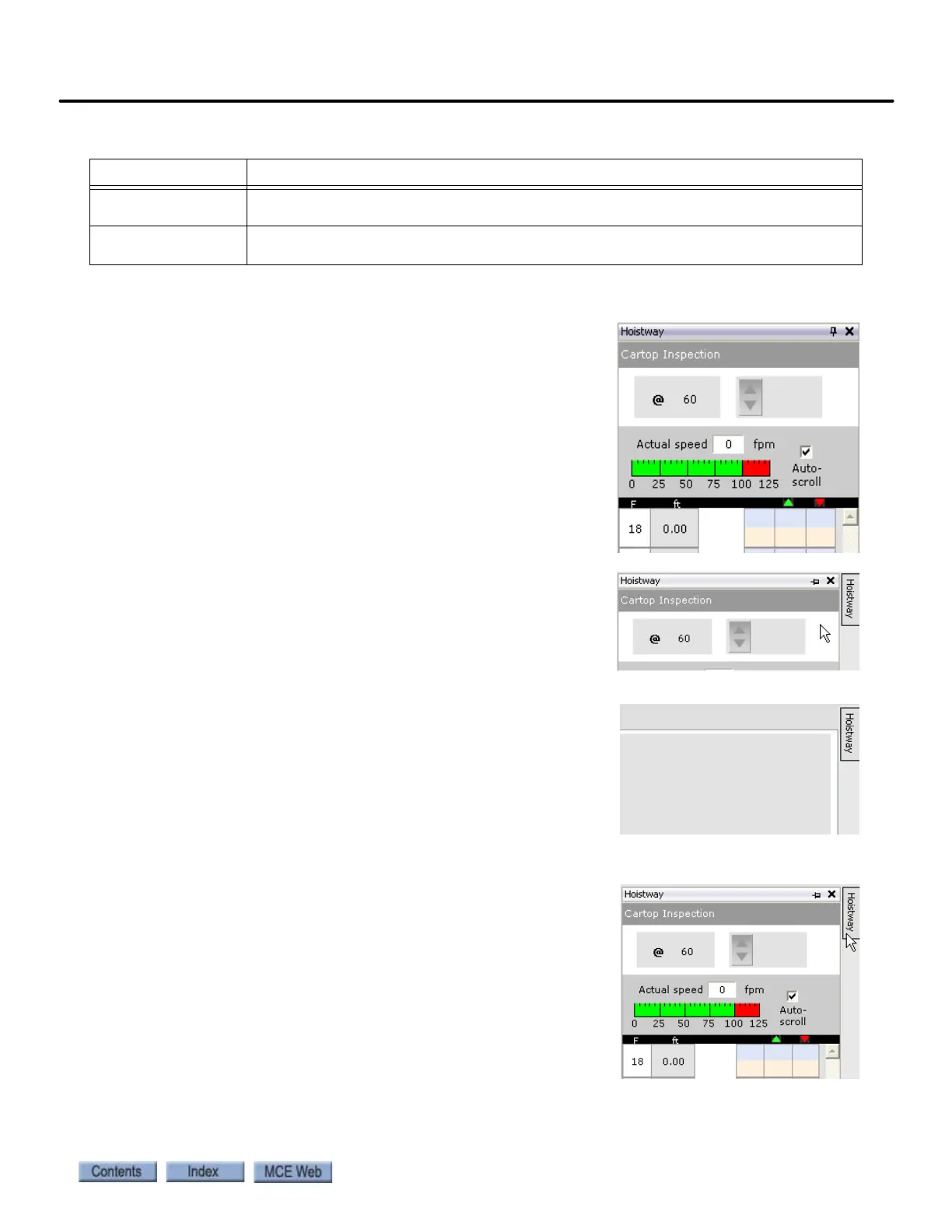
iView windows have a little push-pin icon in the upper right
corner, e.g. the Hoistway window shown on the right.
• When the pin is pointing down, the window is “pinned”
in its designated position.
• If you click the pin icon, it points left and a button
labeled Hoistway appears.
• The window remains in view if it has focus (click the
window title bar) or as long as the mouse cursor
remains on the window or button.
• But if another window has focus and you move the
mouse cursor off of the window or button, the window
collapses out of view.
• To temporarily bring the window into view again, place
the mouse cursor over the button. The window slides
into view and will remain in view if you click the title bar
or as long as the cursor remains on the button/window.
To permanently display the window again:
1. Bring the window into view by placing the cursor over
the button.
2. Click the pin so that it is pointing down again.
DBD Call
Registration
Allows you to register DBD calls. This control is accessed by clicking the DBD Call Reg-
istration button on the button bar.
Refresh Updates the information displayed on iView windows and tabs. This control is accessed
by clicking the Refresh button on the button bar.
Table 8.12 System - Miscellaneous Dialogs/Controls
Tab Content



 To Next Page