8-38 Manual # 42-02-2223
Using iView
Printing Screens
1. With the screen displayed, press the Print Screen key to send the entire screen to the
clipboard (PC memory).
2. To send only the selected item (widow or dialog) to the clipboard, press and hold the Alt
key, then press the Print Screen key.
Items sent to the clipboard can be pasted into any of several applications. One that you should
definitely have on your PC is Wordpad.
3. Open the Wordpad application (Start > All Programs > Accessories > Wordpad).
4. Select Paste from the Edit menu or press and hold the Ctrl key while pressing and
releasing the “v” key to paste the captured screen into Wordpad.
5. Select Print from the File menu to print the screen.
6. Save the file if you want to keep a record of the screen on the PC hard drive.
Setting the System Date and Time
The iControl system date and time can be set using the iView application connected to the Cen-
tral Dispatcher (iCue PC), Local/Dispatcher or Simplex car controller. Dispatcher time and date
are transferred to all running local cars and to other cars as they power up.
To set the time and date:
1. Establish an iView connection to the system dispatcher or simplex car.
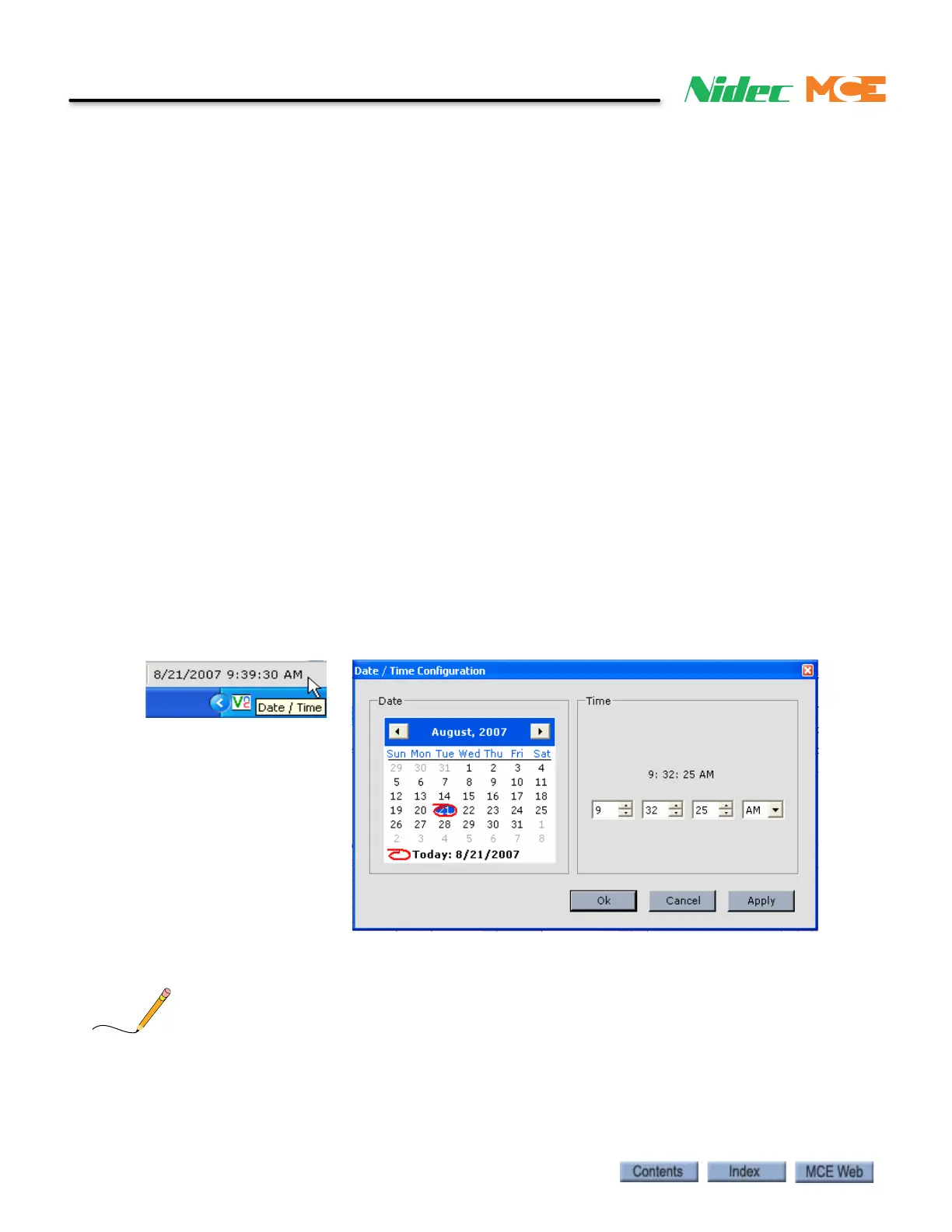
2. Double-click the time/date display at the bottom-right of the status bar (shown
below). The Date / Time Configuration dialog will appear:
3. Use the controls to set the date and/or time and click Apply or OK. The date and time
will be updated on all controllers communicating with the dispatcher.
The iView PC’s time, which is displayed at the very bottom-right corner of the screen, is not the same as
the iControl system’s date and time. The iControl system’s date and time are displayed on the iView sta-
tus bar and are set using the Date / Time Configuration dialog shown above.



 To Next Page