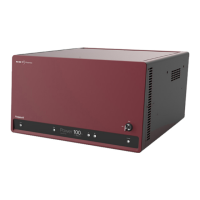
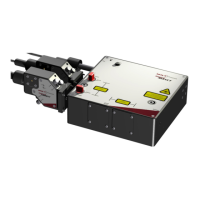
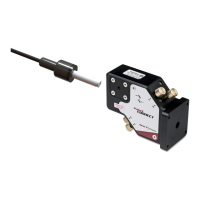
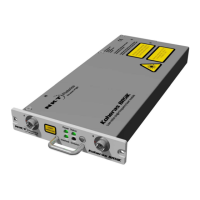
45
3 Connecting and Turning ON the Laser
The SuperK COMPACT laser can be managed using NKTP CONTROL software
installed on a PC. This chapter focuses on:
• How to obtain and install the CONTROL software
• Connect a PC using USB connectivity
• Turning the laser emission ON and OFF
CONTROL software
The laser is shipped with the CONTROL software installer on a USB key. You can
also download the most recent CONTROL software from the following link:
https://www.nktphotonics.com/lasers-fibers/support/software-drivers/
CONTROL software is capable of managing, configuring and monitoring NKT
Photonics products including this laser and associated accessories. Both 32 and
64 bit versions are available and must be installed on a PC running Microsoft
Windows 7, 8, or 10.
Installing the
software
After downloading the CONTROL installer software on to your PC, double click
the installer and follow the built-in wizard. Further details on installing the
software is available in Appendix F .
Connecting the laser to a CONTROL PC
You can connect a PC with CONTROL software using either a convenient USB
serial connection. USB connectivity provides a simple connection option within
the maximum USB cable length of less than 3m.
After the PC is connected, use CONTROL’s Connect button feature to find the
laser or its connected accessories.
Note: It is also possible to connect the CONTROL PC to the RS-232 serial connec-
tion of the laser.
USB connection Connect the PC directly to the laser using either the supplied USB cable or any
USB Type A-B cable 3 meters or less in length and follow the instructions in
Procedure 1.


 To Next Page