CONTROL menu
58
CONTROL menu
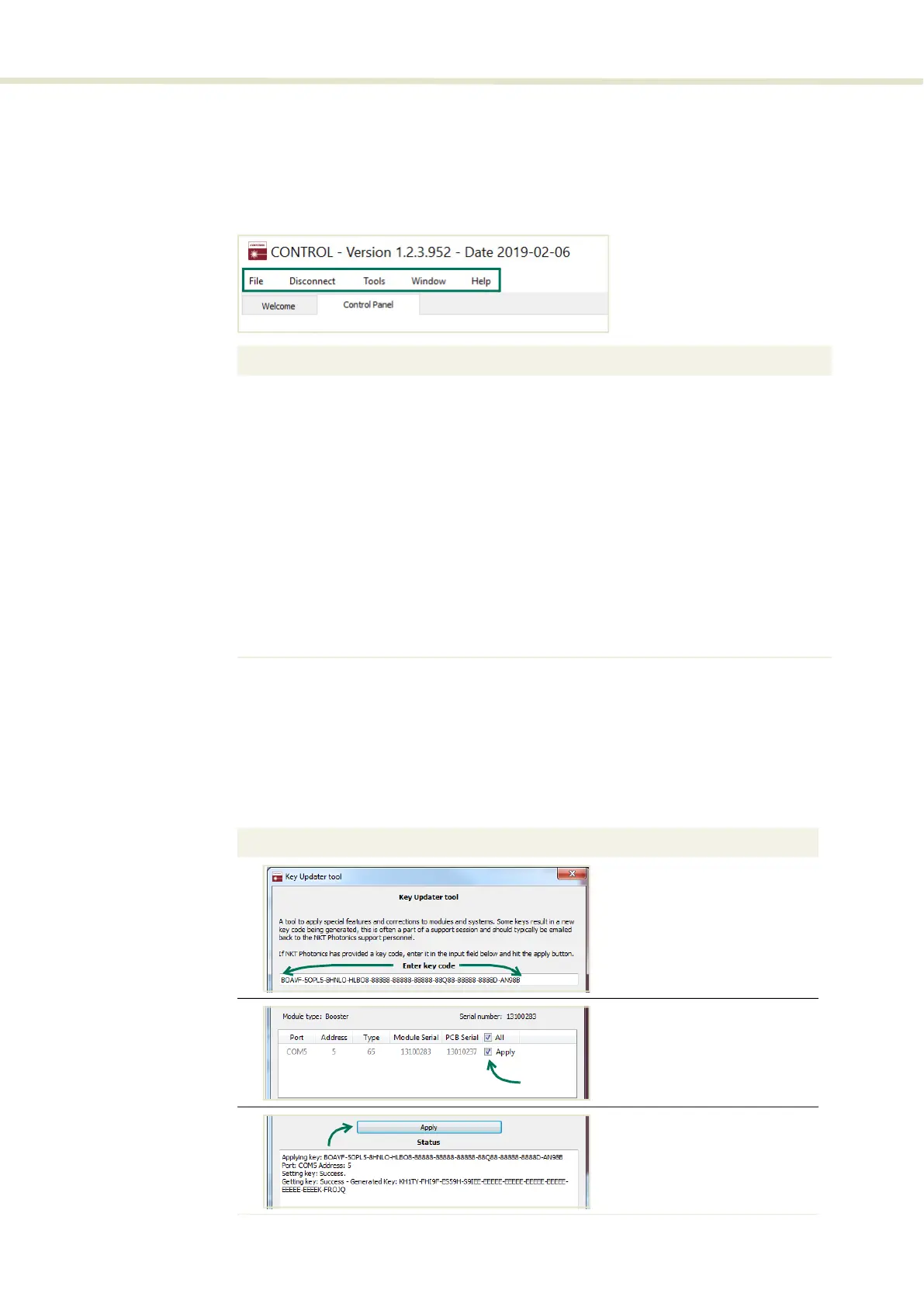
There are five drop down menus in the main control window as highlighted in
Figure 32. Click on the items in the menu to reveal the drop down menus.
Figure 32 Menu items
Key Updater tool The Key Updater tool is used to apply special features and corrections to
modules and systems of the laser.
To use the Key Updater tool follow Procedure 5.
Procedure 5 Using the Key Updater tool
Menu Item Function See
File Exits the CONTROL program N/A
Disconnect Disconnects the currently connected device from
CONTROL.
N/A
Tools Select from one of three special tools to use with
your laser. Tools available are:
• Key Updater Tool
• Log Downloader
• Extensions Overview
Key Updater tool on page 58
Log downloader on page 59
Extensions overview on
page 60
Window Controls (toggles) which panels are displayed. Toggling panels on page 53
Help Displays the current version of CONTROL and
provides access to the included CONTROL user
help.
N/A
Action
1 Enter the key code in the field
“Enter key code”.
2 In the list of modules, check the
box on the right of each applicable
module.
3 Click “Apply”


 To Next Page