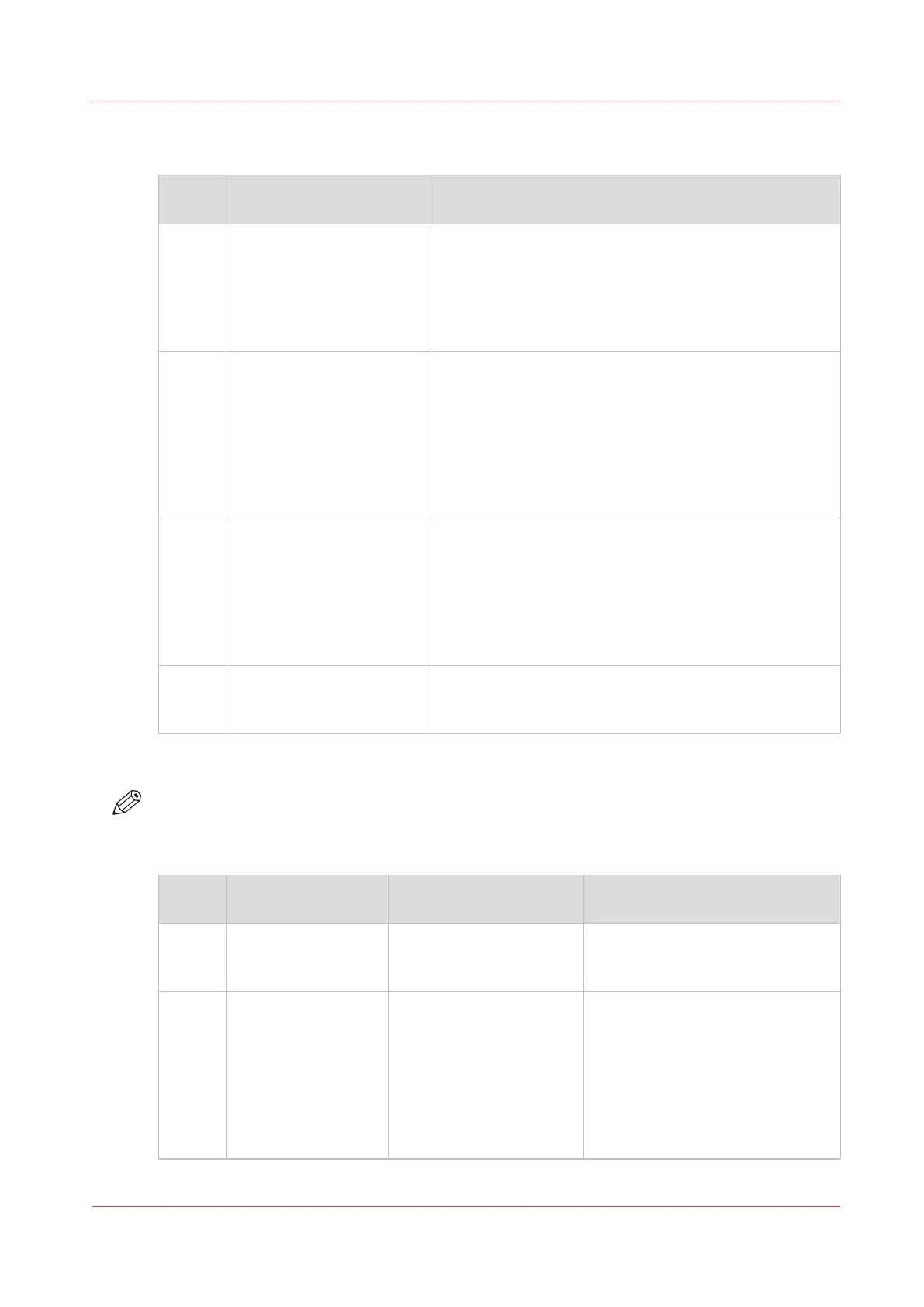
The items of the [Transaction] section
Description of the [Transaction] section
Num‐
ber
Item Function
1 Dashboard The dashboard displays the following information for
transaction printing.
• The connection status
• The IP address of the host that sends the jobs
• The name of the active transaction job
• The progress of the active transaction job
2 [Connection] The [Connection] section gives access to the following
functions.
• Turn the transaction printing mode on or off
• Select the setup for the transaction jobs
You can define setups in the Settings Editor ([Transac-
tion printing] -> [Setups]).
• Put the printer online or offline. The printer must be
online for the host to be able to connect to the printer.
3 [Print protocol] Display the active printer description language (read-on-
ly).
You can change the active PDL in the Settings Editor
([Transaction printing] -> [Settings] -> [Requested active
PDL]).
When the requested active PDL is changed, the new PDL
becomes effective when you put the printer online.
4 [Image shift] Display and change the active image shift settings, for
example when the images on the front and back of a
sheet are not aligned correctly.
Sequence of steps to print transaction jobs
NOTE
Before you begin, the list of [Scheduled jobs] must be empty.
The following table describes the sequence of steps for transaction printing.
Step Actions on the print‐
er
Actions on the host Remarks
1 Switch the printer in-
to the transaction
printing mode.
Via the control panel: [System] ->
[Transaction] -> [Transaction print-
ing mode] -> [On].
2 Select the active set-
up that you need.
• Via the control panel: [System] -
> [Transaction] -> [Active trans-
action setup], or
• Via the Settings Editor: [Trans-
action printing] -> [Setups], or
• By the host via the data stream
(when the printer is online and
connected).
4
Introduction to the [Transaction] section
Chapter 9 - Carry out print jobs
177
Océ VarioPrint 6000 line













 To Next Page