Chapter 2. Installation & Connection
2-10
2
Installation & Connection
2-3. Connection Check
■
Checking Setup Screen Access
This section describes how to make access to a setup screen for a wireless unit via a WWW browser of a
wired computer on LAN.
* Use Microsoft Internet Explorer 6.0 or higher as the WWW browser of your PC.
* In this document Internet Explorer 6.0 is used.
* A screen shown below indicates a factory shipment status or all-initialized status of a wireless unit.
●
IP Address Setup
This section describes how to configure a fixed PC IP address (ex.: 192.168.0.100) on Windows XP.
IP addresses of a wireless unit set are "192.168.0.1" for an access point and "192.168.0.254" for a client
(slave).
<To Configure>
(
1) Start your PC.
(2) In the Logon screen, log on using administrator's user name.
(3) Select <Start>, [Control Panel].
(4) Click [Network and Internet Connections].
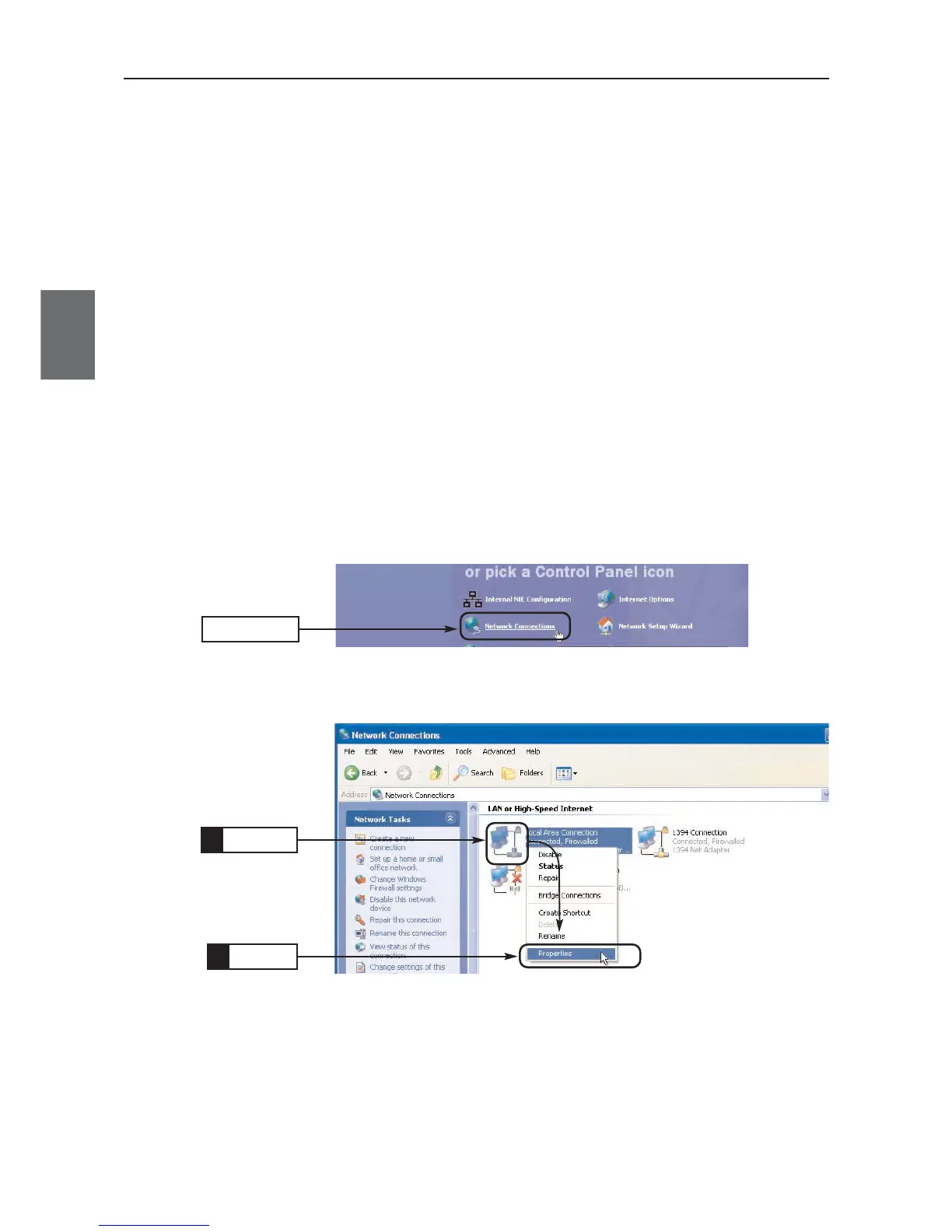
(5) Click [Network Connections].
Click
(6) Right-click on [Local Area Connection] icon with your Ethernet card
name, then select [Properties] from the context menu.
Right-Click
1.
Click
2.



 To Next Page