Chapter 4. Advanced Setup
4-16
4
Advanced Setup
Step 1. Configuring Smart Roaming
Smart roaming is a function for stable communication by preventing a delay of switching to an access point
with better radio status by regularly scanning wireless unit channels when a client (slave) moved. Configure
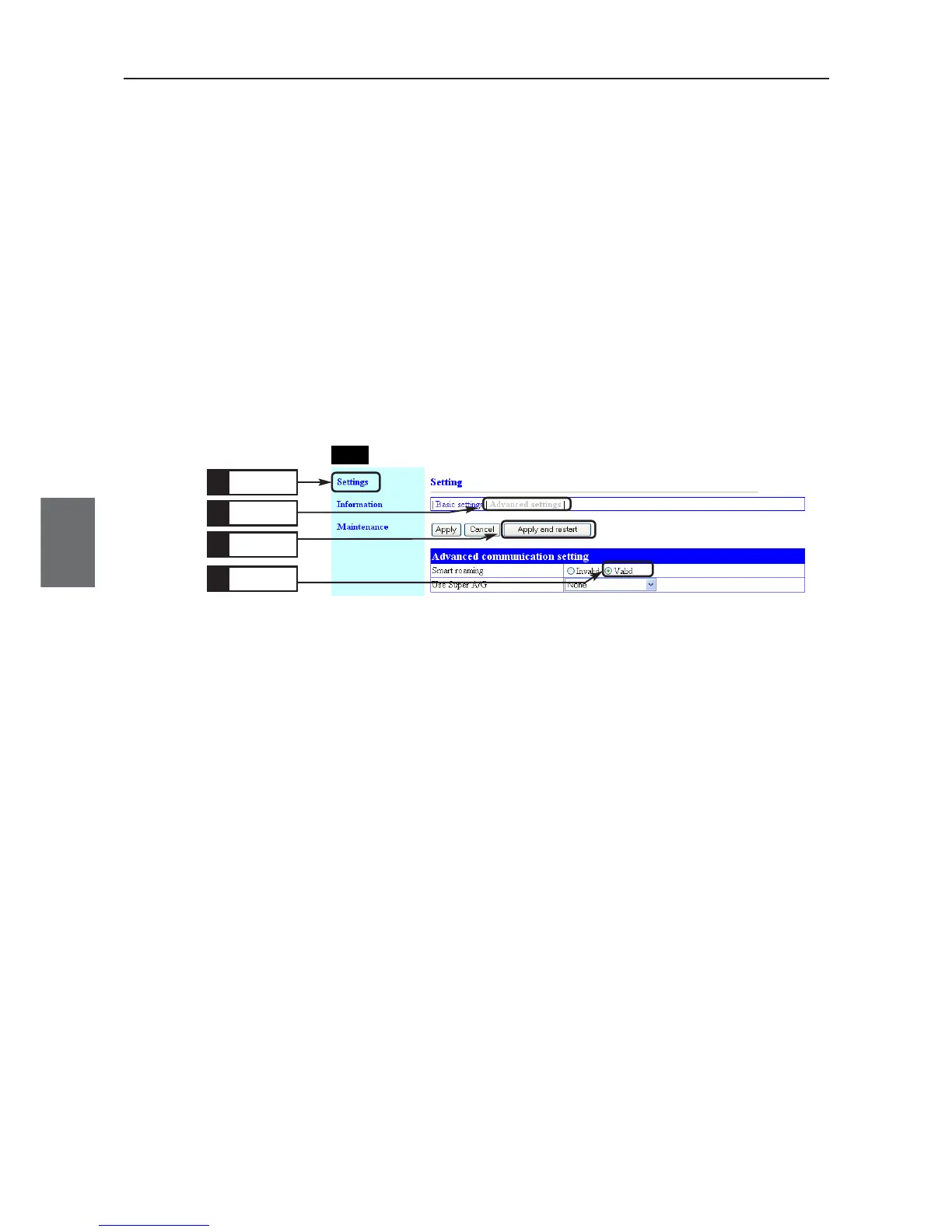
[Smart roaming] of the client CL-1 as [Valid].(Factory shipment status:Invalid)
* All of SSID and Encryption setup must be the same.
<To Configure>
(1) Open a setup screen of the CL-1 (see Chapter 2-3. Connection Check,
Opening Setup Screen (P.2-13)) and click settings menu.
(2) Click "Advanced settings".
• An "Advanced settings" screen is displayed.
(3) Select [Valid] radio button in the [Smart roaming] field.
(4) Click <Apply and restart>.
Click
1.
Step 2. Checking Smart Roaming
Display a BSSID of Settings currently communicating with, to verify which access point is communicating
with the client.
<To Verify>
(1) From "Information" menu, "Wireless Information", "BSSID", verify which
access point is communicating with CL-1. Assume that it is AP-1 in this
example.
(2) Select "Settings" menu, "Basic settings".
(3) Click <Radio Status>.
• An independent screen displays Wireless communications status.
* Information on the independent screen is updated every 0.5 seconds,
while continuous monitoring increases network load. Close the screen
after verification.
(4) While checking received electric field strength, move CL-1 away from AP-
1 and closer to AP-2. As it moves away from AP-1, a received electric
field strength decreases, then the level suddenly should rise momentarily.
In case of 802.11a, move a client so that a received electric field strength
should be 9 or less from AP-1 and 20 or more from AP-2. In case of
802.11b/g, move it so that a received electric field strength should be 14
or less from AP-1 and 25 or more from AP-2.
* These values are for reference only and may depend on your environment.
Click
3.
Click
4.
CL-1
Click
2.



 To Next Page