4-11
Chapter 4. Advanced Setup
4
Advanced Setup
Step 1. Changing Access Point SSID
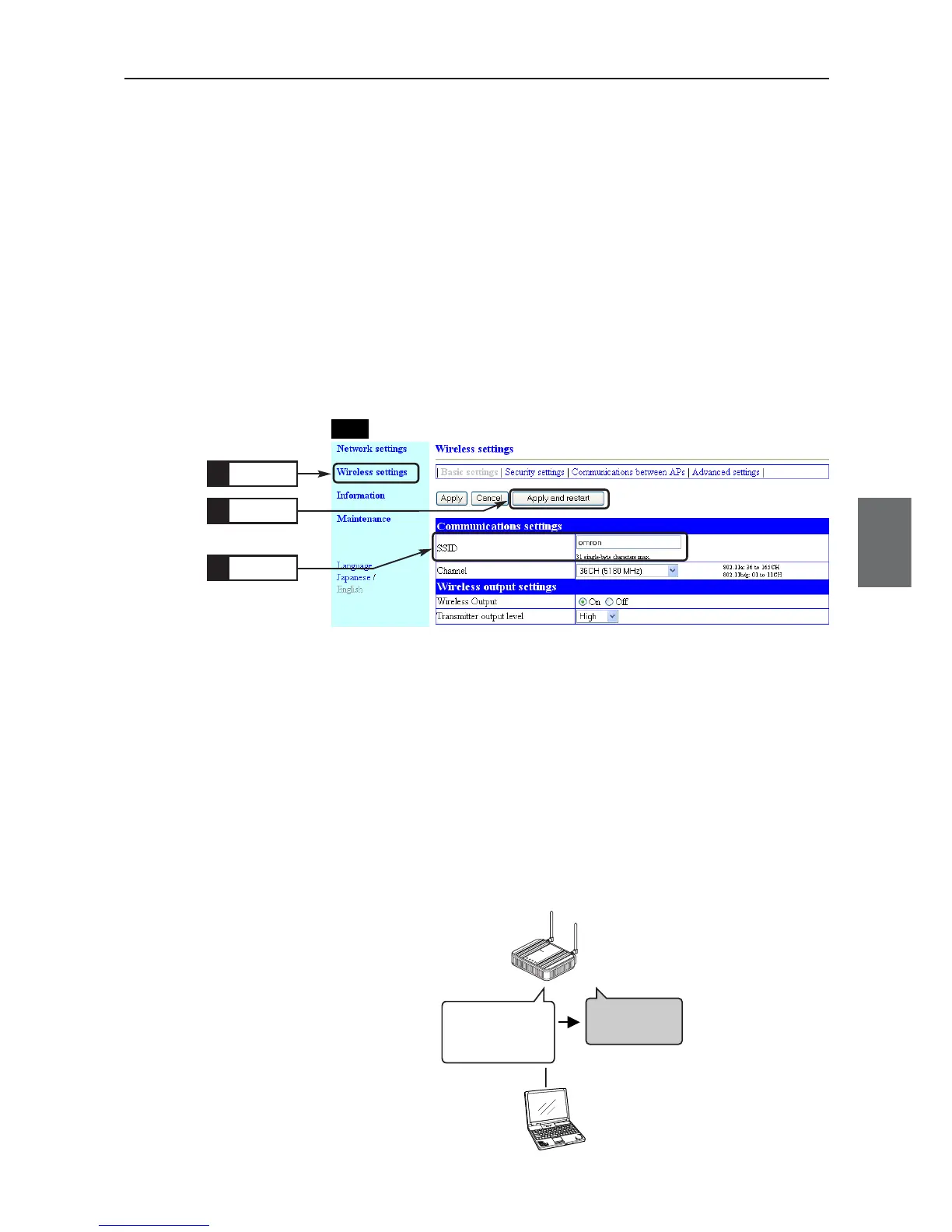
Change AP-1's SSID. In the pattern A, SSIDs of AP-2 and CL-1 are left as their initial values and CL-1
communicates AP-2 only. Matching the SSIDs allows AP-CL communication.
<To Configure>
(1) Open a setup screen of the wireless unit (see Chapter 2-3. Connection
Check, Opening Setup Screen (P.2-13)) and click Wireless settings
menu.
(2) In the "Wireless settings" screen, enter the desired alphanumeric charac-
ters in SSID (within 31 characters) with the attention for capitalization.
Example:omron (Initial value:omronwe70wlan)
(3) Click <Apply and restart>.
* If a wireless LAN terminal is used for setup, switch the connection to the SSID configured
here.
Click
1.
Enter
2.
Click
3.
AP-1
Step 2. Configuring Client IP Address
This section describes how to change IP address setup.
Connect a client and PC using a LAN cable (straight).
<To Configure>
(1) Open a setup screen of the wireless unit (see Chapter 2-3. Connection
Check, Opening Setup Screen (P.2-13)) and click settings menu.
(2) Change the LAN-end IP address to "192.168.0.3".
(3) Click <Apply and restart>.



 To Next Page