3-3
Chapter 3 Basic Setup
3
Basic Setup
3-2. Opening Setup Screen
This section describes steps from opening a setup screen for an access point and a client (slave) to checking
communication.
Step 1. PC (Wired LAN) Setup
Configure an IP address through Chapter 2-3. Connection Check, IP Address Setup (P.2-10).
Step 2. Connecting
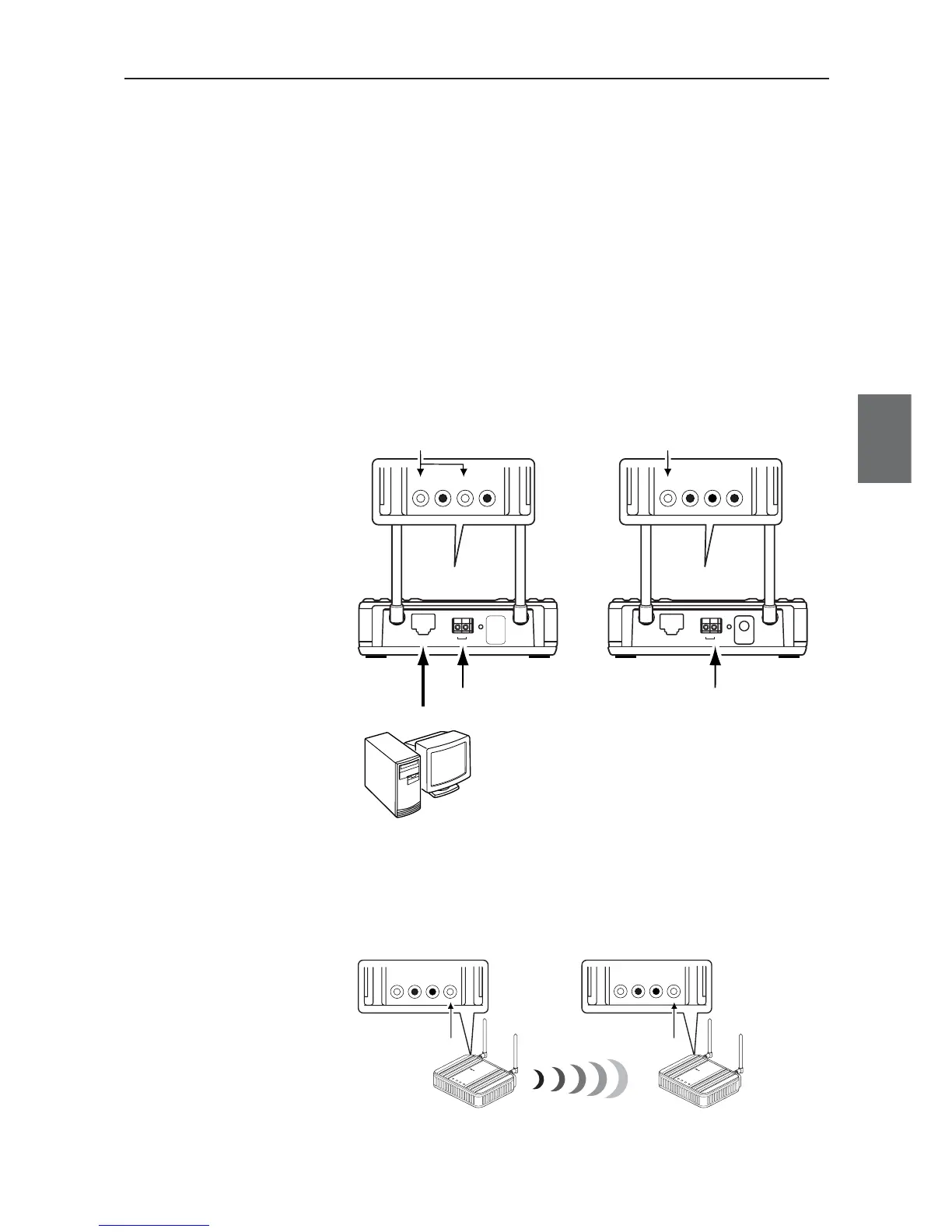
(1) Connect an access point and PC using a LAN cable.
Always use a straight cable.
(2) Connect power cables of an access point and a client (slave).
(3) Turn their power on and check indication of each POWER indicator as
shown below.
Check the LAN indicator of the access point because it is connected to
PC.
(4) Check if each WIRELESS indicator of the access point and the client
(slave) is on in several seconds (about 8 seconds).Communication will be
started as they have the same SSID and channel in their factory
shipment status.



 To Next Page