3-11
Chapter 3 Basic Setup
3
Basic Setup
[DFS Function]
DFS function can be enabled only when an IEEE802.11a (52CH-64CH, 100CH-140CH) standard channel is set in Channel field of
Communication setting. If DFS function is being enabled, detection of interfering radio waves such as a weather radar automatically
changes the channel to a non-interfering IEEE802.11a standard wireless channel.
If a selected channel on startup is DFS, the [WIRELESS] indicator of a wireless unit flashes (for about 1 minute) and wireless access
is inhibited before restart of the wireless unit is completed.
Any response to a client stops and access to the unit is inhibited as well.
* DFS function will not be activated if the channel is changed to non-interfering IEEE802.11a (52CH-64CH, 100CH-140CH) standard one.
Caution
The Radio Law prohibits outdoor use of wireless LAN in IEEE802.11a standard (5GHz band).
Step 4. Checking Communication
Verify that PC connected to a client (slave) can connect to an access point.
<To Verify>
Check if the [WIRELESS] indicator is on.
* If the indicator is not on as shown in the right, communication is not
being established with an access point.
If the [WIRELESS] indicator does not turn on, check wireless LAN
setup of the access point and wireless unit set to be used and
network setup of PC, then restart them.
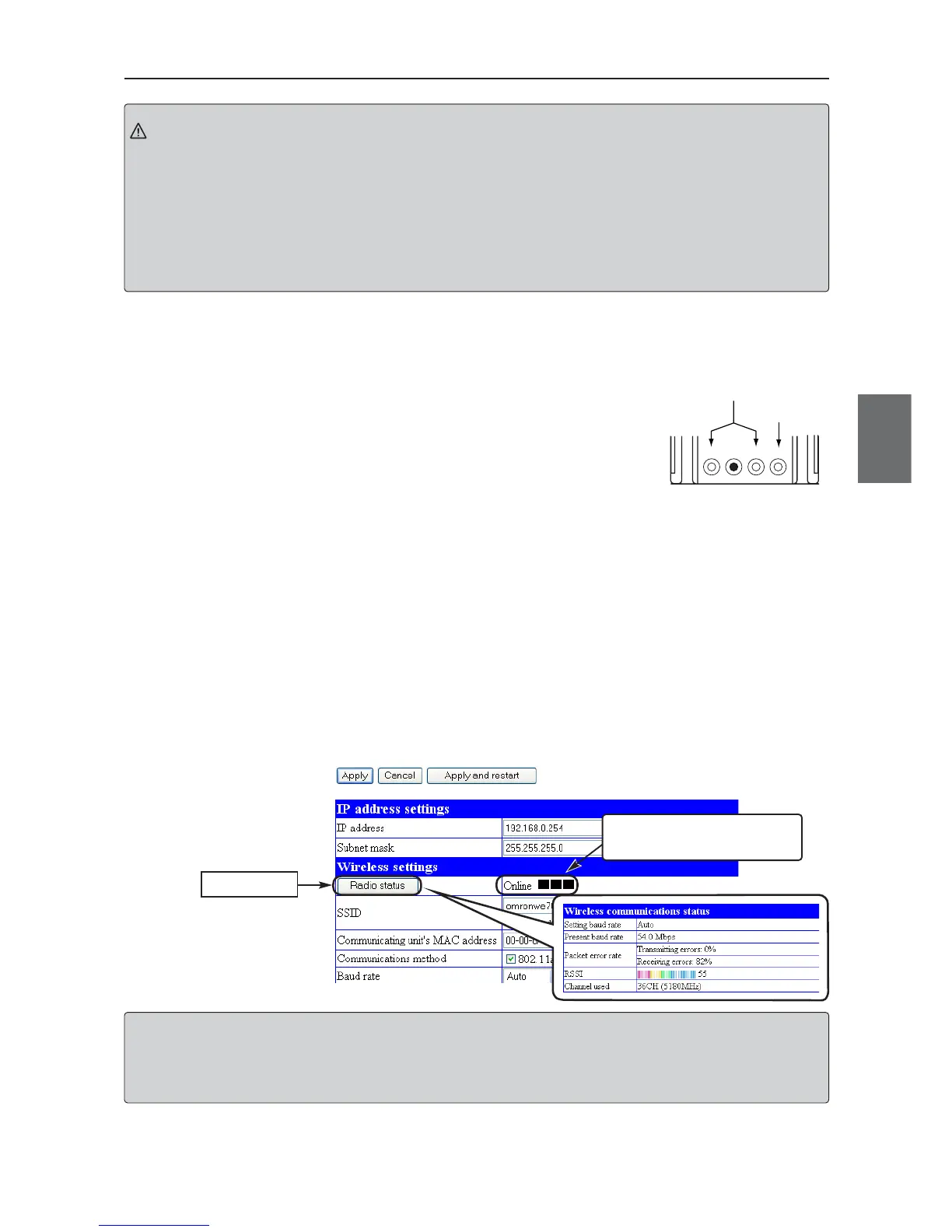
● To monitor radio status
(1) Open a setup screen of the wireless unit (see Chapter 2-3. Connection
Check (P.2-13)).
• The screen displays "Online ■■■".
* "Communication Unavailable" may be displayed until the WWW browser screen is
updated in a case such as after setup change.
(2) To monitor detailed status, click <Radio status>.
• An independent screen displays Wireless communication status
information.
* Information on the independent screen is updated every 0.5 seconds, while continuous
monitoring increases network load.Close the screen after verification.
[For Reference]
• To check access to an access point, specify LAN-end IP address (such as 192.168.0.1) of the access point based on a procedure
Checking Connection, Opening Setup Screen (P.2-13).
• A setup screen of the access point is displayed.
* If access is controlled by a password, a message is displayed that requires password input.
Click
Step 5. Other Setups
For details of setup, see Chapter 5 Setup Menu.
If the client has different SSID
and/or encryption setup from the
access point, "Offline" is displayed.



 To Next Page