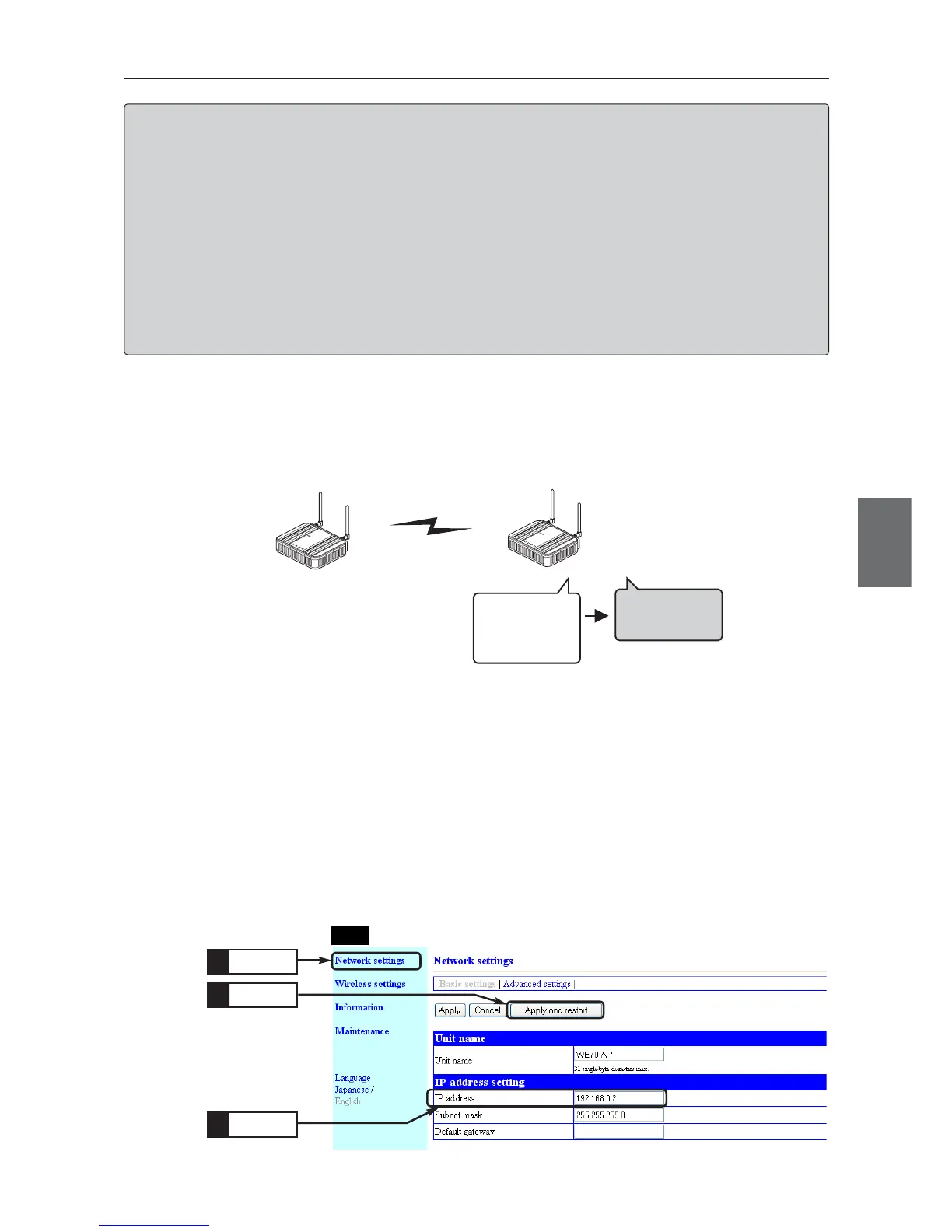
192.168.0.1
AP-to-AP Bridging
"802.11a:36CH"
WE70-AP
After Change
Before Change
192.168.0.1
(Factory
shipment
status)
192.168.0.2
L
AN
M
O
D
E
P
OW
E
R
W
I
RE
L
E
S
S
W
E
7
0
-
A
P
F
A
W
I
R
E
L
E
S
S
L
A
N
A
C
C
E
S
S
P
O
I
N
T
WE70-AP
LAN
M
O
D
E
P
OW
E
R
WIR
E
LES
S
W
E
7
0
-
A
P
FA
W
I
R
E
L
E
S
S
L
A
N
AC
C
E
S
S
P
O
I
N
T
BSSID: "00-00-0A-68-00-09"
SSID: "omronwe70wlan" (Factory shipment status)
BSSID: "00-00-0A-68-20-01"
SSID: "omronwe70wlan" (Factory shipment status)
AP-2
[For Reference] Detection of BSSID
Configuring the same SSID (factory shipment status: omronwe70wlan) and channel with a partner
allows detection of partner BSSID.
This makes registration of partner BSSID easier for new registration and switching.
* Enter the desired alphanumeric characters in SSID (within 31 characters) with the attention for capitalization.
* As this configuration of the same SSID is for detection of BSSID only, it does not affect AP-to-AP
bridging for those with a different SSID value.
* To use encryption, the same encryption key must be configured for the wireless units.
* "TKIP", "AES", and "WOC KEY" encryption methods cannot be used at the same time with AP-to-AP bridging.
* To use AP-to-AP bridging with configuration of [WEP (RC4), OCB AES] and [Super AG] as [Yes
(Compressed)], a key index must be configured as same as those that use AP-to-AP bridging.
Communication is unavailable if different key indexes are configured.
Step 1. Configuring IP Address
Change access point AP-2 IP address.
Leave AP-1 as 192.168.0.1.
<To Configure>
(1) Open a setup screen of AP-2 (see Chapter 2-3. Connection check,
Opening Setup Screen (P.2-13)) and click Network settings menu.
(2) Change the IP address to "192.168.0.2".
(3) Click <Apply and restart>.
Click
1.
Click
3.
Enter
2.
AP-2
4-2. AP-to-AP Bridging Setup
This section describes how to configure and verify basic AP-to-AP bridging setup in steps from 1 to 7 below:



 To Next Page